EasyManua.ls Logo

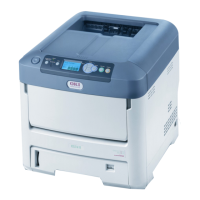
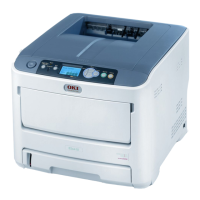
Oki ES7131 - User Manual

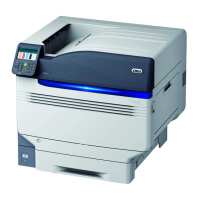
Oki ES7131
157 pages
Print Icon
To Next Page IconTo Next Page
Loading...
- 1 -
Setup
This manual supports the following models.
This manual contains cautions on how to use this product safely.
Before you use this product, please make sure that you read this manual.

Table of Contents

Questions and Answers

  • A
    Amy King MDAug 8, 2025
    What to do if my Oki Printer is experiencing a paper jam?
    • A
      Aimee AndrewsAug 8, 2025
      If your Oki Printer is experiencing a paper jam, several areas could be the cause. It could be around the duplex unit (press the button to display a remedy and remove the jammed paper accordingly), the front cover (open the front cover and remove any jammed paper), under an image drum or around the fuser unit (remove the print cartridge and gently pull out the jammed paper), or while feeding from a paper tray (gently remove the jammed paper by pulling the edge if visible). If paper jams occur frequently, clean the paper feed rollers.
  • V
    victoria31Aug 13, 2025
    Why does my Oki ES7131 Printer say 'Wait a Moment Network Initializing'?
    • M
      Michelle FryAug 13, 2025
      The 'Wait a Moment Network Initializing' message on your Oki Printer indicates that the network is currently initializing. Please wait for the process to complete.
  • J
    Jessica WongAug 20, 2025
    Why does my Oki Printer say 'Initializing'?
    • D
      Dr. Benjamin BryantAug 20, 2025
      Your Oki Printer displays 'Initializing' either because it's determining the system display language right after being turned on, or because the controller is initializing.
  • K
    Kelly SmithAug 26, 2025
    What does 'RAM Check' mean on my Oki Printer?
    • R
      Rhonda JohnsonAug 26, 2025
      The 'RAM Check' message on your Oki Printer screen indicates that the printer is currently checking its RAM. The second line of the display shows the percentage of checked capacity relative to the total capacity.
  • A
    Ashley HuntAug 31, 2025
    What does 'EEPROM Reset' mean on my Oki Printer?
    • E
      Eric FordAug 31, 2025
      The 'EEPROM Reset' message on your Oki Printer indicates that the EEPROM on the controller is being reset. This can occur due to changes in CU ROM (when CU F/W version disagreement is detected), changes of destination channel, compulsive initialization of EEPROM (via the System maintenance menu), or an OEM set of PJL command.

Summary

Printer Setup and Installation

Checking Printer Products and Components

Verifies printer contents, identifies parts, and checks package contents.

Installation Conditions and Space Requirements

Specifies the optimal environment, temperature, humidity, and physical space for printer placement.

Printer Unpacking Procedure

Step-by-step instructions for safely removing the printer from its packaging.

Printer Options and Add-ons

Lists available optional hardware like tray units, RAM, and hard disks for enhanced functionality.

Installing Additional Tray Units

Instructions for adding extra paper tray units to increase printer paper capacity.

Installing Additional RAM

Procedure for upgrading the printer's internal memory for improved performance.

Installing a Hard Disk Drive

Guide for installing an optional hard disk drive for expanded storage and features.

Printer Basic Operations

Printer Power Management

Steps for powering the printer on, off, and configuring power saving modes.

Loading Paper and Supported Media

Instructions for loading paper into trays and details on supported paper types and storage.

Test Printing and Status Checking

How to perform test printing and check the printer's status and settings.

Configuring Power Management Settings

Configuring time intervals for power save, sleep, and auto power off modes.

Printer Connectivity and Printing

Printer Driver Installation Guide

Guides for installing drivers on Windows and Macintosh, including flow, requirements, and driver types.

Connecting the Printer to a Computer

Instructions for connecting via wired LAN, wireless LAN (WPS/Manual), USB, and parallel cables.

Printing from a Computer

How to print documents from applications using various driver settings.

Printing from USB Memory Device

How to print files directly from a USB memory device, including print settings.

Printer Troubleshooting Guide

Handling Error Messages and Paper Jams

Solutions for various error messages and specific paper jam scenarios displayed on screen.

Consumable and Maintenance Unit Messages

Troubleshooting messages for replacing print cartridges, toner, drums, and fuser units.

Paper Replacement and Size Error Resolution

Resolving errors when paper type or size does not match printer settings.

Other Error Messages and Print Failures

Explains various other error codes and addresses issues preventing printing.

Printer Driver Installation Problems

Solutions for problems encountered during printer driver installation on Windows.

Image Quality and Paper Feeding Issues

Diagnosing and fixing print quality problems and paper feeding errors.

General Machine and Connectivity Issues

Resolving general printer malfunctions, operational errors, and connectivity problems.

Printer Maintenance Procedures

Replacing Printer Consumables

Step-by-step guides for replacing print cartridges, toner, image drums, and fuser units.

Cleaning Printer Components

How to clean the printer's surface, LED heads, and paper feed rollers for optimal performance.

Moving and Transporting the Printer

Guidelines for safely moving and transporting the printer, including packing instructions.

Appendix

Printer Menu Structure and Navigation

A detailed map of the printer's menu system and function navigation paths.

Basic Windows Operations for Printer Settings

How to access printer properties and settings within Windows OS for driver configuration.

Printer Technical Specifications

Comprehensive details on printer hardware, performance, supported media, and interfaces.

Printer Physical Dimensions

Visual representation and measurements of the printer's physical size with and without installed options.

Oki Contact and Support Information

Oki ES7131 Specifications

General IconGeneral
Print TechnologyLED
Resolution1200 x 1200 dpi
Memory256 MB
ConnectivityUSB, Ethernet
Processor Speed800 MHz
Duplex PrintingAutomatic

Related product manuals