
 Need help?
Do you have a question about the Olivetti d-COPIA 5500MF and is the answer not in the manual?
Lists the various guides supplied with the machine and their content.
Defines symbols used in the manual to indicate safety warnings, prohibited actions, and required actions.
Explains the basic steps to perform copying operations.
Explains the basic steps to perform printing operations.
Describes how to send scanned documents as email attachments.
Describes how to save scanned documents to a shared PC folder.
Details the process of saving scanned documents to a USB memory device.
Covers the fundamental operations for sending and receiving faxes.
Provides information on using the machine's network fax capabilities.
Details the menu options available for copy functions.
Outlines the menu options available for sending functions.
Shows the menu structure for managing documents stored in the machine's boxes.
Details the functions and layout of the machine's main control panel.
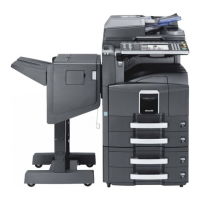
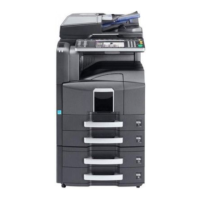
Provides an overview of the machine's main components with labels.
Lists the items included with the machine and the documents contained on the DVD.
Explains how to connect the machine to a PC or network and the necessary cables.
Provides step-by-step instructions for connecting LAN and USB cables.
Details the procedures for turning the machine on and off safely.
Explains the machine's power-saving modes to reduce energy consumption.
Describes the machine's sleep modes for further power saving.
Shows how to tilt the operation panel for better viewing.
Guides the user on how to change the language displayed on the touch panel.
Explains how to set the machine's date, time, and time zone.
Provides instructions for configuring network settings using a LAN cable.
Guides the user on how to install necessary software from the product DVD onto a PC.
Explains how to use the Embedded Web Server RX for configuring email settings.
Details how to load paper into the machine's various paper sources.
Provides instructions on how to place originals for scanning on the platen or in the document processor.
Explains how to log in to the machine and the auto-logout conditions.
Describes the function of the Enter and Quick No. Search keys on the operation panel.
Explains how the touch panel displays information and the states of selectable keys.
Details how to preview scanned originals before copying.
Provides a step-by-step guide for performing basic copying operations.
Outlines the basic procedure for scanning and sending documents.
Explains how to confirm destinations before sending jobs.
Guides on checking PC settings and creating shared folders for document reception.
Explains how to utilize the machine's document box feature for storing and retrieving documents.
Details how to cancel print or send jobs in progress or waiting.
Describes the Quick Setup screen for registering frequently used functions.
Explains how to register and recall programs for frequently used function combinations.
Guides on creating shortcuts for quick access to functions.
Explains how to launch and use the machine's built-in internet browser.
Describes how to schedule automatic machine on/off times.
Explains how to view printed and scanned page counts.
Guides on accessing the touch panel's help function for operational assistance.
Details how to specify the size of originals for scanning and copying.
Guides on selecting the appropriate paper source for copying.
Explains how to copy originals of different sizes using the document processor.
Describes how to set the orientation of the original for proper scanning.
Explains how to fold printed output to create booklets.
Details how to select the output destination for copies.
Explains how to combine multiple originals onto a single page (2-in-1 or 4-in-1).
Describes how to adjust margins or center the image on the copy.
Explains how to remove black borders from scanned images.
Guides on creating booklets from originals by folding and stapling.
Details how to add cover pages to copies using different paper.
Explains how to overlay a form or image onto the original during copying.
Guides on adding page numbers to copies.
Explains how to create copies with space for notes.
Details how to tile an image multiple times on a single sheet.
Explains how to print text stamps on copies.
Guides on printing Bates stamps on copies.
Describes how to use EcoPrint to save toner during printing.
Explains how to adjust the sharpness of the image outlines.
Guides on adjusting background density to remove dark backgrounds.
Explains how to hide background colors and image bleed-through.
Details how to scan a large number of originals in batches.
Describes how the machine automatically rotates images to match paper orientation.
Explains how to invert black and white portions of an image.
Guides on copying the mirrored image of an original.
Explains how to send an email notification upon job completion.
Guides on naming copy jobs with additional information.
Details how to suspend a current job to prioritize another.
Explains how to make additional copies after a job is completed.
Sets the operation when a document is scanned from the document processor.
Details how to select the original size for scanning.
Guides on selecting the image size for transmission.
Explains how to enlarge or reduce the original for transmission.
Describes how to center the scanned image on the page.
Explains how to send originals of different sizes in a batch.
Guides on selecting the type and binding direction for scanned originals.
Details how to specify the original's upper orientation for readability.
Explains how to select the file format for sending scanned images.
Guides on creating separate files for each scanned page.
Explains how to restrict access to PDF files using passwords.
Details how to select the image quality suitable for the original type.
Guides on adjusting the density when scanning originals.
Explains how to select the scanning resolution for image fineness.
Describes how to adjust the sharpness of the image outline.
Guides on adjusting background density to remove dark backgrounds.
Explains how to select the color mode for scanning.
Details how to scan multi-page originals in batches.
Guides on hiding background colors and image bleed-through.
Explains how to remove black borders from scanned originals.
Guides on naming scanned documents.
Explains how to enter the subject and body for email messages.
Details how to save scanned images to a WSD-compatible computer.
Explains how to scan documents using a TWAIN compatible application.
Explains how to send email notifications upon job completion.
Guides on printing a copy of the document while sending it.
Explains how to store a copy of the document in a Custom Box.
Details how to encrypt documents when sending them via FTP.
Guides on displaying a text stamp on scanned originals.
Explains how to display a Bates stamp on scanned originals.
Describes how to set the color type for sending color documents.
Provides information on using color profiles for adjusting color.
Explains how to scan originals using FMU Connection.
Guides on creating, managing, and using custom boxes for document storage.
Details the functions of job boxes for temporary or permanent print data.
Explains how to print files directly from a USB memory device.
Guides on storing scanned image files onto a USB memory device.
Explains the safe procedure for removing USB memory from the machine.
Explains how to view the status of jobs being processed or waiting.
Guides on checking the history of completed jobs.
Details how to pause and resume printing jobs.
Explains how to cancel print or send jobs.
Describes how to give priority to waiting jobs.
Guides on changing the order of queued print jobs.
Explains how to check toner levels, paper status, and waste toner box status.
Guides on configuring and checking the status of connected devices and communication lines.
Covers general settings like language, sound, and paper handling.
Details default settings for copying functions.
Outlines default settings for sending functions.
Explains default settings related to document boxes and removable memory.
Covers default settings related to printer emulation and functions.
Details settings for printing machine status and configuration reports.
Explains settings for adjusting print quality and performing machine maintenance.
Covers settings for date, time, time zone, and sleep timers.
Guides on managing address book entries and one-touch keys.
Details settings for the machine's internet browser.
Explains how to install, activate, and manage applications.
Guides on resetting the machine to factory default settings.
Explains how to restart the machine's system.
Covers various network configuration settings.
Details how to block or unblock interfaces like USB and optional slots.
Mentions security level settings primarily for service personnel.
Explains how to prevent unauthorized copying/transmission of confidential documents.
Covers settings related to data sanitization and security.
Lists and explains the use of optional applications.
Describes how to enlarge touch panel characters and keys.
Specifies how user access is administered, including authentication methods.
Explains how to manage copy/print counts by assigning IDs to accounts.
Covers routine tasks such as toner container replacement and waste toner box replacement.
Details procedures for cleaning various parts of the machine for optimum output quality.
Provides a table of common symptoms, checkpoints, and corrective actions for troubleshooting.
Lists error messages and their corresponding corrective actions.
Provides detailed instructions for clearing paper jams from various locations in the machine.
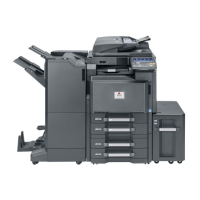
Provides an overview of the optional accessories available for the machine.
Explains how to enter characters using the touch panel's on-screen keyboard.
Details paper sizes, types, and specifications supported by the machine.
Lists the technical specifications of the machine and its components.
Defines technical terms and concepts used in the manual.


 To Next Page

 General