66
EN
6 Use 9: to select an image.
7 Press the < button to set the
displayed image for single
reservation.
Press 8 to make detailed printer
settings for the displayed image.
To make the detailed printer settings
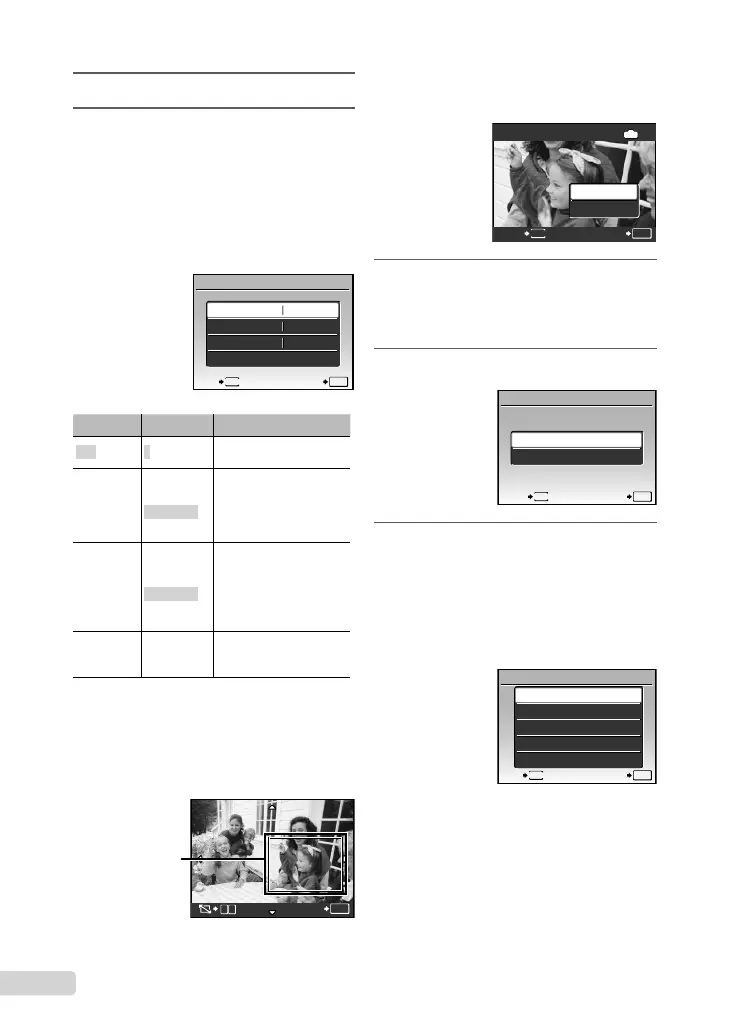
1 Use 789:, and press the o button.
PRINT INFO
1
WITHOUT
WITHOUT
<x
DATE
FILE NAME
P
SET
OK
EXIT
MENU
Submenu 5
Submenu 6 Application
<×
0 to 10
This selects the number
of prints.
DATE
WITH/
WITHOUT
Selecting [WITH] prints
the images with the date.
Selecting [WITHOUT]
prints the images without
the date.
FILE NAME
WITH/
WITHOUT
Selecting [WITH] prints
the fi le name on the
image.
Selecting [WITHOUT]
does not print any fi le
name on the image.
P
(Proceeds to
the setting
screen.)
This selects a portion of
the image for printing.
To crop an image (P)
1 Use the zoom lever to select the size
of the cropping frame, use 789:
to move the frame, and then press the
o button.
Cropping
frame
OK
SET
W T
2 Use 78 to select [OK], and press the
o button.
P
OK
IN
OK
CANCEL
SET
BACK
MENU
8 If necessary, repeat steps 6 and 7
to select the image to be printed,
make the detailed settings and set
[SINGLEPRINT].
9 Press the o button.
PRINT
SET
OK
MENU
BACK
PRINT
CANCEL
10
Use 78 to select [PRINT], and
press the o button.
Printing starts.
When printing all images, select [OPTION SET],
and the [PRINT INFO] screen is displayed.
When printing is fi nished the [PRINT MODE
SELECT] screen is displayed.
ALL PRINT
PRINT MODE SELECT
SET
OK
ALL INDEX
PRINT ORDER
MULTI PRINT
PRINT
EXIT
MENU
●
●
●
book_d4374_en.indb 66book_d4374_en.indb 66 18/07/2008 13:39:2618/07/2008 13:39:26






 To Next Page