20
onesc
re
e
nso
lu
t
i
ons.
c
om
|
+1
858.552.0290
|
Un
i
t
ed
St
ate
s|
Pa
k
i
st
an
|
Colom
bi
a
|
Mexico
|
UAE
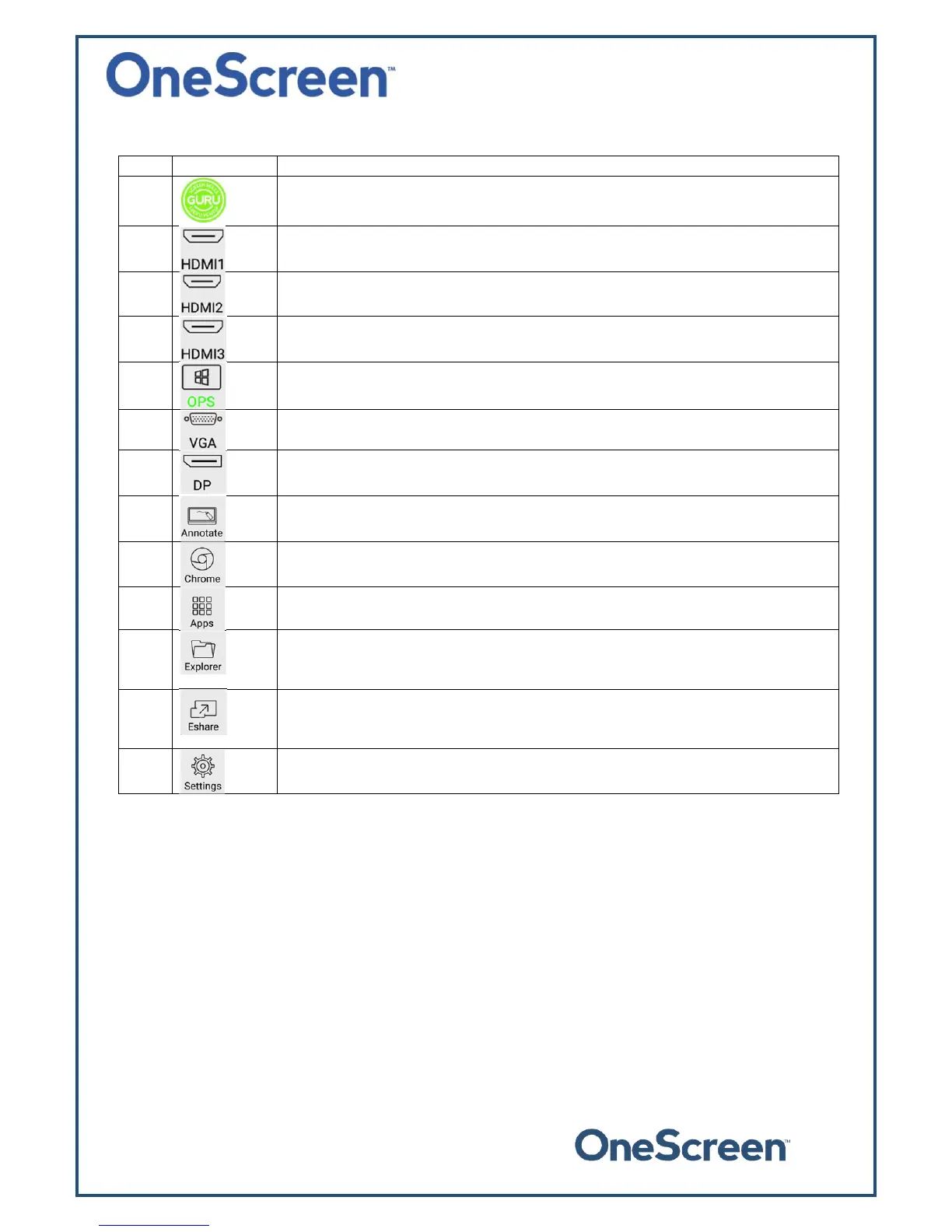
7.1.1. IconsontheHomeScreen
Sr. Icon Function
1.Pressing the GURU icon will connect you to the Support Team via Audio/Video.
Pleaseensurethatyouhaveamicrophone/Camera connectedtotheOneScreen.
2.
PressingthisiconwillmaketheHDMI1astheactiveinputsource.Onceselected,
tapontheminiscreentoswitchtotherespectivesource.
3.
PressingthisiconwillmaketheHDMI2astheactiveinputsource.Onceselected,
tapontheminiscreentoswitchtotherespectivesource.
4.
PressingthisiconwillmaketheHDMI3astheactiveinputsource.Onceselected,
tapontheminiscreentoswitchtotherespectivesource.
5.
Pressing this icon will make the On ‐Board PC Source (OPS) as the active input
source.Onceselected,tapontheminiscreentoswitchtotherespectivesource.
6.
PressingthisiconwillmaketheVGAastheactiveinputsource.Onceselected,tap
ontheminiscreentoswitchtotherespectivesource.
7.
Pressingthisiconwillmak e theDisplay Port(DP)asthe activeinputsource.Once
selected,tapontheminiscreentoswitchtotherespectivesource.
8.
Pressingonthisiconwilllaunchthewhiteboardapplication.Thisapplicationallows
theusertoperformbasicAnnotation.Theapplicationisshownonpageno.23
9.
PressingonthisiconwilltakeyoutotheChromeBrowser.TheChromeBrowseris
shownonpageno.23
10.
Pressing on this icon will take you to the Android Applications. The Applications
windowisshownonpageno.24
11.
Pressing on this icon will take you to the file Explorer. Here you can access the
internal storage and external storage devices. The Explorer window is shown on
pageno.24
12.
PressingonthisiconwilllaunchtheEshareApplica tion.Thisapplicationisuse dfor
the wir eless screen sharing. The Eshare application details are discussed on page
no.25
13.
Pressing on this icon will take you to the settings menu. The settings menu is
shownonpageno.25


 To Next Page