Instructions
(Cont,)
Transfer files to PC and
Using PC mode
1
Connect
your
computer
to the
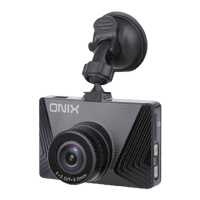
Car
Rfforder with a
USB
cable.
2
On
the camera scrtrn,
you
will see two items:
'Mlass
Storage' and
'PC
Camera'. Select
'Ma$
Storage' for
file
transfer and
press
the
OK button.
3 Open the folder'DCIM/10oMED|A
and download the file
to
your
computer
4 While connected to the computer,
select'PC Camera' and
press
OK;
the camera can now
be used as a PC
camera
for video chat
(supports
Windows and Mac OS system).
NOTESi
.
This video recorder has
a cyclic reording function
(see
Loop Time
settings
on
page
12).
When the
storage
is full,
the
video recorder will
store the recorded content lrom
the very beginning of the storage
medium and cover the old file.
.
To
prevent
old llles
being deleted immediately, the
saved
files are
separated into strtions
by
1/2/5
minutes. When the lvlicro SD card is full,
the
old
files
will be oveNritten
by strtion
(videos
that
are
locked will not
be
replaced).
.
When the
lithium
battery is low,
the Car Recorder's screen
will
display
'Low
Battery', then
turn otf.
.
lf any abnormalities occur in the
system,
please press
the RESET
bulton
on
the bottom ot the
camera to restart the camera.
AMN$$SUProNI
14
,!
@
issils
Specifications
Technical Specif
ications
AITEN5ALt5'UPMBI
a 6E
imffire
E
ww.hF.o,0
Moderr lcBB.mlsPmducrM,6&mtu13
Video Resolution
1920 x 1 080
(interpolaled)
/ 1280
x
720
ldefault)
/
640
x
480
pixels
Saved
File Format
Power Supply
Built-in
Iithium battery/car chargel
Built-in Battery
'11omAh
Suooort Micro
SD card
32 GB
(lvax.)
Output
USB
Display
Lrnit Dimensions
45mm
(H)
x 35mm
(D)
x 65mm
(L)
Weight
36.59
(unit
only)
60q
(unit
including suction bracket)
15


 To Next Page