11
USB DAC Input
Firmware Update
Bluetooth Input
USB DAP Input
Note: XM10 is not able to charge when the XP10 is set to USB DAP input mode. Please
witch to a different input mode to charge XM10.
" "
1. Switch the Source Input on XP10 to BT ." "
2. Turn on Bluetooth on phone or tablet and search for available devices.
3. Pick ONIX XP10 from the list." "
4. Devices will be connected and the XP10 will now serve as Bluetooth music receiver.
1. In XP10 s setting make sure USB mode is set to UAC 2.0.'
2. Connect XP10 to a computer using USB cable and USB DAC port on the XP10." "
3. Switch the Source Input on XP10 to USB DAC ." "
4. If you are using Windows, Go to Onix website and download matching drivers for XP10. No drivers
needed for Mac.
5. Set XP10 as your output device in system or app settings.
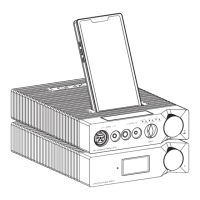
1. Switch the Source Input on XP10 to USB DAP ." "
2. Insert the XM10 into the top slot on the XP10.
3. Now use XM10 as a music source for the XP10.
Go to Onix website to download the firmware update and follow the provided instructions for the
firmware update. USB Flash Drive will be needed for the firmware update.
Note: Firmware update cannot be done when XP10 is set to USB DAP input mode.
Please switch to a different input mode to update XP10.
" "
XP10 DAC Headphone Amplifier


 To Next Page