Need help?
Do you have a question about the Onn 32" 2.0 Soundbar and is the answer not in the manual?
Identifies components and status indicators on the front panel.
Details the ports and connectors located on the rear of the unit.
Explains the physical buttons for power, source, and volume adjustments.
Details steps to resolve issues when the soundbar does not turn on.
Provides solutions for when the remote control fails to operate the soundbar.
Offers guidance if audio is not received via the optical connection.
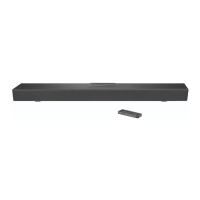
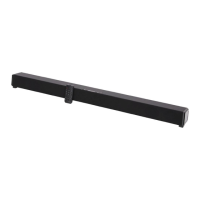
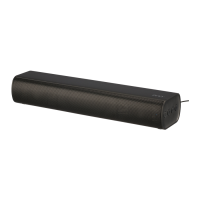
This document is a Quick Start Guide for the Onn. 32" 2.0 Soundbar, designed to help users set up and understand their new audio device. The soundbar is Roku TV Ready, indicating a streamlined setup process and integration with Roku TV systems, offering simple setup, one remote control, and quick settings. It also features HDMI connectivity, specifically High-Definition Multimedia Interface.
The package includes the 32" 2.0 Soundbar itself, a remote control, AAA batteries for the remote, a power cable, an HDMI cable, a wall mounting kit, a wall mounting template, and this Quick Start Guide.
The soundbar's front features a status indicator light that changes color to denote different modes:
On the back of the soundbar, there are several ports and features:
The side of the soundbar houses the control buttons:
Setting up the soundbar involves several steps, starting with adjusting TV settings. For Roku TV users: The setup is designed to be simple. Users should use the remote that came with their Roku TV and follow the subsequent steps (connecting to power and connecting to TV). The soundbar setup is automatic, even linking the Roku account. For all other TVs: Users may need to enable their TV's HDMI-CEC and ARC settings to ensure proper functionality with the soundbar.
The next step is to connect the soundbar to power. The included power cable should be used to connect the 32" 2.0 Soundbar to a wall outlet. A tip for optimal sound experience is to place the soundbar at the front edge of the TV stand.
Connecting the soundbar to the TV is crucial. The primary method is to connect the 32" 2.0 Soundbar to the HDMI® port on the TV labeled "ARC" using the included HDMI cable. If the TV does not have an HDMI-ARC port, the user can use the included optical cable along with the HDMI cable to connect.
After physical connections, the user needs to select the correct input on their TV. Using the TV's remote, the user should select the HDMI® input (source) that was used to connect the 32" 2.0 Soundbar.
The remote control for the soundbar requires batteries. The guide illustrates how to insert the AAA batteries into the remote control. It's important not to mix old and new batteries, or different types of batteries (alkaline, carbon-zinc, rechargeable).
Once connected and powered, the user should follow the on-screen setup instructions on their TV. For Roku TV Ready devices, the screen will prompt the user to set up the Onn. 32" 2.0 Soundbar and instruct them to use their existing Roku TV remote for setup. It also provides information on accessing the Privacy Policy & Terms of Use.
The soundbar offers other connection options if the TV does not have an HDMI ARC jack. These include Optical, Bluetooth, Aux, or USB. For Bluetooth connection:
The guide also provides a "Hints and Tips" section for troubleshooting common problems:
For any persistent issues, the general maintenance tip is to unplug the unit, wait 30 seconds, and then plug it back in.
 General
| Brand | Onn |
|---|---|
| Model | 32" 2.0 Soundbar |
| Type | Soundbar |
| Channels | 2.0 |
| Power Output | 80W |
| Audio Output Mode | Stereo |
| Number of Speakers | 2 |
| Color | Black |
| Connectivity | Bluetooth, AUX, Optical |

 To Next Page