Need help?
Do you have a question about the Onyx BOOX Note2 and is the answer not in the manual?
The device is equipped with E-ink screen, which is very fragile. Please have no shocking, squeezing, pressing against the screen, or dropping the device from a higher place.
Only the battery, adapter, and other accessories meeting our standard safety rules can be used for the device.
The device is not waterproof. Don’t expose the device to a humid environment or use it in the rain. Please keep it away from any corrosive liquids. Please don’t dismantle the device in case of any damage.
The using environment of the device is 0°C-50°C.
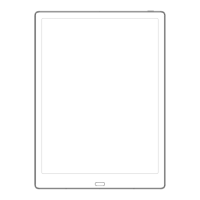
Illustrates the front panel of the BOOX Note2 device, showing the power button.
Details the back and bottom of the device, highlighting speaker, microphone, and Type-C port.
Explains the functions of the power/sleep button, back button, microphone, and Type-C port.
Displays current device state including Time, Wi-Fi, Battery Usage, and notification options.
Covers navigation buttons, function management, front-light, and volume adjustments in the notification panel.
Details multitasking switching, Wi-Fi, Bluetooth, and screen rotation settings.
Explains the four levels of refresh modes: Normal, Speed, A2, and X modes for display optimization.
Describes Hand Touch, Edit function, Function Area, Content Area, Library, and Shop modules.
Details Note, Storage, Apps, and Settings modules within the main interface.
Explains how to switch between different library display modes for documents.
Covers filtering and sorting books by various criteria and refreshing the library list.
Guides on creating sub-libraries and configuring library scanning paths and display settings.
Details how to view, delete, or rename sub-libraries.
Explains viewing e-book details, renaming, moving, and deleting options for individual books.
Describes the main reader screen elements, stylus control, dictionary access, and search.
Explains how to use the dictionary dialog for word recognition and look-ups.
Details how to mark text with highlight or underline and add notes.
Describes the bottom menu bar for PDF format, including Table of Content access.
Explains how to bookmark pages, manage annotations, and use scribble features.
Covers displaying progress, chapter names, and using the quick-flip interface for page jumping.
Details format settings like Layout, Orientation, Zoom, Crop, and Margin for specific document types.
Details watermark, sharpen, image contrast, text contrast, and embolden settings.
Covers reflow options like line spacing, margin, text direction, and font size for reflowable documents.
Explains Comic Mode, Article Mode, and advanced page layout settings like cropping and splitting.
Explains split screen functionality for multiple documents or doc & note.
Covers enabling/disabling scribble, writing/erasing tools, and saving/exporting.
Details format settings like font face, display, and spacing for EPUB, TXT, MOBI, AZW3 files.
Explains how to capture the screen, save it, or share it.
Covers global reader settings, touch customization, TTS, and export file settings.
Explains how books can be screened and browsed according to different categories within the shop.
Details how to view specific book information and download the full edition.
Describes the Note list, including general and associated notes, and creating new files/folders.
Covers backup/recover functionality, sorting notes by update time, creation time, or name.
Explains device file protection using fingerprint or specific passwords for note files.
Details the scribble interface tools like fullscreen, thumbnail, write, erase, text input, and AI recognition.
Allows typing via keyboard, adjusting font settings, and handwriting to text recognition.
Describes note templates, inserting images, editing them, and sharing notes.
Displays all files from internal storage, with options to switch view to thumbnail or list and sort by type, size, or time.
Explains OTG support for USB drives and Type-C earphones, noting power consumption.
Covers app installation, management, optimization features, and the navigation ball for app control.
Shows device info, allows language, keyboard, and input method settings.
Details lock screen, fingerprint password setup, reset procedures, and ONYX account binding/sync.
Allows enabling unknown sources, USB debugging, and activating Google Play Store.
Details firmware update methods (local/OTA) and submitting user feedback.
Guides on installing dictionaries and adding fonts to the device.
Explains updating firmware locally by copying files or online via OTA.
Lists processor, RAM, OS, storage, screen size, resolution, battery, and other key device specifications.
Details supported book/image/audio formats, app installation, browser, language, DRM, firmware update, and certifications.

 To Next Page
 General