2
2
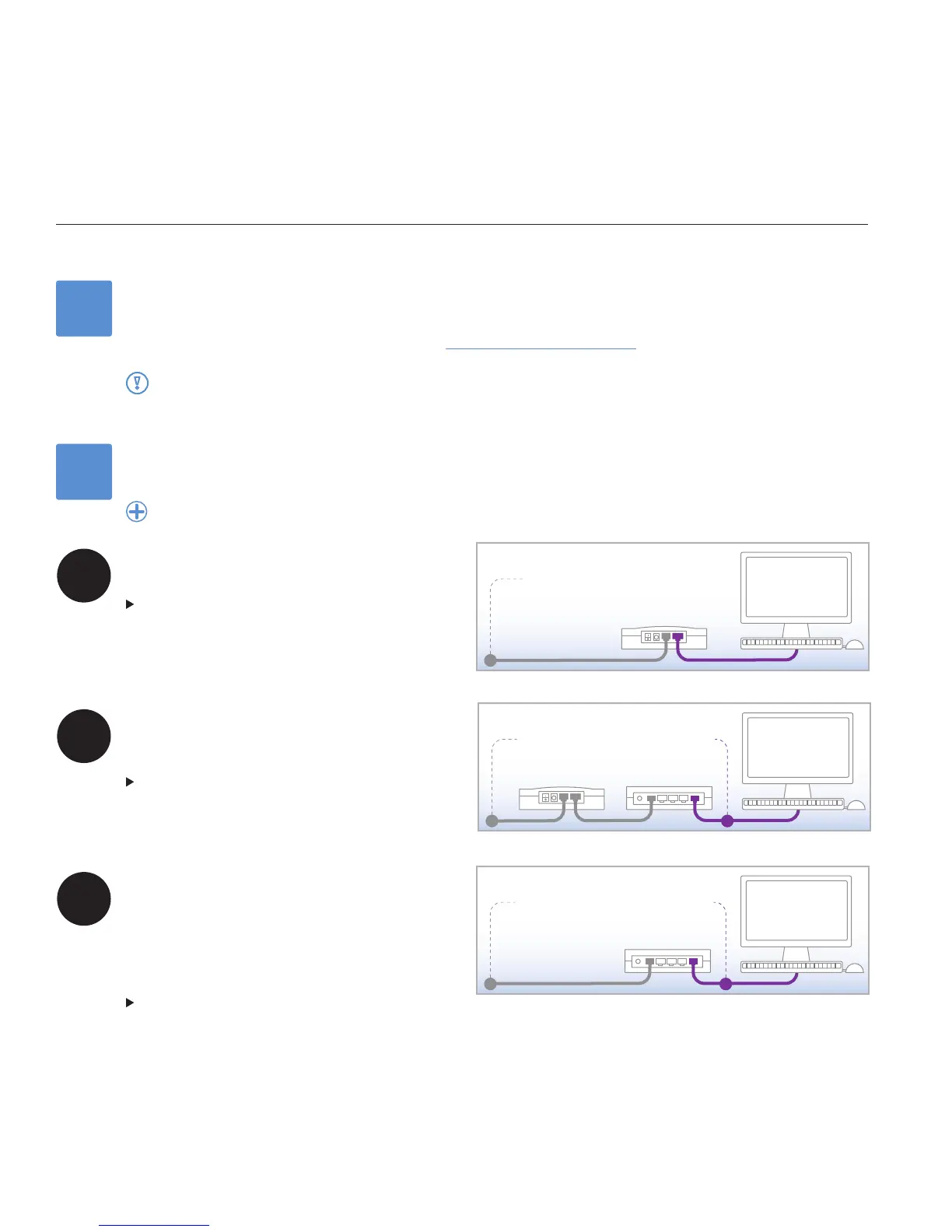
Choose the example below that best matches your home network set-up and
continue to the appropriate page:
If you need help in identifying your home network equipment, see APPENDIX A of the User Guide.
A
B
C
Modem connected directly to your computer (desktop
or laptop).
SKIP TO PAGE 3
Modem connected to a router. The router may be
connected to one or more computers, and may be
wired or wireless (as in Wi-Fi).
SKIP TO PAGE 4
Integrated router (with built-in modem). The router may
be connected to one or more computers, and may be
wired or wireless (as in Wi-Fi).
OR
You have an advanced network conguration and wish
to install the ooma Hub behind a router.
SKIP TO PAGE 5
1
Activate the ooma Hub online
Before proceeding with the ooma Hub installation, you must activate the Hub online. To complete the online activation, open a
web browser on your home computer and navigate to: http://www.ooma.com/activate
installing the ooma hub
After the online activation is complete, be sure to TURN OFF any personal computers, modems, switches and routers
that are connected to your home network before proceeding to the next installation step.


 To Next Page