5
4
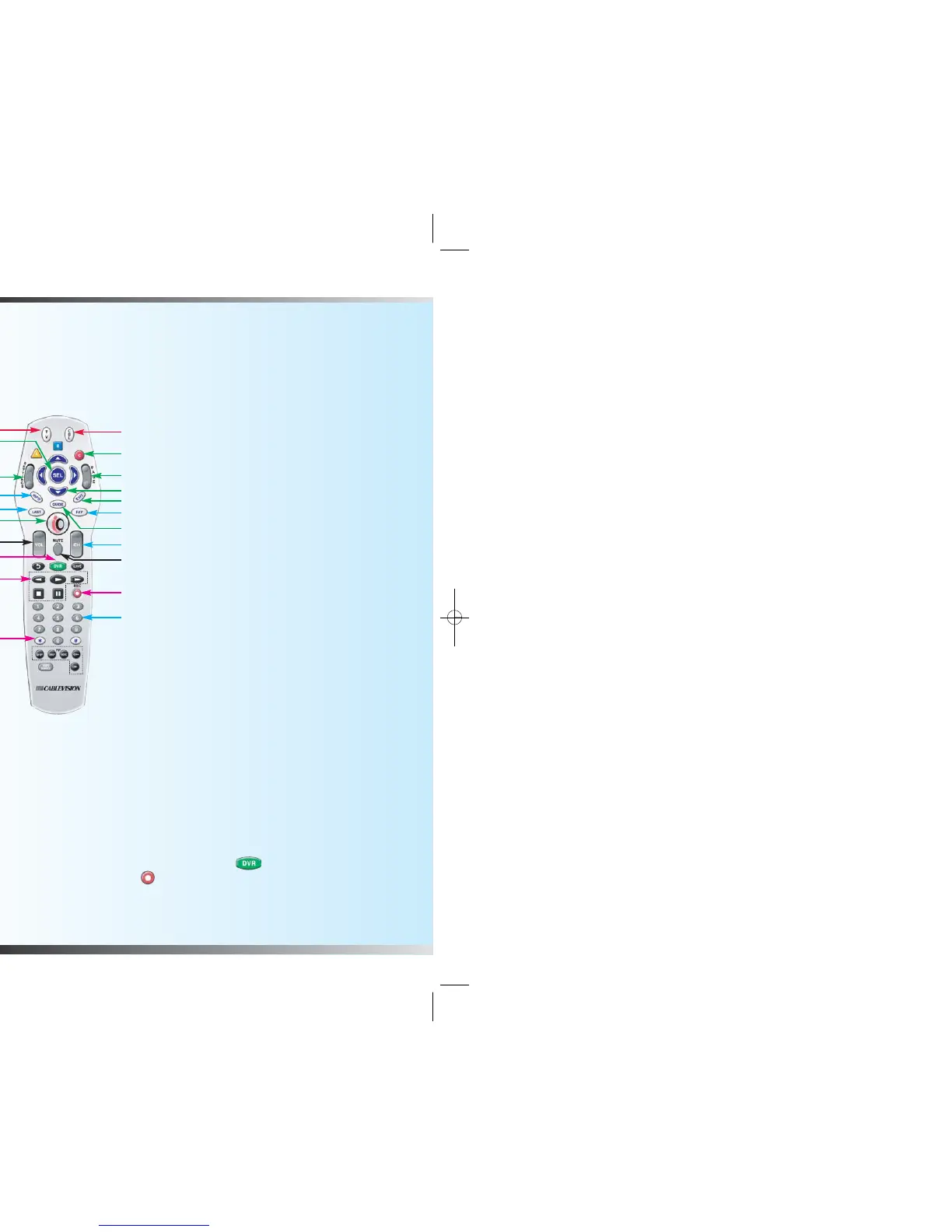
Note: The two functions you will use most are DVR (#18), which accesses
recorded programs and Record (#20), which allows you to record programs.
POWER
1
Activate functions of
the digital cable box
2 Turn TV on and off
SOUND
3 Adjust volume
4 Mute sound
CHANNELS
5 Display channel and
program information
6 Surf channels, up
or down
7 Enter channel
num bers (also used
to enter your PIN
for parental control)
8 View favorite channels
9 Display last channel
viewed
NAVIGATION
10 Page up and down
11 Exit from on-screen
menus
12 Browse on-screen
menus
13 Perform various
functions on screen
14 Choose highlighted
item
15 Display/change
settings
16 Display Main Menu
17 Display Channel Guide
DVR FUNCTIONS
18
Display list of recorded
programs
19 Rewind <<
Play >
Fast Forward >>
Stop
Pause
20 Record a program
21 Reserved for
future use
2
14
5
9
3
1
13
10
12
11
8
6
20
7
17
15
16
19
21
18
4
Using Your iO TV Remote Control
Getting Started
Here are some helpful tips for you to know when using DVR Plus:
■
Viewing your recordings in any room with a digital cable box
Tip: You can watch your DVR recordings from any digital cable box in your
home. For customers with an iO DVR (silver) digital cable box, the
recordings you scheduled on this digital cable box can only be viewed on
the TV connected to this digital cable box.
Tip: If you have both Standard and HD digital cable boxes in your home,
and would like to view the program on all of your TVs, you should record the
program from the standard digital cable box. Any HD programs you record
can only be viewed from an HD digital cable box.
■
Pausing live programs
Tip: Press Pause on your remote to pause live programming and resume
it when you want. When using a non-DVR (not silver) digital cable box, you
have 15 minutes to resume the program from that paused spot before you
are automatically returned to live TV.
Tip: When using a non-DVR (not silver) digital cable box, your recording will
not include any portion of the program that aired prior to pressing Pause .
To assure the entire program is recorded, you should schedule a recording
in advance through the Guide or by pressing and selecting the
"Channel Guide" and pressing Record .
■
Resuming play back of recordings in different rooms
Tip: If you would like to continue watching your recording in another room,
press Stop during playback, then go to iO TV Ch. 1001 in the other room
to resume your recording.
Other Important Information
■
You have the ability to watch programs while they are being recorded.
■
Before recording your program, verify the time and channel of the
program. You must subscribe to the channel to record programming
on that channel.
■
Currently Picture-In-Picture, instant replay of live TV with the replay button
(allows you to go back in time to watch earlier parts of a program) and the
ability to set up manual recordings are not available.
■
Functions on your iO DVR digital cable box (silver box) will continue to
operate the same way.



 To Next Page