9
Play Back an In-Progress Recording
1. Press DVR , then go to the Recorded List and select an in-progress
recording, which is highlighted red.
2. Start playing your program.
Rewind or Fast Forward your Program
1. Press DVR , then press Move Up or Move Down to choose
the program you want to play back.
2. Press SEL to display your option.
3. Start playing your program.
4. Press Rewind or Fast Forward on your remote to control
the program.
View Program in Slow Motion
1. Press DVR , then press Move Up or Move Down to choose
the program you want to play back.
2. Start playing your program.
3. Press Play while in playback mode to view the program
in slow motion.
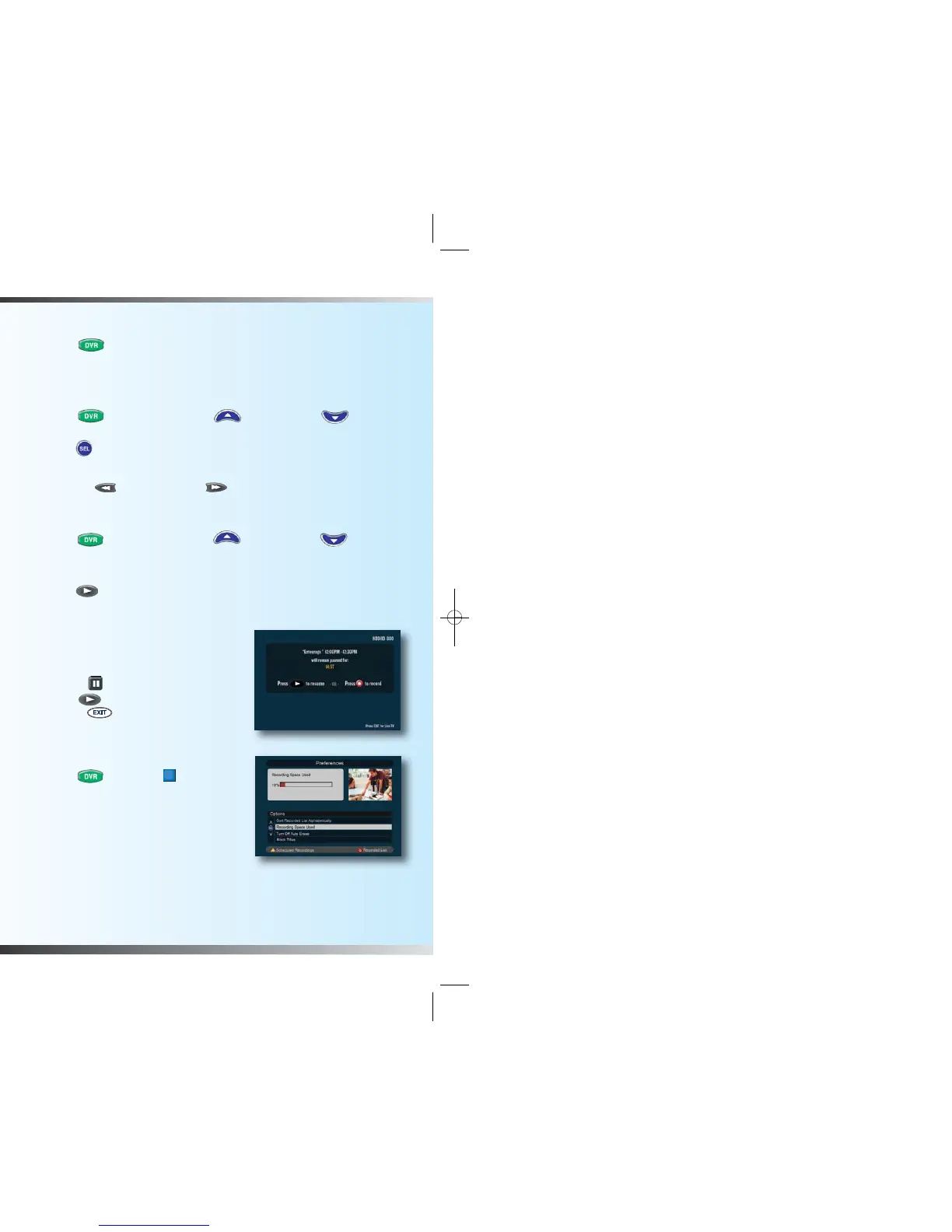
Pausing Live Programs
Pause Live TV allows you to pause a
Live TV show for up to 15 minutes
1. Press Pause while watching Live TV.
2. Press Play to resume your recording
or press Exit to return to Live TV.
Managing Recording Space
How Much Recording Space Do I Have?
1. Press DVR , then press to display
the Preferences screen, which displays
the percentage of space used.
Note: If you have exceeded the household’s
recording space, future programs cannot
be recorded.
8
Record a TV Program from the Search Application
1. Press Guide or to get to the Main Menu, and select Search from
the iO Main Menu or press the button to pull up the Search application.
2. Enter Search Criteria and navigate to the desired program.
3. Select Record from the program options, and then select Accept.
Changing the Save Time of a Recording
1. Press Record .
2. Move to the column that says “Save Time”.
3. Highlight one of the options in the
“Change Save Time Field”.
4. Select your desired Save Time.
5. Press SEL to confirm your setting.
Watching Your Recordings
Access and Play Back Your Recorded
Programs Anytime
1. Press DVR , then press Move Up
or Move Down to choose the program
you want to play back.
2. Press SEL to display your choice.
3. After reviewing your selection, press DVR to select another recorded
program, or press any channel to return to watching TV.
Bookmark a Recording
1. Press DVR , then press Move Up
or Move Down to choose the program
you want to play back.
2. Press SEL to display your choice.
3. Start playing your program.
4. Stop the playback of your program.
5. Resume playback of your program from the previously stopped location
from any TV located in your home.
Press DVR* or tune to Ch. 1001 to access DVR Plus recordings.
* If you have an iO DVR (silver) digital cable box, pressing
DVR will bring you to
Ch. 1000 to access programs you have recorded to your iO DVR digital cable box.
You will need to tune to Ch. 1001 to access multiple room recordings.



 To Next Page