EasyManua.ls Logo

Optoma DC455 - User Manual

Optoma DC455
20 pages
Print Icon
To Next Page IconTo Next Page
Loading...
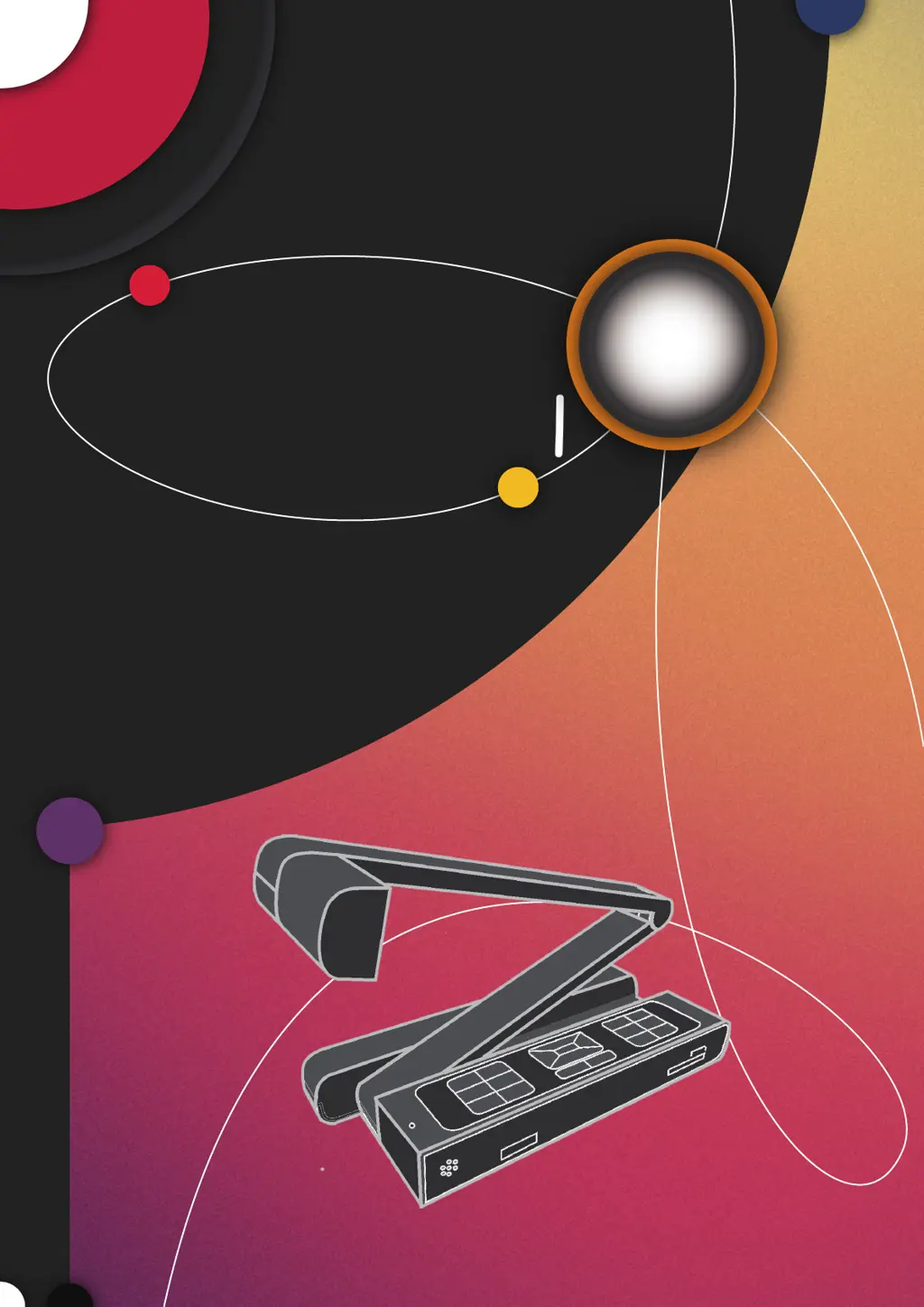
DC455
User Manual
Visualizer
Document
Camera
TS-82-925-90020

Questions and Answers

  • M
    michael60Aug 15, 2025
    What to do if my Optoma DC455 remote control isn't working?
    • M
      mark08Aug 15, 2025
      If the remote control for your Optoma Document Camera is not working, first, replace the AAA batteries. If that doesn't solve the issue, make sure there are no objects blocking the signal between the remote and the camera. Finally, try moving closer to the document camera while using the remote.
  • J
    Justin DavisAug 18, 2025
    What to do if my Optoma Document Camera cannot power on normally?
    • A
      Ashley ButlerAug 18, 2025
      If your Optoma Document Camera won't power on, ensure the AC adapter is correctly connected both to the document camera and the wall outlet. Try re-connecting both ends of the AC adapter.
  • J
    jonathan22Aug 21, 2025
    Why is there no image output after connecting my Optoma DC455?
    • S
      susan69Aug 21, 2025
      If you're not getting any image output from your Optoma Document Camera after connecting it, first, double-check that all the related cables are correctly connected to the external device. Then, ensure that the input type of the display output device is correctly set. Also, verify that the output switch is set to the correct mode. Finally, check if the PC pass-through button indicator is on, and if so, press the pass-through button to turn it off.
  • J
    James EstradaAug 25, 2025
    How to fix a fuzzy image on my Optoma DC455?
    • J
      Justin ParkAug 26, 2025
      If the image on your Optoma Document Camera appears fuzzy, it's likely that the object is too close to the lens. Try pressing the AF button to activate auto focus, or manually adjust the focus.
  • S
    Stephanie TranAug 28, 2025
    What to do if my Optoma Document Camera displays a memory error?
    • M
      Miguel BrownAug 28, 2025
      If your Optoma Document Camera shows a “MEMORY ERROR” or “CARD ERROR” message, or if the memory card cannot be read, it could be due to an incompatible format. Try formatting the card. If the issue persists, the memory card might be corrupted, and you should replace it with a new one.
  • M
    Matthew SmithAug 31, 2025
    Why can't I take pictures or video clips with my Optoma DC455 Document Camera?
    • S
      Shawn MontgomeryAug 31, 2025
      If you're unable to take pictures or video clips with your Optoma Document Camera, it could be due to a lack of memory. Try freeing up space on the SD/MMC card or the internal memory. Also, check if you are using a protected SD card, and if so, set the SD card to be writeable.
  • A
    Angela FowlerSep 4, 2025
    Why is the image reversed on my Optoma DC455?
    • A
      adamsdevonSep 4, 2025
      If the image on your Optoma Document Camera is reversed, it might be because the document is not placed within the recommended working area. Press the designated button to adjust the direction.
  • K
    Kyle RiddleSep 7, 2025
    What to do if my Optoma DC455 Document Camera image does not move?
    • R
      randy11Sep 7, 2025
      If the image on your Optoma Document Camera is frozen and doesn't move, the camera image may be set to Freeze. Press the designated button on the control panel again to un-pause it.
  • T
    tonya16Sep 12, 2025
    Why does the TV screen not display anything after connecting my Optoma DC455 to the TV?
    • B
      Beverly BallSep 12, 2025
      If your TV screen remains blank after connecting your Optoma Document Camera, ensure that the product is correctly connected to the TV. Try reconnecting it properly.

Optoma DC455 Specifications

General IconGeneral
Frame Rate30 fps
ConnectivityHDMI, VGA, USB
Light SourceLED
Resolution1080p
Image SensorCMOS
Zoom8x digital zoom
FocusAuto
CompatibilityWindows, Mac

Related product manuals