EasyManua.ls Logo

Optoma DC550 - User Manual

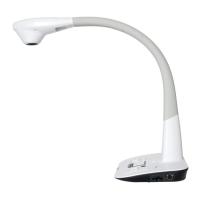
Optoma DC550
80 pages
Print Icon
To Next Page IconTo Next Page
Loading...
DC550
User Manual
Visualiseur
90°
TS-82-909-90020

Questions and Answers

  • A
    Amber WilsonAug 14, 2025
    Why is my Optoma Document Camera remote control not working?
    • R
      Randy GarciaAug 15, 2025
      If your Optoma Document Camera remote control isn't working, first replace the AAA batteries. If that doesn't solve it, make sure nothing is blocking the signal between the remote and the device. Finally, try moving closer to the document camera while using the remote.
  • J
    Jeffrey CollinsAug 18, 2025
    How to fix a fuzzy image on Optoma DC550 Document Camera?
    • M
      Michael LeeAug 18, 2025
      If your Optoma Document Camera displays a fuzzy image, it might be because the object is too close to the lens. Try pressing the AF button to use auto focus, or adjust the focus manually. If the object is less than 20cm away, select Macro mode.
  • W
    Wanda ClarkAug 21, 2025
    What to do if my Optoma DC550 Document Camera cannot power on?
    • L
      Leslie WilliamsAug 21, 2025
      If your Optoma Document Camera isn't powering on, make sure the AC adapter is properly connected both to the document camera and to the wall outlet. Disconnect and then securely reconnect both ends.
  • Y
    youngchristinaAug 25, 2025
    Why is there no image output from my Optoma Document Camera after connecting it?
    • C
      Chad RamirezAug 26, 2025
      If your Optoma Document Camera isn't showing an image after connecting it, ensure all related cables are correctly connected to the external device. Also, verify that the input type of the display output device is correctly set. Check that the output switch is in the correct mode. If the PC pass-through button indicator is on, press the pass-through button to turn off the function.
  • J
    Jennifer ReeseAug 28, 2025
    What to do if Optoma Document Camera displays a memory card error?
    • M
      Michael MurrayAug 28, 2025
      If your Optoma Document Camera shows a “MEMORY ERROR” or “CARD ERROR” message, or if the memory card cannot be read, try formatting the card. If that doesn't work, replace the memory card with a new one.
  • J
    jasminemooreAug 31, 2025
    Why can't my Optoma DC550 Document Camera take pictures or video clips?
    • T
      Troy ThompsonAug 31, 2025
      If your Optoma Document Camera cannot take pictures or video clips, it may be due to a lack of memory. Free up space on the SD / MMC card or the internal memory. Also, check if you're using a protected SD card; if so, set the SD card to be writable.
  • C
    Christopher MoralesSep 3, 2025
    Why is the image on my Optoma Document Camera not moving?
    • J
      Jorge StaffordSep 3, 2025
      If the image on your Optoma Document Camera isn't moving, it may be because the camera image is set to Freeze. Press the Freeze button on the control panel again to un-pause.
  • S
    scott50Sep 6, 2025
    How to stop noises when viewing images on Optoma Document Camera?
    • A
      Anthony VazquezSep 6, 2025
      If you are experiencing noises when viewing images from your Optoma Document Camera on the LCD screen or computer, it might be due to a mismatch between the flicker setting and your country's standard. Adjust the flicker setting accordingly.
  • N
    Nicole MaloneSep 12, 2025
    What to do if TV screen doesn't display Optoma Document Camera output?
    • K
      kathy54Sep 12, 2025
      If the TV screen does not display anything after connecting your Optoma Document Camera, ensure that the product is correctly connected to the TV. Reconnect it securely.

Summary

Safety Warnings

Eye Safety from LED Light Source

Do not look directly at the LED light source, as it may cause retinal damage.

Preparing the Document Camera

Document Camera Parts Identification

Identification and labeling of the main components of the document camera.

Control Panel Overview

Control Panel Button Functions

Detailed explanation of each button on the control panel and its corresponding function.

Remote Control Functions

Remote Control Button Descriptions

Explanation of each button on the remote control and its respective function.

Troubleshooting Common Issues

Power, Connectivity, and Image Output

Solutions for problems related to powering on, connectivity, and image display.

Image Quality and Movement Problems

Addressing issues like fuzzy images, reversed images, frozen images, and incorrect image direction.

Remote Control and Obstruction Issues

Fixing remote control functionality problems caused by batteries, distance, or obstructions.

Advanced Troubleshooting

Memory Card and File Access Errors

Solutions for memory card errors, corruption, and problems deleting or accessing files.

Display and Interference Problems

Troubleshooting TV display failures and noise or flicker issues on screens.

Optoma DC550 Specifications

General IconGeneral
Frame Rate30 fps
Light SourceLED
Output InterfaceHDMI, VGA
Foldable DesignYes
ConnectivityHDMI, VGA, USB
FocusAuto / Manual
CompatibilityWindows, Mac

Related product manuals