EasyManua.ls Logo

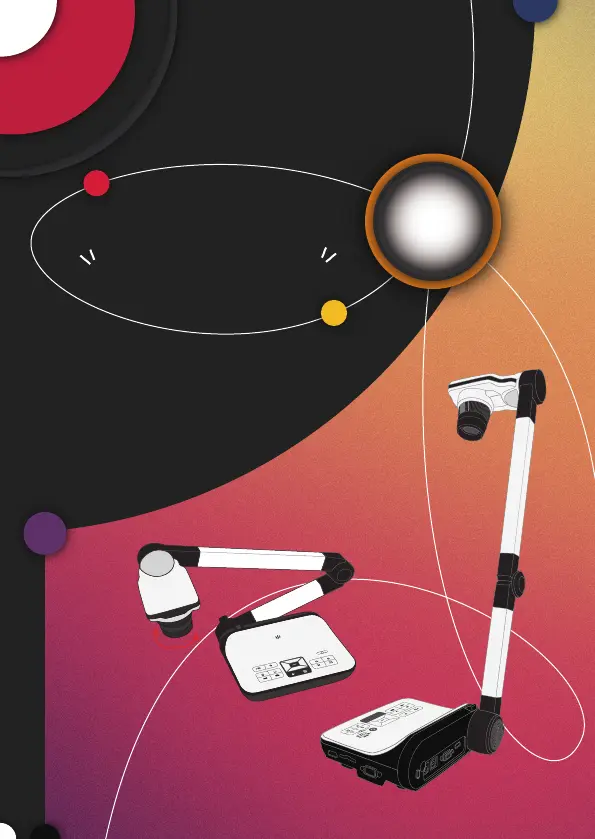
Optoma DC554 - User Manual

Optoma DC554
84 pages
Print Icon
To Next Page IconTo Next Page
Loading...
DC554
User Manual
Visualiseur
90°
TS-82-923-90010

Questions and Answers

  • W
    William WhiteAug 14, 2025
    What to do if there's no image output after connecting Optoma Document Camera?
    • E
      Evan DeanAug 14, 2025
      If you are experiencing no image output after connecting your Optoma Document Camera, ensure all related cables are correctly re-connected to the external device. Also, verify that the input type of the display output device is correctly set. Check the output switch setting for the display device and switch to the correct mode. Finally, if the PC pass-through button indicator is on, press the pass-through button to turn off the function.
  • R
    Ryan RosarioAug 18, 2025
    How to fix Optoma DC554 Document Camera that cannot power on normally?
    • M
      Mary GarciaAug 18, 2025
      If your Optoma Document Camera cannot power on, ensure the AC adapter is correctly connected to both the wall outlet and the document camera. Re-connect one end of the AC adapter to the document camera and the other end to a wall outlet.
  • D
    David BrownAug 21, 2025
    Why is the Optoma Document Camera remote control not working?
    • L
      Lawrence ClaytonAug 21, 2025
      If the remote control for your Optoma Document Camera is not working, first replace the AAA batteries in the remote. If that doesn't work, check for any obstructions blocking the remote control signal receiver on the product and remove them. Also, make sure you are not too far from the product; stand closer to use the remote control.
  • M
    Misty MarshallAug 25, 2025
    How to fix a fuzzy image on Optoma Document Camera?
    • K
      Kelly HarperAug 25, 2025
      If the image on your Optoma Document Camera is fuzzy, it might be because the object is too close to the lens. Press the AF button to auto-focus or adjust manually. If the distance is less than 20cm, select Macro mode.
  • K
    Katie DyerAug 28, 2025
    What to do if Optoma Document Camera cannot take pictures and video clips?
    • A
      ashley22Aug 28, 2025
      If your Optoma Document Camera cannot take pictures or video clips, it could be due to a lack of memory. Free up some space on the SD / MMC card or in the internal memory. Also, check if you are using a 'protected' SD card and set it to be writable.
  • A
    Ann JohnsonAug 31, 2025
    Why do noises occur when viewing images on the LCD screen or on the computer with Optoma DC554?
    • A
      Antonio TaylorAug 31, 2025
      Noises occurring when viewing images from your Optoma Document Camera on the LCD screen or computer can be due to an incorrect flicker setting. Adjust the flicker setting to match the standard of your country. For more information, please refer to the “Flicker Settings” table.
  • A
    austinbrownSep 3, 2025
    How to correct a reversed image on Optoma DC554?
    • T
      Tammy MclaughlinSep 3, 2025
      If the image on your Optoma Document Camera is reversed, it may be because the document is not placed within the recommended working area. Press the [ ] button to adjust the direction.
  • M
    Matthew GonzalezSep 6, 2025
    What to do if TV screen does not display after connecting Optoma DC554 to TV?
    • M
      Maria ReedSep 6, 2025
      If the TV screen does not display anything after connecting your Optoma Document Camera, it could be that the product is not correctly connected to the TV. Reconnect the product to the TV correctly.
  • A
    Alison McgrathSep 10, 2025
    What to do if the image does not move on Optoma DC554?
    • J
      Jason GibsonSep 10, 2025
      If the image on your Optoma Document Camera is not moving, the camera image may be set to Freeze [ ]. Press the [ ] button on the control panel again to un-pause.

Optoma DC554 Specifications

General IconGeneral
BrandOptoma
ModelDC554
CategoryDocument Camera
LanguageEnglish

Related product manuals