Let’s get you set up in 4 simple steps
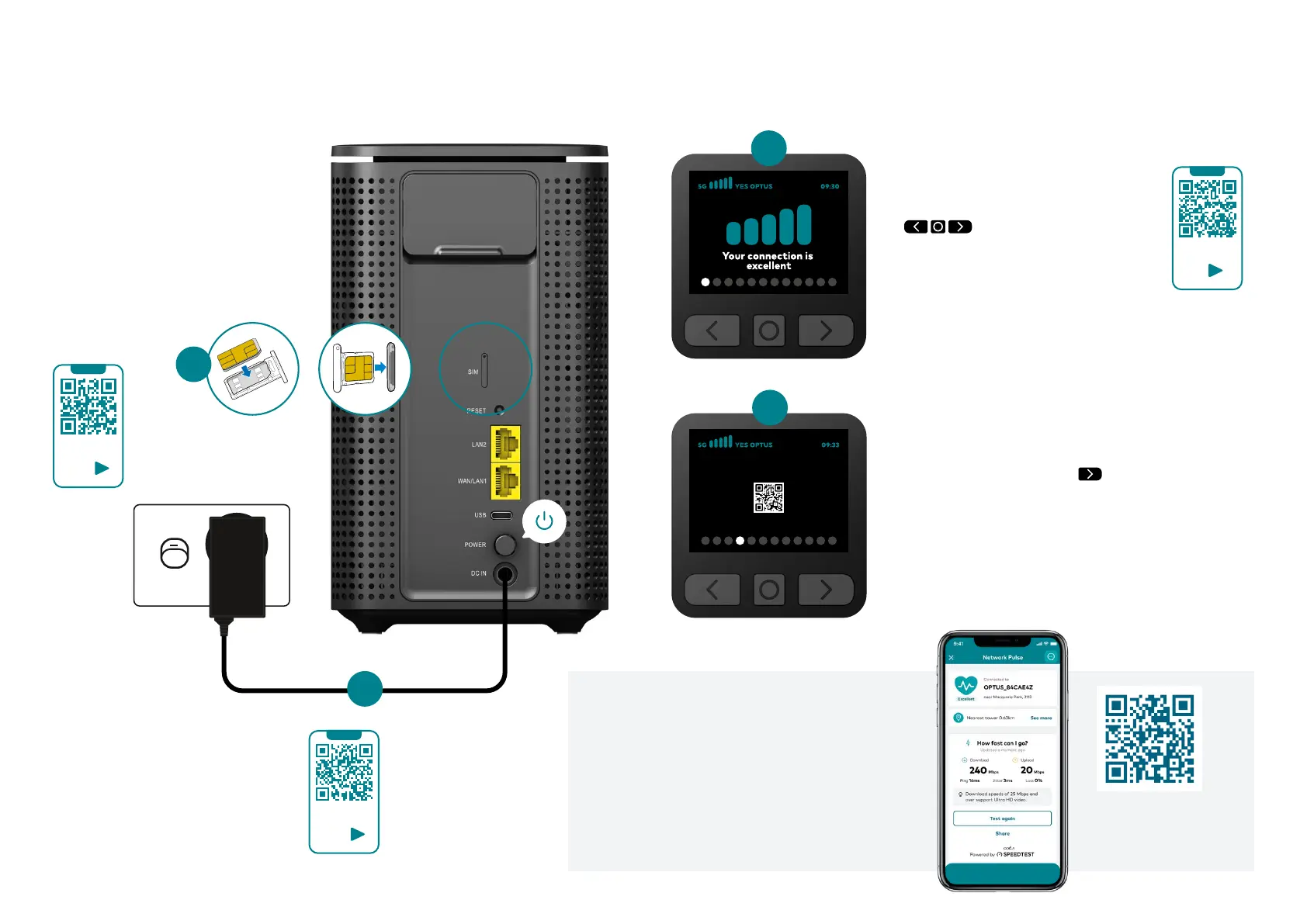
1. Insert the nano SIM
• Eject the SIM tray at the back
of your modem (use tool provided)
• Locate the SIM included in your
modem packaging
• Push out the smallest size
(nano) SIM card
• Place the SIM card
in the tray and reinsert
Video
Tip
1
2
2. Power the modem
• Plug in the modem’s power cable
into the powerpoint
• Press the modem power button on
• Wait 30 seconds for the modem
to complete powering up
Video
Tip
3
3. Check the modem screen
• Navigate through the modem screen
using the buttons under the screen:
• Use the screen to view your 5G
connection strength, WiFi login
details, screen brightness and more
Video
Tip
4
Main Wi-Fi: WiFi3_OPTUS_8B02A0N
Wi-Fi Password: abcd12345678
scan to connect
4. Connect devices to WiFi
Connect your device using either the QR code
or the WiFi Name and Password. Found here:
• The modem screen (Press button)
• WiFi fridge magnet
• Modem base sticker
That’s it. You’re connected.
Test your internet speed
Now your devices are connected, you can
use My Optus app to test your speed.
M
ore information including Handy tips,
Managing your modem and Recycling your
old modem can be found on the next page.
Scan to open
My Optus app
Network Pulse



 To Next Page