22
MULTI TRACK RECORDING
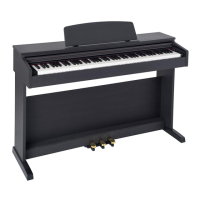
If you like to add new tracks to the just recordered song, select it on the display ( as previous
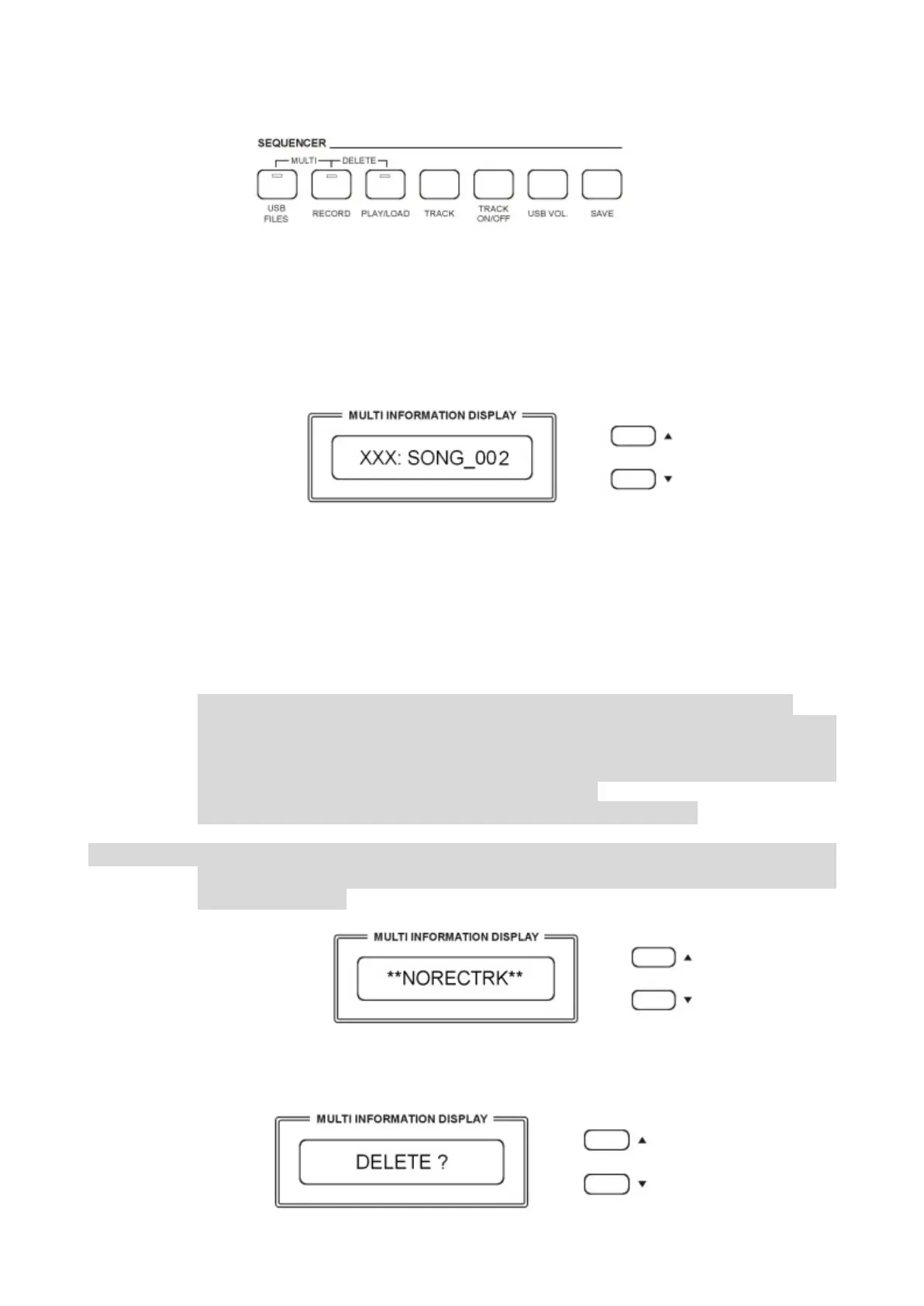
example XXX: Song_001) and select now MULTI TRACK RECORDING by pressing the [USB
FILES] button and the [RECORD] buttons at the same time( hold down the [USB FILES] button
and press [RECORD] button) .
- The Metronome immediately start for two bars and the first recorded Track starts playing.
- It is now possible to record the new track as we did before.
- The name of the new file will be saved in sequence ( _003, _004, etc.) as long as new tracks
are added t the song.
- To stop recording by pressing [RECORD] button again.
- It is necessary to press the [RECORD] button at the end of each track.
NOTE: the Multi Track Recording will save a song for each track that it is added to the
original song file.
This will allow to be able to start from any given song level and add new tracks.
At the end of Multi Track Recording you can delete the old and not necessary files
from the USB disk. This means that you may have more songs with similar names
(example 001: SONG_11, 002: SONG_11) but remember that the 3 number digits
number in front of the song is identifying it in the list.
It is of course possible to change the song names in your computer.
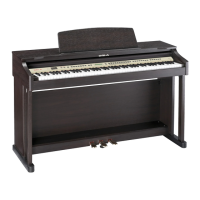
NOTE: In the event that you are recording too many track in the sequence a warning
message will appear on the display indicating that there are NO RECORDING
TRACKS available.
DELETE SONG/FILE
Insert the USB Disk into the USB socket. Use [/\][\/] button to select the song or the file you
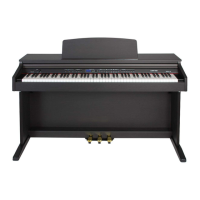
want to delete, then hold down the [RECORD] button and press [PLAY/LOAD] button.
The display shows:



 To Next Page