EasyManua.ls Logo

Ortur Laser Master 1 - User Manual

Ortur Laser Master 1
18 pages
Print Icon
To Next Page IconTo Next Page
Loading...
1
User Manual of Laser Master 1
Laser Engraver
Dongguan Ortur Intelligent Technologies Co., Ltd.
(EN)Address: No. 56 Maxin Road, Changping Town, Dongguan 523565, Guangdong Province, China
(FR)Adresse: No. 56 Route Maxin, Changping Town, Dongguan 523565, Province de Guangdong, Chine
(DE)Adresse: 56 Maxin Road, Stadt Changping, Dongguan 523565, Provinz Guangdong, China
(IT)Indirizzo: No. 56 Maxin Road, Città Changping, Dongguan 523565, Provincia del Guangdong, Cina
(ES)Dirección: 56 Maxin Road, Ciudad Changping, Dongguan 523565, Provincia de Guangdong, China
Question and Answer IconNeed help?

Do you have a question about the Ortur Laser Master 1 and is the answer not in the manual?

Summary

Brief Introduction

Desktop Laser Engraver

This laser engraver is a desktop model, not intended for industrial use.

Active Position Protection

Features a G-sensor to stop the laser beam if unauthorized movement is detected.

Laser Beam Safety Guard

Stops laser if computer halts or USB disconnects, preventing fire.

Exposure Duration Safety

Cuts off laser if motor stops moving to prevent fire during operation.

PWM Mode Support

This laser engraver supports Pulse Width Modulation (PWM) mode for laser control.

Model Power Options

Details 7W for picture engraving, 15W for cost-effectiveness, and 20W for faster speeds.

Safety Precautions

Eye Protection Required

Always wear safety goggles when operating the laser engraver.

Environment Setup

Set up in a fireproofing area with good ventilation for safe operation.

Minor Supervision & Safety

Keep minors away; they require adult supervision and proper eye protection.

Handling and Hot Surfaces

Avoid impacts and touching the laser beam or hot heat sink to prevent injury.

Assembly Procedure

Mount Laser Module to Y-Axis

Use M3*8 screws and M3 spacers to fix the Laser Module on the Y axis assembly.

Attach X-Axis Supporting Plate

Use M5*16 screws and M5 Nuts to fix the X axis and extended supporting plate.

Secure X-Axis Plate Side

Use M5*16 screws and M5 nuts to fix the other side of the X axis supporting plate.

Connect Laser Module Cable

Plug the Laser Module Cable into the pinboard for electrical connection.

Align and Mount X-Axis Assembly

Align screws at screw holes and place the X Axis Assembly onto the Y Axis Assembly.

Secure Nuts and Spacers

Use the wrench to tighten 4*M5 Nuts and 4*M5 Spacers securely.

Secure Laser Module Cable

Use a plastic cable tie to neatly secure the Laser Module Cable.

Connect X-Axis Motor Cable

Plug the X Motor Cable into the corresponding X Motor connector.

Attach Non-Slip Pads

Stick non-slip pads to the bottom corners and perform initial test in a fireproof area.

LaserGRBL Installation

Download Software & Drivers

Download the Host Control Software 'LaserGrbl' and necessary drivers from provided links.

Install Windows Drivers

Install the appropriate VCP drivers for your Windows system (32-bit or 64-bit).

Install LaserGRBL Software

Install the 'LaserGRBL' carving software on your Windows computer.

Connect Power & USB

Plug in the power adapter, press the power switch, and connect the engraver to the computer via USB.

Verify Device Connection

Check 'Device Manager' for 'STMicroelectronics Virtual COM Port' to confirm successful connection.

Import Custom Buttons

Run LaserGRBL, import 'CustomButtons.gz' for advanced settings and direct use.

LaserGRBL Advanced Settings

Machine Connection Setup

Connect the engraving machine using the correct COM port and Baud rate.

Engraving Control Functions

Utilize Start/Pause/Stop, Reset, Unlock, and Motion controls for operation.

Speed and Display Configuration

Adjust Baud rate for quality/speed and configure display settings for the engraving area.

Troubleshooting Workflow

Address engraver stopping during carving by adjusting 'Grbl' settings in the 'Settings' menu.

Engraving Setup Procedure

Open and Prepare Image

Import the image file and configure initial parameters like resize and preview.

Engraving Accuracy Settings

Adjust engraving accuracy from Low (5) to High (20) for desired detail.

Set Engraving Speed and Power

Configure engraving speed and laser power (S0-S1000) based on material type.

Define Engraving Size

Set the target image size and position in millimeters for the engraving area.

Laser Focus Adjustment

Prepare for Focus Adjustment

Wear safety goggles and place the object under the laser lens for focus adjustment.

Determine Optimal Distance

Set the laser unit height to 55mm from the object's surface for best focus.

Test Laser Beam Clarity

Activate a faint light beam to check for safety and clarity; stop if dazzling or burning.

Fine-tune Focus Ring

Adjust the lens focus ring to achieve the smallest possible light spot for precision.

Starting the Engraving Process

Home Axes

Click the icon to home the X and Y axes before starting the engraving operation.

Position Laser Unit

Use directional icons to move the laser unit to the desired position on the material.

Set Engraving Start Point

Click the icon to set the current position as the starting point for engraving.

Initiate Engraving

Click the start icon to begin the engraving process.

LaserBurn Installation Guide

Download LaserBurn Software

Download the trial version of LaserBurn software from the official website.

Install and Launch Software

Install the software on your computer and launch the application.

Configure New Device Wizard

Select GRBL in the New Device Wizard and proceed to the next step.

Select Connection Type

Choose Serial/USB as the connection method and press Next.

Define Device Parameters

Name your device 'Ortur Laser Master' and set X/Y axis dimensions (150mm/160mm).

Set Origin and Auto-Home

Select 'Front Left' as the origin and activate 'Auto-home' on startup.

Finalize Setup

Click Finish, select 'Ortur Laser Master', and press 'Make Default' to prepare for use.

Overview

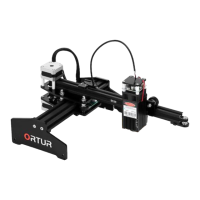
The Ortur Laser Master 1 is a desktop laser engraver, designed for personal use rather than industrial applications. This device is equipped with several safety and operational features to ensure a user-friendly and secure experience.

Function Description:

The Laser Master 1 serves as a laser engraver, capable of engraving and cutting various materials. It operates in PWM mode, allowing for precise control over the laser's power output. The device is compatible with Windows operating systems and utilizes host control software like "LaserGRBL" and "LightBurn" for operation.
Important Technical Specifications:

  • Laser Modules: The device offers different laser module options, each with varying power and capabilities:
    • Laser Master 7W: Optimized for picture engraving.
    • Laser Master 15W: A cost-effective option suitable for both engraving and cutting.
    • Laser Master 20W: Features higher power for faster engraving and cutting.
  • Connection: Connects to a computer via a USB cable.
  • Power: Requires a power adapter for operation.
  • Work Area Dimensions: Customizable during setup, with default X and Y axis lengths of 150mm and 160mm respectively.

Usage Features:

  • Active Position Protection: Incorporates a G-sensor on the motherboard. If unauthorized movement is detected, the laser beam automatically stops, preventing accidental engraving or damage.
  • Laser Beam Safety Guard: In the event of a computer system halt or USB cable disconnection, the laser engraver ceases movement, and the laser beam stops, mitigating fire risks.
  • Exposure Duration Detection and Limitation: A safety feature that cuts off the laser beam if the engraver is under control but the user forgets to operate it, and the motor stops moving. This prevents prolonged, unintended laser exposure.
  • PWM Mode Support: Allows for pulse width modulation, enabling fine-tuned control over laser power for different engraving and cutting tasks.
  • Software Compatibility:
    • LaserGRBL: A host control software for Windows, offering features like image import, engraving settings (speed, power, dithering options), and custom button functionality for advanced settings. It supports various dithering algorithms (e.g., Atkinson) and allows adjustment of engraving quality (lines/mm).
    • LightBurn: Another compatible software for Windows, MAC, and Linux, providing a comprehensive interface for device setup, design, and engraving. It includes a New Device Wizard for initial configuration, allowing users to name their device, set work area dimensions, and define the origin point.
  • Focus Adjustment: The laser focus can be adjusted manually. The recommended distance from the object to the bottom of the heat sink (not the lens) is 55mm. The laser unit's height can be adjusted at the acrylic holder plate. For fine-tuning, the lens focus ring can be adjusted to achieve the smallest light spot.
  • Movement Control: The software provides controls to move the laser unit along the X and Y axes, home the axes, and set the current position as the engraving's starting point.
  • Emergency Stop: A dedicated reset button is available for emergency stops.
  • Visual Feedback: The laser unit emits a faint light beam during focus adjustment, which is safe for the eyes and skin. However, if the beam appears dazzling or could burn the objective, users are advised to stop operation and contact the vendor.

Maintenance Features:

  • Driver Installation: Requires appropriate drivers for the Windows operating system (32-bit or 64-bit) to ensure proper communication between the computer and the engraver.
  • Cable Management: Includes plastic cable ties to secure the laser module cable, ensuring organized and safe wiring.
  • Fireproofing Area: Users are instructed to set up the laser engraver in a fireproofing area and ensure good ventilation during operation.
  • Heat Sink Awareness: Users are cautioned not to touch the heat sink immediately after the laser engraver stops working, as it may be hot and cause scalds.
  • Regular Software Updates: Keeping the host control software and drivers updated is crucial for optimal performance and compatibility.

Safety Precautions (as highlighted in the manual):

  • Always wear eye protection (laser goggles) when operating the laser.
  • Keep minors (especially children under 14) away from the laser engraver. Minors should not use the laser without direct adult supervision and proper eye protection.
  • Avoid strong impacts on the machine.
  • Do not touch the laser beam with hands or any objects not intended for engraving/burning/cutting, as serious physical harm is possible.
  • Exercise caution when the laser engraver is working.

Ortur Laser Master 1 Specifications

General IconGeneral
BrandOrtur
ModelLaser Master 1
CategoryEngraver
LanguageEnglish

Related product manuals