5
1. Once RHEOLOGIC
TM
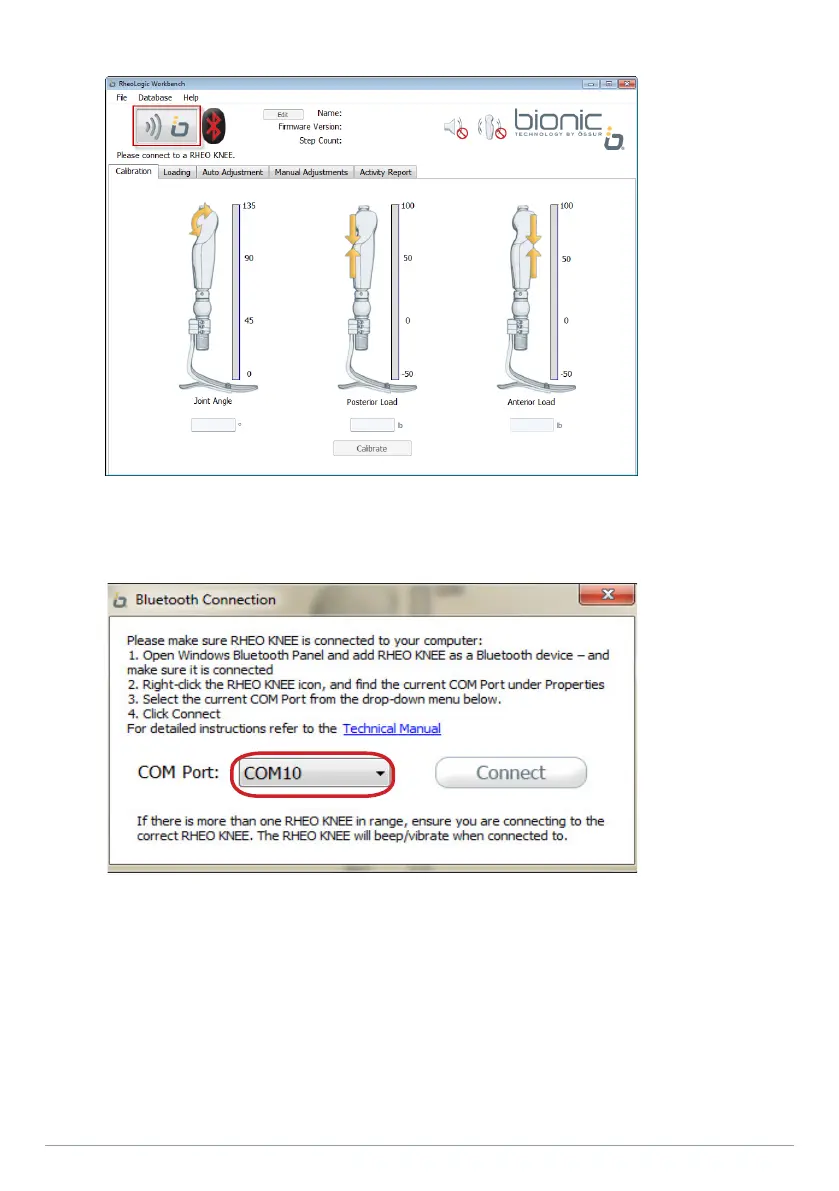
Workbench has been started, click the „Connect“ button (Figure 2).
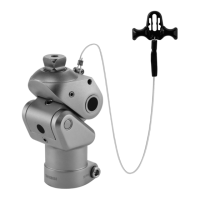
2. Select the COM port of your RHEO KNEE
®
from the list of COM ports and click „Connect“ (Figure 3).
NOTE: To find the COM port assigned to your RHEO KNEE, open Bluetooth Devices, and identify your RHEO
KNEE. Select “Properties” and look for the COM port number, e.g. COM port 9. If a distinction is made
between outgoing and incoming ports, note the incoming port. If you have problems connecting, refer to the
troubleshooting guide in section 5.
3. RHEO KNEE is successfully connected when the Bluetooth indicator is blue and white and the status
box changes from “Disconnected” to “Connected”.
Figure
3
Figure 2


 To Next Page