4
1 Installing RHEOLOGIC
TM
Workbench
Install
You should have recevied an email with a link to an Össur website that includes your license key for the software.
Follow the instructions in the email to start the download and installation process.
Note: If you install the program as an Administrator, make sure RHEOLOGIC
TM
Workbench is accessible for the
user from the start menu or as a desktop icon.
Uninstall
In the start menu, locate the folder ‘Ossur’ containing RHEOLOGIC
TM
Workbench and select “Uninstall.”
2 Connecting to the RHEO KNEE
®
RHEOLOGIC
TM
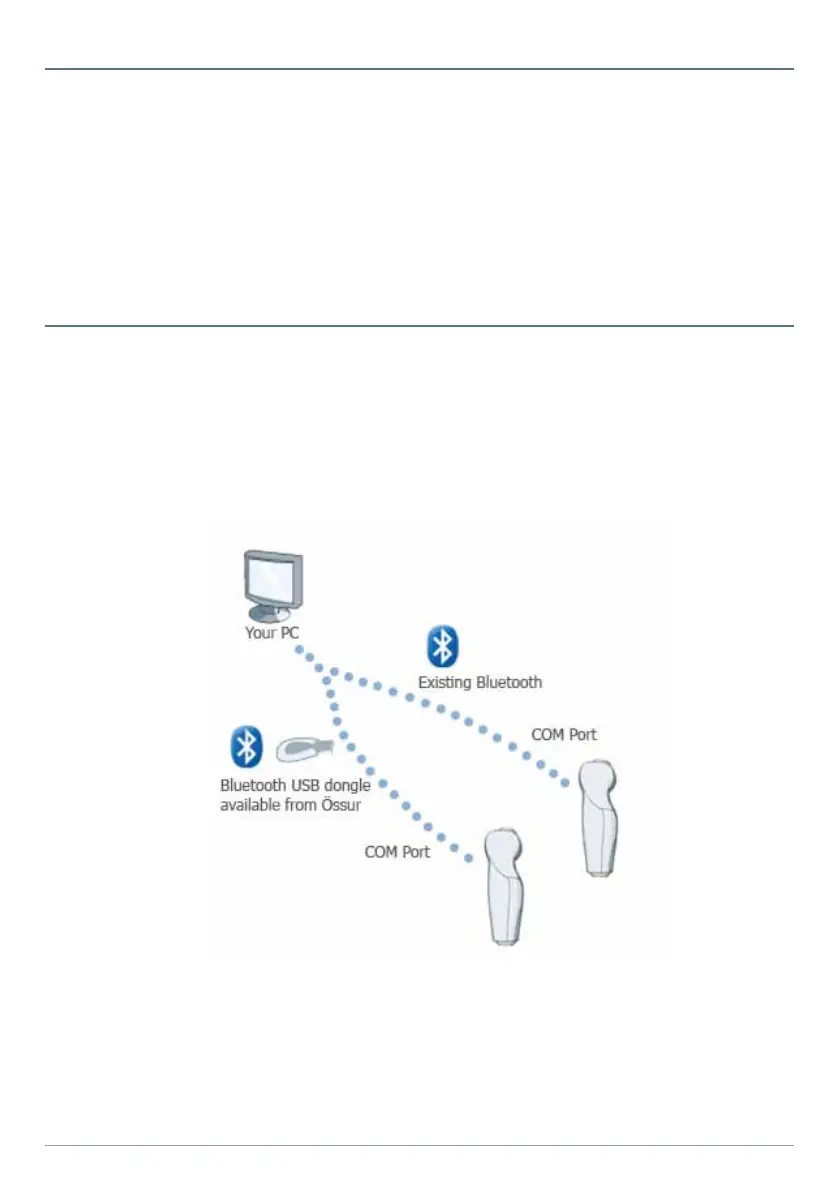
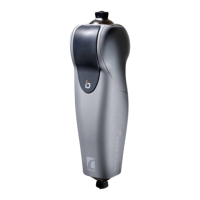
Workbench uses Bluetooth to connect to the RHEO KNEE (Figure 1). Bluetooth is a wireless
connection that enables communication between your computer and the knee. Össur recommends that you use
the Bluetooth already installed on your computer but if your computer does not come with Bluetooth capabilities
you can order a Bluetooth USB dongle from Össur.
Before you can connect to your RHEO KNEE
®
you have to add it to your computer operating system´s list of
Bluetooth Devices (see instructions that come with your computer). Once you have done that, a COM port will
be assigned to your RHEO KNEE
®
. This COM port has to be provided when connecting to the knee.
Figure 1


 To Next Page