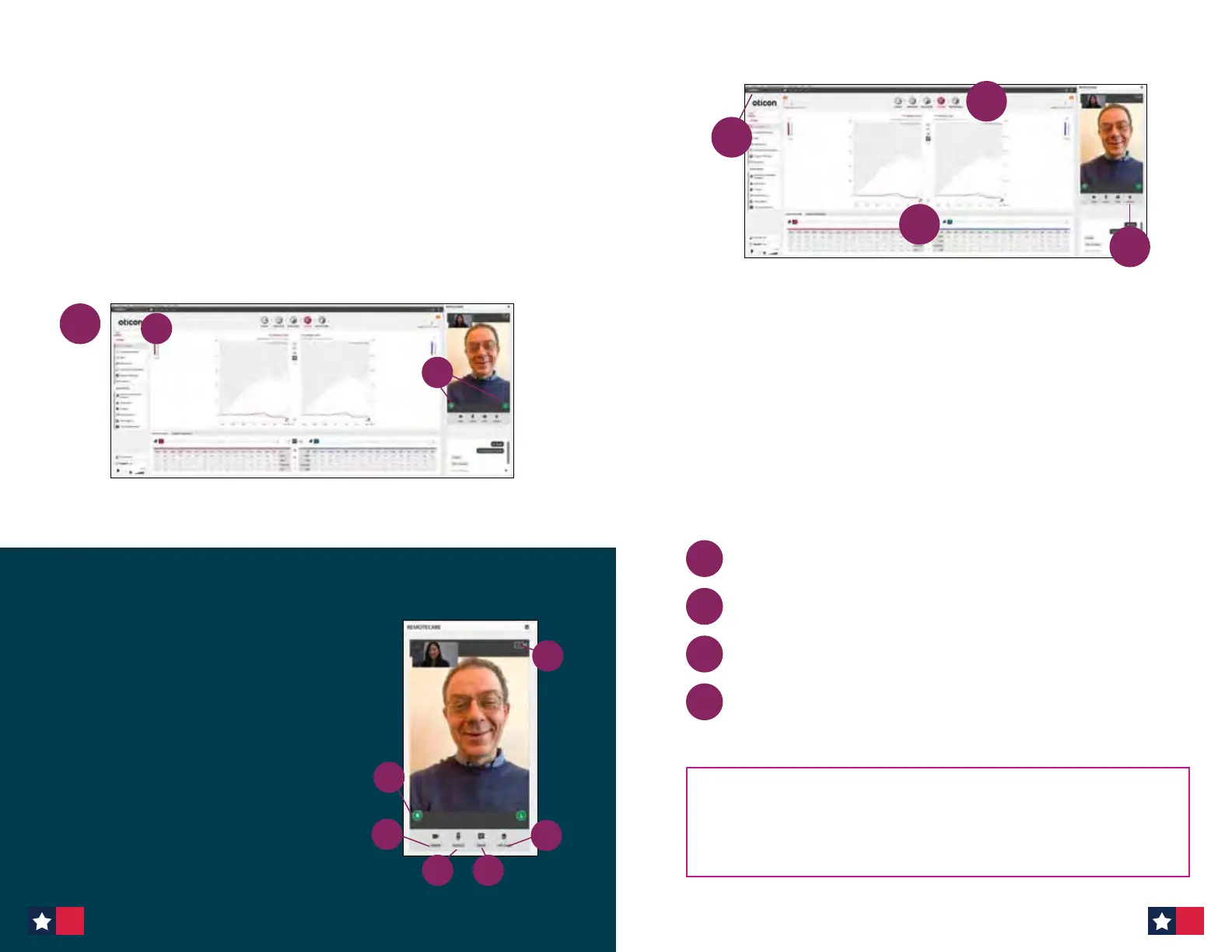
Step 2: Conduct the session
1. Click ‘CONNECT’ to detect and connect to the patient’s hearing
aid(s). The status indicators turn green when the hearing aid(s) are
connected. Please note the connection process may take up to several
minutes. If you get a communication error, go to the ‘FAMILY’ or
‘SELECTION’ screen and connect the hearing aid(s).
Once connected, proceed to ‘FITTING’.
The connection status of the hearing aids is indicated in two places:
a. Connection Bar
b. Oticon RemoteCare Communicator
a
b
1
Important: Use RemoteCare
Communicator to communicate
with your patient
a. Hearing aid status indicators
b. Enable/disable camera
c. Mute/unmute microphone
d. Enables text messaging and
communication via audio and video
between you and your patient
e. Upload button
f. Refresh video
a
b
c
e
f
d
2
5
3
4
Ensure patient is in an environment with no noise
Turn off your microphone to avoid any unwanted noise
Confirm the patient is wearing the aids correctly
To compensate for possible delays in connection, play tones for at
least two seconds and with longer than normal pauses (preferably
more than two seconds) between presentations.
1
2
3
4
Best practices if using In-situ Audiometry with RemoteCare
Important Note: Please note that In-situ Audiometry whether it is
conducted in the office or via RemoteCare cannot be used for diagnostic
purposes. While it cannot replace in-person audiometry, it will be beneficial
in cases where the patient cannot come into the office but needs to have
personalized adjustments made.
2. Program the patient’s hearing aids as you would do normally,
if needed.
3. Click ‘UPLOAD’ to upload the new settings to the hearing aids.
4. Once all desired changes have been made, click ‘DISCONNECT’. The
hearing aids will be disconnected from Genie 2 and will restart.
Note: You can also disconnect the hearing aids from the ‘END
FITTING’ screen.
5. Go to the ‘END FITTING’ screen and click ‘SAVE AND EXIT’ to save and
end the session with the patient.
32 33




 To Next Page