RemoteCare via Companion App
Quick Guide for Clinicians
Important information
•
Oticon Companion app works with:
• Apple iPhone and iPad on iOS 15.0 or higher.
• Android™ phones on operating system 8.0 (oreo) or higher.
•
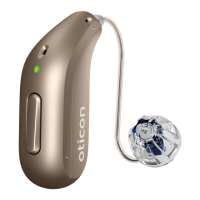
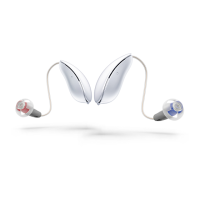
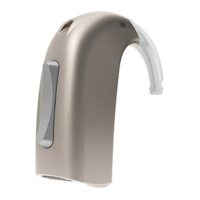
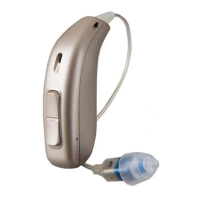
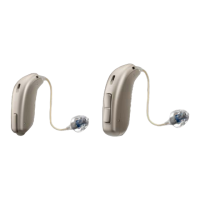
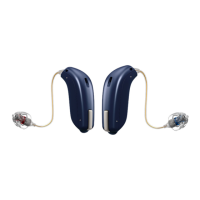
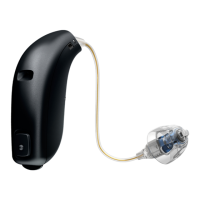
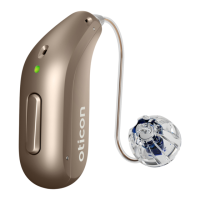
Hearing aid compatibility: Specialized programming is not
required prior to RemoteCare session. *All Oticon Intent, Oticon
Real, Oticon More, Oticon Own, Oticon Zircon, Oticon Play PX, Opn
Play, Xceed and Xceed Play hearing instruments are compatible with
RemoteCare.
•
Oticon RemoteCare works best on WiFi, however it will also work
using data.
•
Should your patient require assistance with their phone or app, the
patient may call the Oticon patient support hotline at: 855.400.9766
*For Custom models to be compatible, they must have 2.4 GHz Bluetooth® Low Energy wireless technology
What features are not available through RemoteCare via
Companion App?
• Firmware Updater
• Feedback Analyzer
• Real Ear Measurements
• Acoustics Settings (e.g., venting settings)
• Tinnitus SoundSupport™ — If a program exists, it cannot be modified
during the RemoteCare session. This program will continue to work
afterwards as previously programmed.
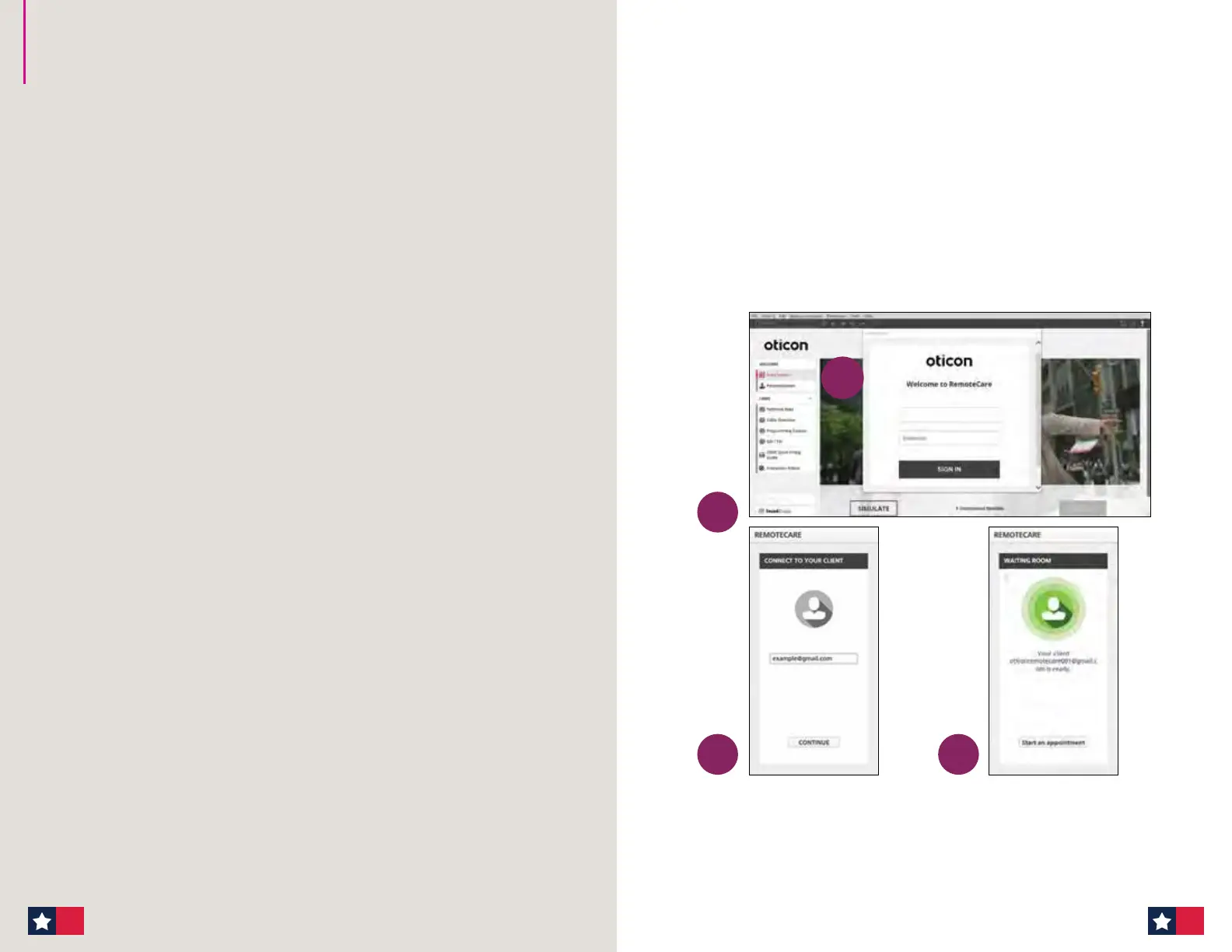
Step 1: Getting started
Open NOAH/Genie 2 and select the patient’s most recent session.
1. Click the RemoteCare box in lower left corner of screen.
2. Enter your RemoteCare credentials and click “SIGN IN”
3. Enter patient email address and click “CONTINUE”
4. Once the patient is in the virtual waiting room, click ‘START AN
APPOINTMENT’ when you are ready.
Note: It is only possible to start a session when the patient is already
present/has started an appointment.
3 4
1
2
3130




 To Next Page