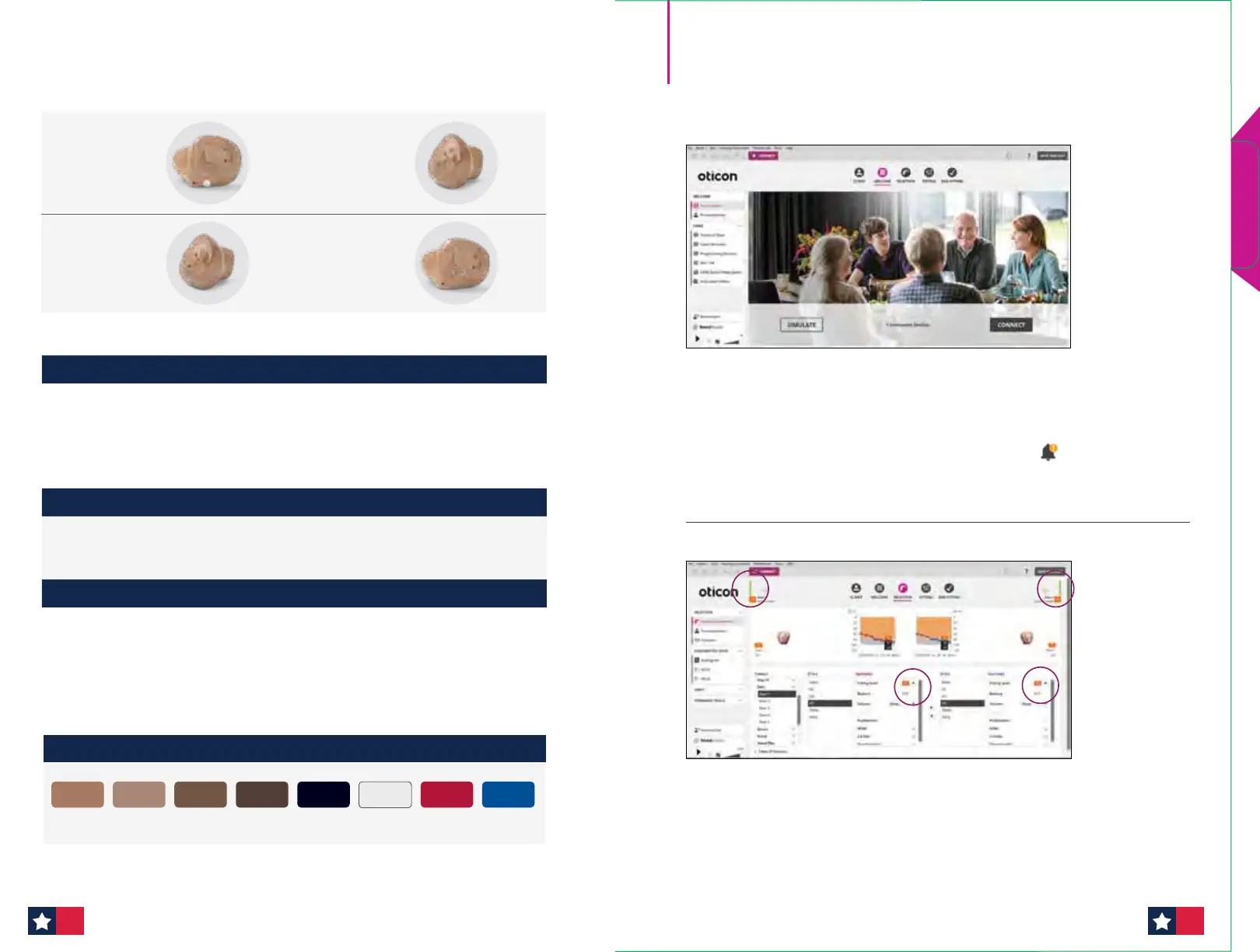
Oticon Own™ options*
*Options available space permitting and may not be available on all models.
Visual indicators Retention
Color Dots Canal Lock (CIC/ITC/HS)
Initials on shell Helix Lock (CIC/ITC/HS)
Name on shell
(Name if possible, otherwise initials)
Clothing Loop (N/A for IIC/CIC)
Canal Tips Red/Blue
Heavy Clothing Loop
(N/A for IIC/CIC)
L&R on Shell
Removal Shell Finish
Removal Cord (STD for IIC/CIC) Hard Coat (Standard)
Heavy Removal Cord (N/A for IIC) Soft Coat
Large Ball Removal Cord Matte Finish
Tactile / Other
Raised Push Button Battery door indicator
Raised Volume Wheel Door hooks (N/A for IIC)
Large Volume Wheel
Extended receiver tubing
(N/A for IIC)
Raised, Large Volume Wheel
Large ball Raised push button
Volume Wheel,
Large, Small, or
Raised
Clothing loop
Custom instrument shell and faceplate colors
C001
Beige
CO04
Dark Brown
CO03
Medium Brown
CO02
Light Brown
C005
Black
Transparent*
Red*
Blue*
*Not available as a faceplate color.
Genie 2 2024.1 — Oticon Intent
quick tting guide
Navigation Bar and Welcome Screen
In order to navigate through the Genie 2 software, follow the navigation bar
at the top of the screen, working from left to right. This bar also contains
the Save and Exit button, Connect button with selected programmer,
information about the hearing aid and notication icon.
The Welcome screen allows for connecting to instruments or simulating a tting.
Selection Screen
Dierent Families, Styles, and Features may be selected while running a
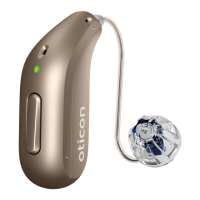
simulation. The ability to view the tting level for miniRITE and custom
instruments is located in the middle of the screen. Additionally, Oticon Intent
is now available to select and t in Genie 2 | 2024.1.
Quick Fit Guides
1312




 To Next Page