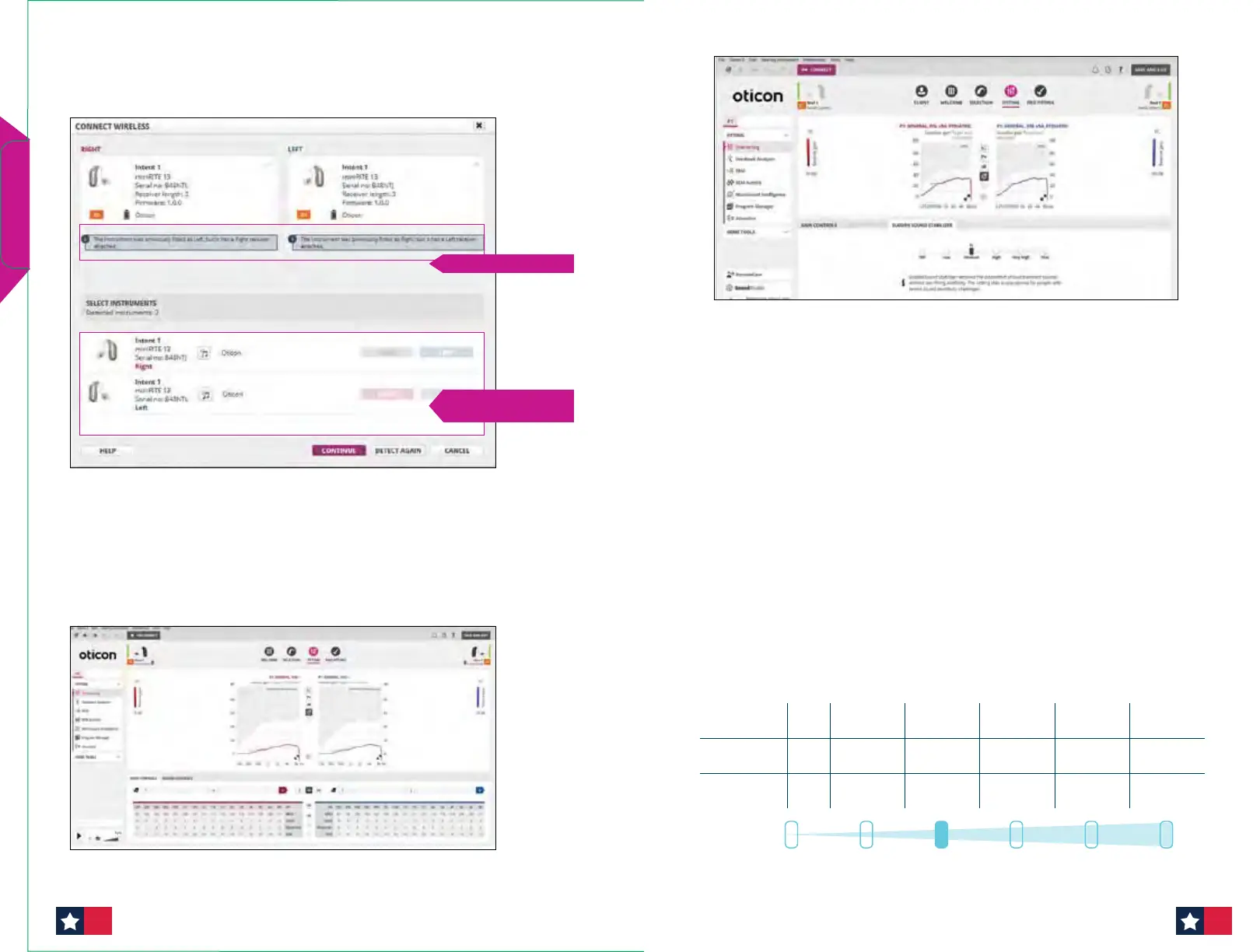
When connecting Oticon Intent to Genie 2, all relevant speaker unit
information will be displayed. This includes serial number, tting power level,
wire length and left/right identication.
The bars beside the hearing aid(s) will become green once connected.
miniFit Detect
Safety Indicator — Receivers mounted on wrong side
An alert will appear with immediate speaker unit status, enabling you to see if a
speaker unit is correct, missing, faulty, or incompatible. Should a mismatch occur
the LED will give 4 long orange blinks (1 second long) 4 times (16 blinks total).
Notication about mismatch
Mismatch between
detected and expected
Fitting Screen
The Fitting Tools in the left task pane make key tting features easily
accessible.
The Acoustics tab allows for the opportunity to change the selected earpiece.
Please note, if an ear piece is changed, be sure to re-prescribe settings.
Real time adjustments of gain, adaptation manager and compression can
be made in the Fine Tuning screen.
The MoreSound Intelligence screen for Oticon Intent has been simplied
for ease of use. The MoreSound Intelligence screen may also be used as a
counseling tool with patients.
For detailed information on using MSI for Oticon Intent, see page 18.
For detailed information on using MSI with Oticon Real and Oticon More, see page 22.
O Low MaxHighMedium Very high
OFF LOW MEDIUM HIGH
VERY
HIGH
MAX
Activation
level
- 60 dB SPL 55 dB SPL 40 dB SPL 40 dB SPL 40 dB SPL
Max.
attenuation
0 10dB 15 dB 20 dB 25 dB 30 dB
SuddenSound Stabilizer eectively addresses sudden sounds while
preserving speech intelligibility. Clinicians can select the appropriate setting
for each program, ranging from O to Max. The activation levels can be
visualized in the graph below.
Quick Fit Guides
1514




 To Next Page