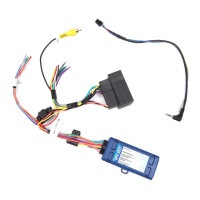
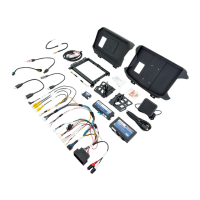
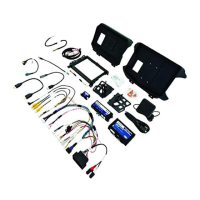
Reverse Camera Input and Navigation Unlock
Interface for Chrysler / Dodge / Jeep / RAM Vehicles
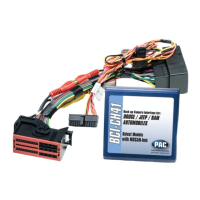
BCI-CH41 (v2)
© 2018 AAMP Global. All rights reserved. PAC is a Power Brand of AAMP Global.
PAC-audio.com
Pacific Accessory Corporation
Rev: V3
Date: 040918
Page 6
BCI App
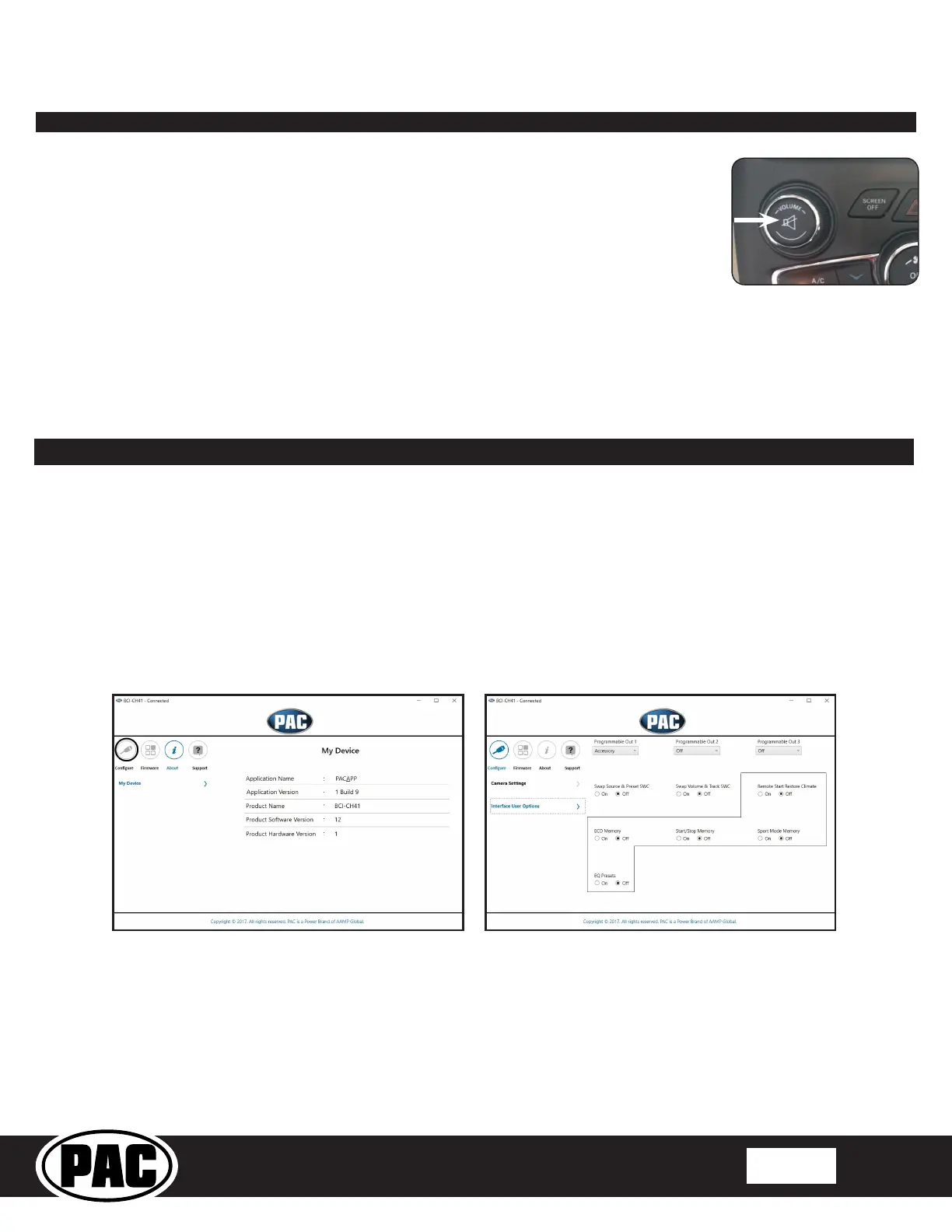
Fig A Fig B
PLEASE NOTE:
The BCI must be programmed with revision 12 or higher to support app programmability. You can program the BCI
either on the bench or in the car (with ignition on).To program the BCI module with the BCI App, follow these steps:
1. Download and install the BCI App. It can be found online at pac-audio.com/app-downloads. Once installed, open the app.
2. Connect the interface to the PC.
3. When rst connected, the revision info for both the app and the interface should be displayed. Select “Congure”. (Fig A).
4. You may now choose between “Camera Settings” and “Interface User Options” on the left, then make selections within those categories
on the right (Fig B) Plese reference the chart below for all available features and descriptions..
5. Once all selections have been made, you can simply disconnect the interface and install it.
PLEASE NOTE: The features outlined in Fig B may or may not be available in your vehicle. Once the interface has been connected to your
vehicle, it will determine what is there, and show the correct options in the Vehicle Setting menu available through the MFD.
Operation (cont.)
Preset EQ
• This feature is only available in vehicles equipped with a factory amplier.
• If you are using preset 1, 2 or 3 and not “P”, the EQ shown on the radio may not
be what you are hearing. The interface cannot force EQ settings that the user has
stored onto the factory radio.
This feature can be enabled in the Feature Settings menu outlined on Page 3, or by using the PAC app.
Presets can be viewed on the MFD when it is set to audio mode and the Mute button is pressed.
To access / store presets follow the procedure below.
1. Presets can be recalled by simply pressing the Mute button located in the center of the volume knob
(Fig L). Repeatedly pressing this button will scroll through the presets and the pass through. The
pass through is the one labeled “P” and will set the EQ to whatever is displayed on the radio screen.
2. To store a preset, press the Mute button until you get to the desired location. Next, go to the equalizer
screen by pressing Audio > Equalizer and set it to the desired sound. Now press and hold the Mute
button (Fig L) until the MFD displays “Storing EQ”.
Fig. L


 To Next Page