Helpdesk -
41
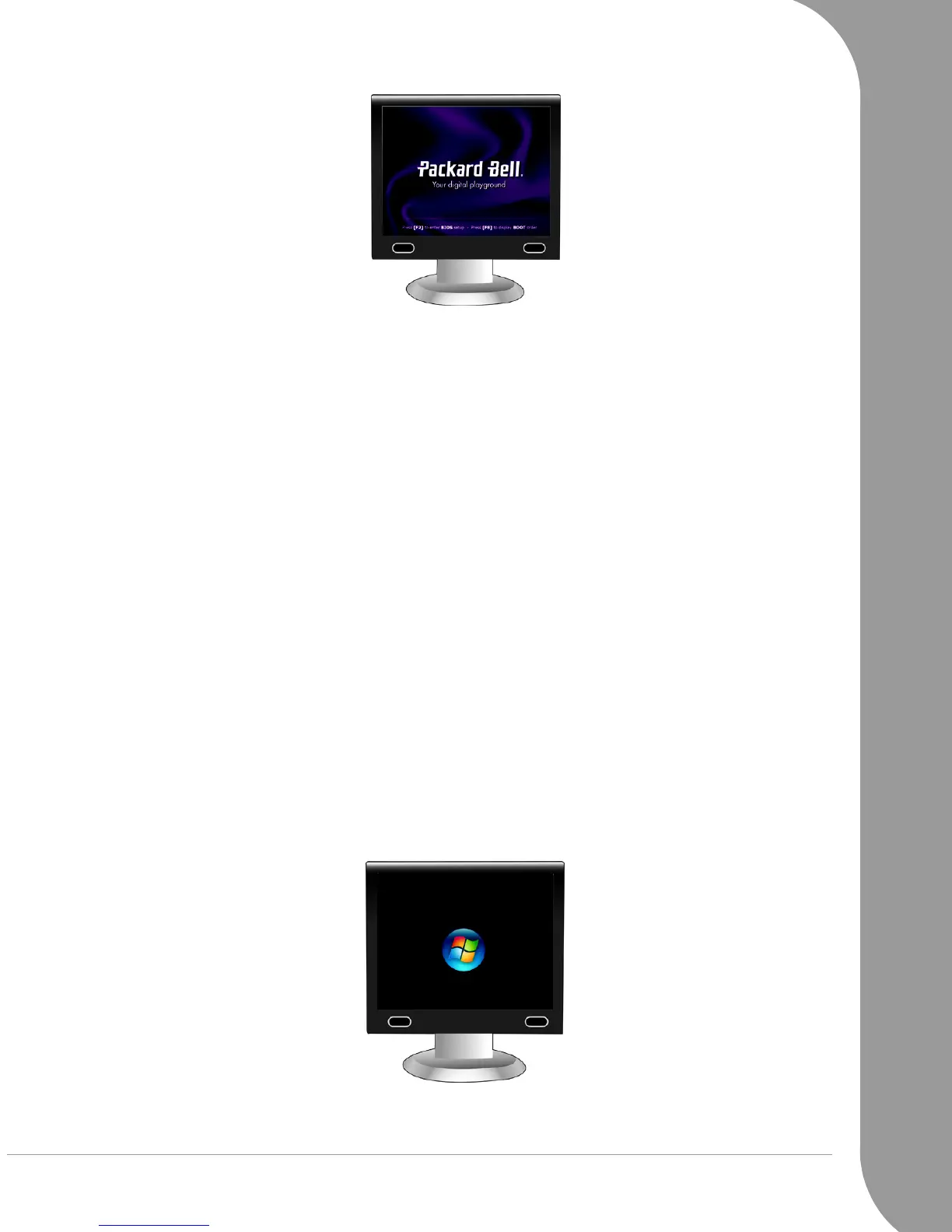
✓ Try to boot but press the [TAB] or [ESC] key to display some details.
✓ Set the BIOS to default settings.
Press [F1] or [F2] when starting your computer to enter the BIOS. This controls the hardware of your
computer. You should only enter the BIOS if you are an advanced user, or when asked to do so by a
qualified technician.
1. Select Exit in the top menu using the arrow keys or mouse (if available).
2. Select the Default Values in the menu and press [Enter]. Press [OK] to confirm.
3. Select Save Changes and Exit and press [Enter]. Press [OK] to confirm.
4. The computer will automatically reboot.
✓ Try to boot with a different boot device.
Press [F8] when starting your computer to enter the boot menu (this feature may not be available on all
computers). If your first boot device is HDD, change it into CD or DVD using the arrow keys and press
[Enter] to exit.
✓ Disconnect or remove additional devices.
Please read
Removing additional external devices
and
Removing additional internal hardware
on page 40.
✓ Use the
Packard Bell Troubleshooter
on the Packard Bell Support Website.
Our online Troubleshooter (troubleshooter.packardbell.com) is an easy-to-use tool that provides quick
access to troubleshooting solutions. Answer a few questions and our smart engine will help you with the
right solution.
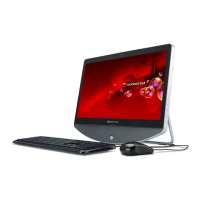
3. THE SCREEN FREEZES WHEN THE WINDOWS LOGO DISPLAYS
During the boot process, Windows runs a number of checks. If it detects incorrect settings, damaged or
missing software or hardware components, the system will likely hang. To fix this, try to restart your
computer using one of the options below.
✓ Boot in
Safe Mode
to use basic files and drivers.
1. Switch your computer and monitor on.



 To Next Page