Computer Basics -
5
✓ Some disorders of the hands, wrists, arms, neck, shoulders, legs and back may be associated with, or
aggravated by certain repetitive actions. To reduce your risk of developing these disorders, type with your
wrists straight and your hands and wrists floating above the keyboard. If you experience periods of pain,
tingling, numbness or other discomfort, please contact your doctor.
✓ We advise that parents monitor the use of games by their children. If you or your child experience any of
the following symptoms: dizziness, blurred vision, eye or muscle twitches, loss of consciousness, disorien-
tation, any involuntary movement or convulsion, IMMEDIATELY discontinue use and consult your doc-
tor. This may happen even if the person has no medical history of epilepsy.
GETTING TO KNOW YOUR COMPUTER
The Keyboard and Mouse
Cordless Devices
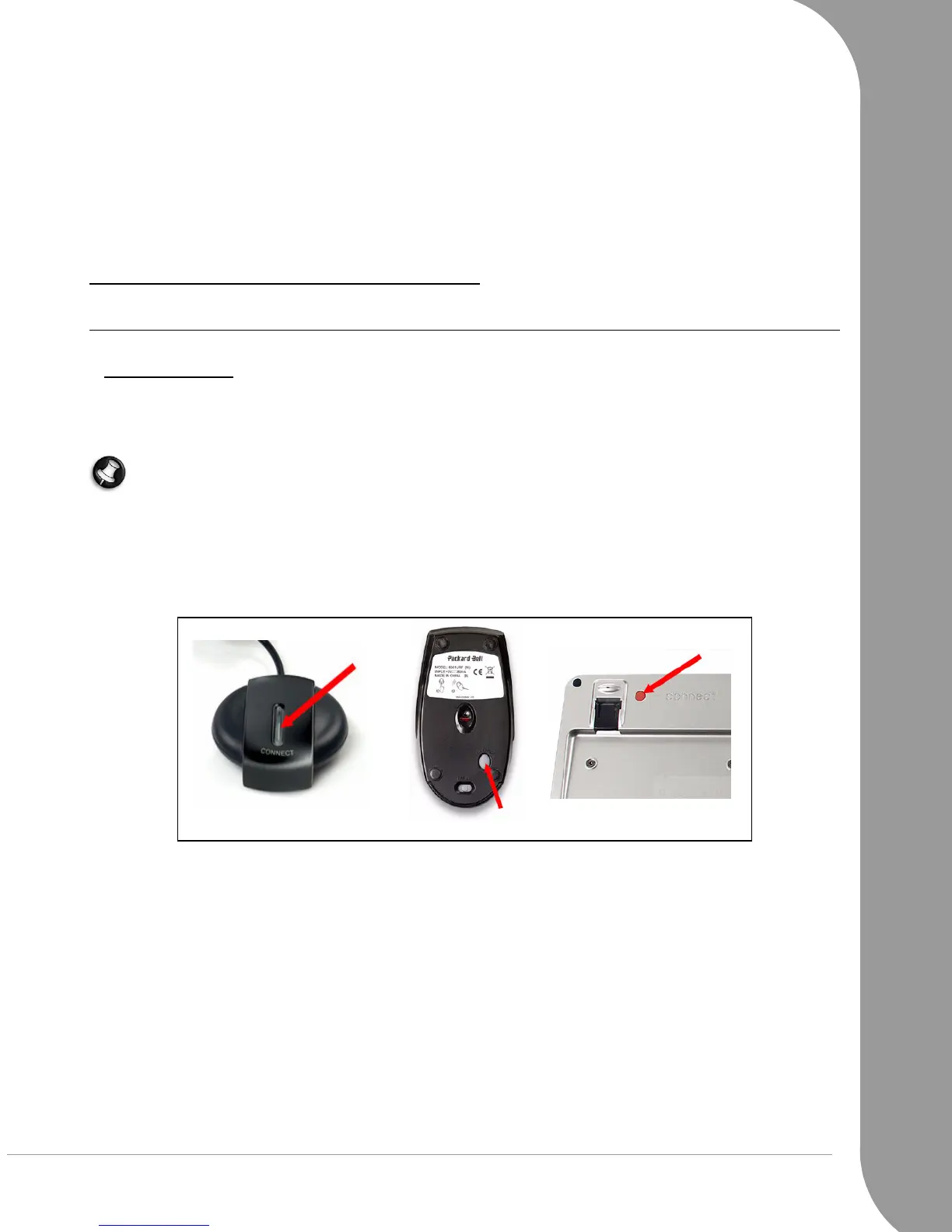
The cordless mouse and keyboard normally connect automatically as soon as you turn your computer on.
However, if the cordless mouse and keyboard do not work after installation, you should try to manually
establish communication with the receiver.
Note: The Keyboard/Mouse and Receiver shown below may not be the same as the Keyboard/Mouse
supplied with your computer. Check your InfoCentre documentation to see your Keyboard/Mouse
specifications if they are different from those shown below.
1. First check that the batteries for the keyboard and mouse are inserted correctly.
2. Then identify the mouse:
• Press the
connect button
on the receiver (A).
• Turn the mouse over.
• Use a thin object (such as a pen tip) to press the
connect button
on the mouse (B).
3. Wait 20 seconds.
4. Identify the keyboard:
• Press the
connect button
on the receiver (A).
• Turn the keyboard over.
• Use a thin object (such as a pen tip) to press the
connect button
on the keyboard (C).
A
B
C



 To Next Page