Tungsten™ E2 Handheld 39
CHAPTER 4 Managing Your Calendar
Scheduling an appointment
0
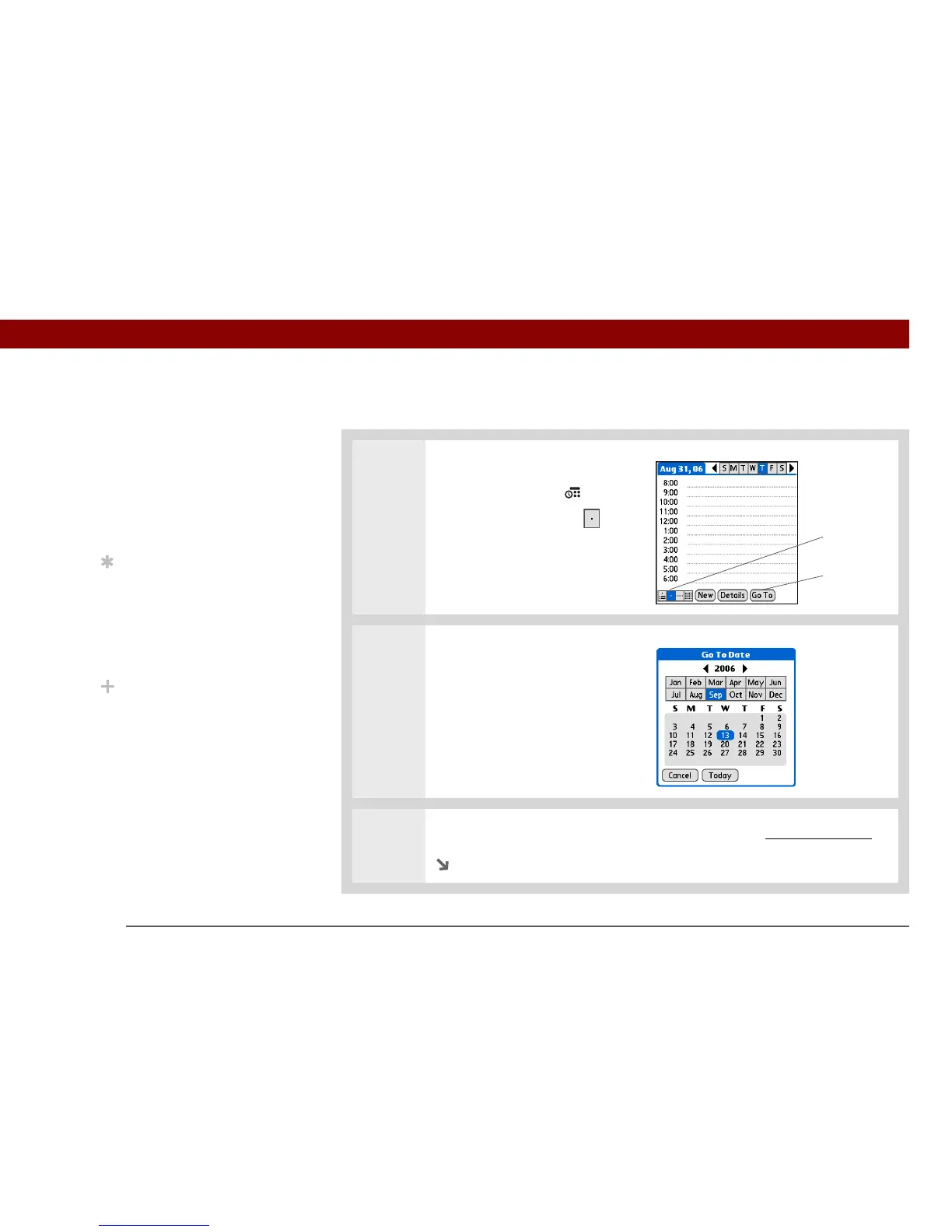
1 Open Day View:
a. Press the Calendar button.
b. Tap the Day View icon
2 [ & ] OPTIONAL If the
appointment is not for today,
select the date of the
appointment:
a. Tap G o To.
b. Select the year, month, and
date.
3 Tap the line next to the time the appointment begins and enter a description.
Continued
»
Key Term
Event The name for an
entry in the Calendar
application, including
appointments, birthdays,
reminders, recurring
meetings, and so on.
Tip
You can also scroll to a
date by pressing Right or
Left on the 5-way
navigator or by tapping
the arrows at the top of
the Day View.
Did You Know?
You can use more than
one line to describe an
appointment.
Day View icon
Go To


 To Next Page