
 Need help?
Do you have a question about the Panasonic AG-HPX260MC and is the answer not in the manual?
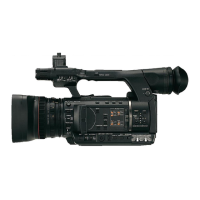
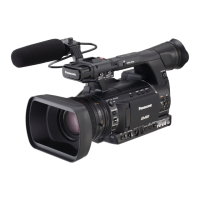
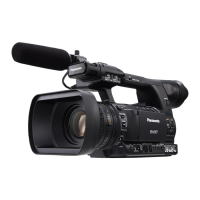
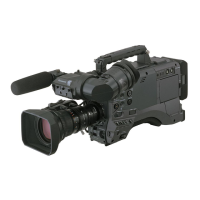
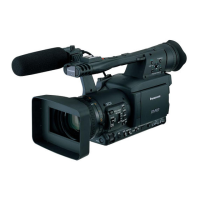
This document outlines the electrical adjustment procedures for the AG-HPX250P/EJ/EN/260MC camera recorder models. It serves as a comprehensive guide for technicians performing maintenance and calibration.
The core of these adjustments relies on the PC EVR (Electrical Value Read/Write) software, a dedicated tool for interacting with the camera's internal settings. To use the PC EVR software, specific tools and equipment are required, including the PC EVR software itself (Part Number VVS0095), a USB Driver for AG-HPX250/260 EVR Adjustment (Part Number VSI5386A), a USBC cable (A type to mini B), and a personal computer running Windows XP SP2/SP3. Both the PC EVR software and the USB driver are available for download from the Global Service WEB site.
The installation of the USB driver is a critical preliminary step. It is exclusively for Windows XP. The process involves downloading and extracting the driver file, then setting the camera recorder to "COM mode." This mode is activated by simultaneously holding down the "PLAY" (tilt the operation lever in the direction), "EXIT," and "RESET" buttons for three seconds or more until "COM" blinks on the LCD screen. Once in COM mode, the USB cable connects the camera to the PC. The "Found New Hardware Wizard" will then guide the user through the driver installation, requiring selection of "Install from a list of specific location (Advanced)" and directing the wizard to the extracted driver folder. After installation, a "Hardware Installation" warning may appear, which should be bypassed by clicking "Continue Anyway." The process concludes with a "Completing the Found New Hardware Wizard" screen, where "Finish" is selected.
Following the USB driver installation, the PC EVR software needs to be set up. This involves copying the software files to the PC, powering on the camera, and launching "HPX250.exe." The "Selection" screen appears, prompting the user to select the correct model name (e.g., AG-HPX250P, AG-HPX250EJ, AG-HPX260MC, AG-HPX250EN). After selecting "CAM(C)" and clicking "OK," the main software interface appears. A status lamp indicates communication status: black for not connected, blue for connected, green for reading, and red for writing. If a "Detection of not initialized P.C.Board" message appears, further reference to "7-3. Setup of PC EVR software" in Section 1 of the service information is advised.
The document then details various adjustment items, specifying whether they are manual or automatic and listing the required tools and equipment. Many adjustments are "Unnecessary" for specific components like Zoom center, Hall Amp, Iris PWM, and OIS Hall Amp, indicating they are likely factory-calibrated or self-adjusting under normal circumstances. Other adjustments, such as Zoom tracking and De-focus, White Balance, Blemish Compensation, White Shading, and ND FILTER Compensation, require tools like halogen lamps, collimators, white charts, color pyrometers, and lux meters, and are typically automatic. Video Output Level and Int. Frequency adjustments are manual, requiring an SD WFM (Waveform Monitor) or oscilloscope and an SD NTSC/PAL Composite Signal Generator, respectively.
A crucial section addresses adjustments required after replacing major parts. A table clearly indicates which adjustments are necessary based on the replaced component (e.g., CAM P.C.B., Camera Lens U, Grip U) and whether a backup of CAM EEPROM data exists. For instance, replacing the LENS U necessitates Zoom tracking and De-focus, White Balance, Blemish Compensation, White Shading, and ND FILTER Compensation adjustments. The method for data backup (EEPROM) is referenced in item "8. Save and write EEPROM data" of service information (SECTION 1). All adjustment data is saved in the CAM EEPROM.
The "Adjustment Procedure" section begins by explaining how to access the "Adjustment Tool" screen within the PC EVR software via the "Tools(W)" menu. This screen is the central hub for all electrical adjustments. It also highlights the "Shutter Button" and "ND Button" as key controls for Blemish Compensation and White Shading adjustments.
A "Setting of System Mode" subsection explains how to configure the camera's system frequency (e.g., 60Hz NTSC, 50Hz PAL) and resolution (e.g., 1080/60i, 1080/50i). This is done by clicking the corresponding buttons on the "Adjustment Tool" screen, followed by "Re-Boot Power." The camera automatically powers off and on, and "TURN POWER OFF" is displayed on the LCD panel during this process.
Detailed adjustment procedures are provided for each item:
2-1-1. Zoom center Adjustment: This is a manual adjustment. The procedure involves setting the zoom to the Tele and Wide terminals, reading the values using "T READ" and "W READ" buttons on the Adjustment Tool screen, and repeating this process three times. Finally, clicking "Set" saves the adjusted value to EEPROM. A "Power OFF is required" message appears, and the PC EVR software closes compulsorily after clicking "OK."
2-1-2. Hall Amp / Iris PWM / OIS Hall Amp Adjustment: This is an automatic adjustment. After accessing the Adjustment Tool, clicking "Execute" initiates the automatic adjustment. Upon completion, "Adjustment OK!" is displayed, and a "Power OFF is required" message appears, leading to an automatic power cycle and software closure.
2-1-3. Zoom tracking and De-focus Adjustment: This is an automatic adjustment requiring a halogen lamp (3100K) as a light source and a collimator (RFKZ0422) with an adapter. The camera's switches (GAIN, BARS, AUTO/MANUAL, ZOOM, ND FILTER, IRIS, SHUTTER) must be set to specific positions. The collimator is then attached to the lens, and the white level of the signal is confirmed to be 90% (85-95%) at full telephoto. The lens unit and collimator are adjusted to center the chart on the monitor. After connecting to the PC EVR software and accessing the Adjustment Tool, clicking "Start" begins the process. If preset values differ, an "initial data is set. Power OFF is required. OK?" message prompts a power cycle and software restart. Otherwise, the user focuses with the FOCUS ring at Tele zoom and clicks "OK." Finally, clicking "Execute" performs the automatic adjustment. "Tracking Adjustment Completed!" is displayed, followed by a power cycle and software closure. Instructions for installing the collimator are also provided, detailing the assembly of the attachment ring, adapter, and hex screws.
2-1-4. White Balance Adjustment: This automatic adjustment requires a halogen lamp (3100K, 2000Lux) and a white chart. Camera switches (GAIN, AUTO/MANUAL, WHITE BAL, USER, SHUTTER) are set. "P.A.P FILTER" in the OPTION MENU must be set to "TYPE2." The SYSTEM MODE is set to "1080/59.94i." WFM is connected to SDI OUT, and VIDEO OUT to a monitor. The camera is aimed at the white chart. After connecting to PC EVR software and accessing the Adjustment Tool, "Start" is clicked for "P.A.P Type2." IRIS is adjusted for a white level of 70-90%. "Execute" performs the adjustment. "White Balance Completed!" is displayed, and the vector dot on the WFM should be at zero. "P.A.P FILTER" is then set to "TYPE1," which triggers a "TURN POWER OFF" message and a power cycle. The process is repeated for "P.A.P Type1" with SHUTTER at 1/250.
2-1-5. Blemish Compensation Adjustment: This automatic adjustment also uses a halogen lamp (3100K, 2000Lux) and a white chart. Camera switches are set (GAIN, AUTO/MANUAL, WHITE BAL, USER, SHUTTER). "P.A.P FILTER" is "TYPE1." SYSTEM MODE is "1080/59.94i." WFM is connected to SDI OUT. The camera aims at the white chart, with zoom set to "Z75 to 85" and IRIS to "F5.6±1." After connecting to PC EVR software and accessing the Adjustment Tool, "Start" is clicked for "Black Blemish." The white level is confirmed to be 65-75%, adjusting ND or SHUTTER if necessary. "Execute" performs the Black Blemish Compensation. "Blemish Compensation Completed!" is displayed. If "Blemish Compensation NG" appears, the white level needs to be re-adjusted to 60%. The process is then repeated for "White Blemish." After completion, "P.A.P FILTER" is returned to "TYPE2."
2-1-6. White Shading Adjustment: This automatic adjustment requires a halogen lamp (3100K, 2000Lux) and a white chart. Camera switches are set (BARS, GAIN, AUTO/MANUAL, ND FILTER, ZOOM, FOCUS, IRIS). SYSTEM MODE is "1080/59.94i." WFM is connected to SDI OUT. The camera aims at the white chart to fill the screen, with zoom set to "WIDE(Z00)." After connecting to PC EVR software and accessing the Adjustment Tool, "Start" is clicked for "Pos. 1." The white level is confirmed to be 70-90%, adjusting SHUTTER if needed. "Set" is clicked for "Pos. 1." The process is repeated for "Pos. 2." Finally, "Execute" performs the white shading adjustment. "Shading Completed!" is displayed.
2-1-7. ND FILTER Compensation Adjustment: This automatic adjustment requires a halogen lamp (8,000 to 15,000lux). Camera switches are set (BARS, AUTO/MANUAL, ZOOM, GAIN, ND FILTER, IRIS, SHUTTER). SYSTEM MODE is "1080/59.94i." WFM is connected to SDI OUT, and VIDEO OUT to a monitor. The camera aims at the halogen lamp. After connecting to PC EVR software and accessing the Adjustment Tool, "Preparation->AWB" is clicked to execute AWB. "Enable ND Filter Adjustment!" is displayed, and the "Start" button becomes valid. "Start" is clicked for "ND Filter1." The white level of Y signal is confirmed to be 70-90%. "Execute" performs the ND Filter1 (ND 1/4) adjustment. "ND Adjustment END!" is displayed, and the vector dot on the WFM should be at zero. "Set" is clicked for "ND Filter1" to save the value. The process is repeated for "ND Filter2" (ND 1/16) and "ND Filter3" (ND 1/64).
2-1-8. Video Output Level Adjustment: This manual adjustment requires an SD WFM or oscilloscope. WFM is connected to VIDEO OUT. SYSTEM MODE is "1080/59.94i." After connecting to PC EVR software and accessing the Adjustment Tool, "Start" is clicked for "Video Level Adj." Luminance level "Y" and Burst level "C" are adjusted by clicking their respective buttons until they are within NTSC specifications (Y = 714mV ± 7mV, C = 286mV ± 6mV). The system frequency is then changed to 50Hz using the "50Hz<->60Hz" button, followed by "Re-Boot Power." The Luminance "Y" and Burst "C" levels are adjusted again to PAL specifications (Y = 700mV ± 7mV, C = 300mV ± 6mV). Finally, "Set" is clicked to end the adjustment mode.
2-1-9. Int. Frequency Adjustment: This manual adjustment requires an SD NTSC/PAL Composite Signal Generator and an SD WFM. WFM is connected to VIDEO OUT, and a color bar signal is input to EXT IN BNC of WFM, set to EXT reference mode. SYSTEM MODE is "1080/59.94i." After connecting to PC EVR software and accessing the Adjustment Tool, "Start" is clicked for "X'tal Oscillator Freq." The video output signal on the waveform display mode is observed, and the adjustment button for "X'tal Oscillator Freq" is clicked until the H-shift of the waveform stops or slows down. The vector scope display mode is then observed, and the adjustment button is clicked until the rotation of the vector stops or slows down. "Set" is clicked to end the adjustment mode. The system frequency is then changed to 50Hz using the "50Hz<->60Hz" button, followed by "Re-Boot Power." The process is repeated for the 50Hz setting.
This comprehensive guide ensures that the AG-HPX250P/EJ/EN/260MC camera recorders can be accurately calibrated and maintained, guaranteeing optimal performance after part replacements or for routine adjustments.


 To Next Page
 General