Advanced (Playback)
79
VQT1C52
(Even if the pictures were recorded with a
Panasonic digital camera, you may not be
able to copy them if they were edited with
a PC.)
• DPOF settings on the original picture data
will not be copied. Set the DPOF settings
again after copying is finished. (P74)
Press [ ] to display the [PLAY] mode
menu and select the item to set. (P68)
Usually, it is not necessary to format the
built-in memory and the card. Format them
when the message [BUILT-IN MEMORY
ERROR] or [MEMORY CARD ERROR]
appears.
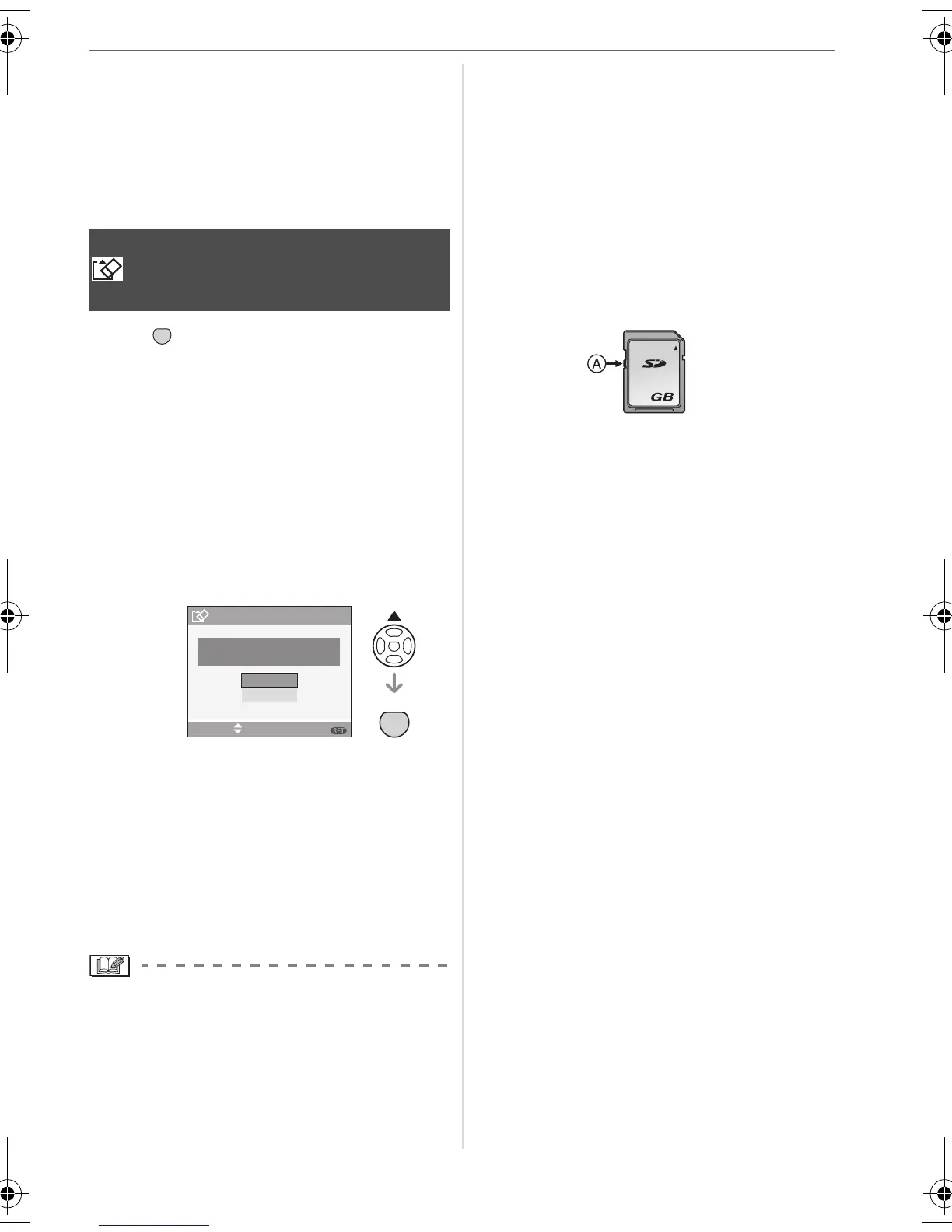
Press 3 to select [YES] and then
press [MENU/SET].
(The illustration shows the screen when
the built-in memory is formatted.)
• When a card is not inserted, you can
format the built-in memory. When a
card is inserted, you can format the
card.
• If you press [MENU/SET] while
formatting the built-in memory, the
formatting will stop halfway. (However,
all the pictures will be deleted.)
• Formatting irretrievably deletes all the
data including any protected pictures.
Check the data carefully before
formatting.
• If the card has been formatted on a PC or
other equipment, format it on the camera
again.
• Use batteries with sufficient power (P22)
or the AC adaptor (DMW-AC6E; optional)
when formatting.
• Do not turn the camera off during
formatting.
• It may take longer to format the built-in
memory than the card. (Max. about
15 sec.)
• You cannot format an SD Memory Card or
an SDHC Memory Card when the card’s
Write- Protect switch A is set to [LOCK].
• If the built-in memory or the card cannot
be formatted, consult your nearest service
centre.
[FORMAT]
Initializing the built-in memory or a
card
MENU
SET
FORMAT
DELETE ALL DATA
ON THE BUILD-IN MEMORY?
NO
YES
SELECT SET
MENU
MENU
SET
2
VQT1C52ENG.book 79 ページ 2006年12月29日 金曜日 午後2時14分






 To Next Page