EasyManua.ls Logo

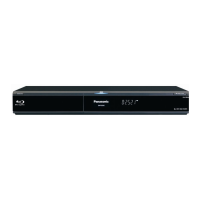
Panasonic DMP-BD70V - User Manual

Panasonic DMP-BD70V
52 pages
Print Icon
To Next Page IconTo Next Page
Loading...
Operating Instructions
Blu-ray Disc Player
Model No. DMP-BD70V
Dear customer
Thank you for purchasing this product.
For optimum performance and safety, please read these instructions carefully.
Before connecting, operating or adjusting this product, please read the instructions completely. Please keep this manual for future reference.
Region management information
BD-Video
This unit plays BD-Video marked with labels containing the region code A.
Example:
DVD-Video
This unit plays DVD-Video marked with labels containing the region number “1” or “ALL”.
Example:
2
4
1
ALL
1
For Canada only: The word “Participant” is used in place of the word
“Partner”.
As an ENERGY STAR Partner,
Panasonic has determined that
this product meets the ENERGY STAR
guidelines for energy efficiency.
®
®
If you have any questions contact
[U.S.A.[and[Puerto[Rico]:1-800-211-PANA(7262)
[Canada]
:1-800-561-5505
[Only[f or[U.S.A. [and[Puerto[Rico]:The warranty can be found on
page 46.
[Canada]:The warranty can be found on page 47.
La referencia rápida en español se puede encontrar en la página 49.
until
2009/3/16
RQT9412-P
P
PC
RQT9412_ENG_P_Cover_mst.fm 1 ージ 2009年2月28日 土曜日 午後12時2

Other manuals for Panasonic DMP-BD70V

Questions and Answers

  • E
    Emily MoralesJul 29, 2025
    How to fix a Panasonic DMP-BD70V remote control that isn't working?
    • J
      John OconnellJul 29, 2025
      If the remote control for your Panasonic Blu-ray Player isn't working, try these solutions: * Change the manufacturer code of the remote control. * If you've recently changed the batteries, you might need to reset the manufacturer code or the remote control code. * The remote control and the main unit might be using different codes; change the code on the remote control. * The batteries may be depleted; replace them with new ones.
  • M
    Madison OlsonAug 1, 2025
    What to do if my Panasonic DMP-BD70V cannot eject the disc?
    • J
      joshua03Aug 1, 2025
      If your Panasonic Blu-ray Player won't eject the disc, while the unit is off, press and hold the [;] and [< OPEN/CLOSE] buttons on the main unit simultaneously for about 5 seconds. This should force the tray to eject. After ejecting, remove the disc and consult a dealer.
  • K
    Kimberly GuerreroAug 6, 2025
    Why won't my Panasonic Blu-ray Player start playing or stops immediately?
    • T
      Timothy CampbellAug 6, 2025
      If your Panasonic Blu-ray Player fails to start playback or stops immediately after starting, it could be due to a dirty disc. Make sure to insert the media correctly with the label facing up. It's also possible you're trying to play a blank or unplayable disc.
  • M
    mallory01Aug 10, 2025
    What to do if my Panasonic Blu-ray Player is on but not responding?
    • C
      Charles SimsAug 10, 2025
      If your Panasonic Blu-ray player is on but not responding, it's possible a safety device has been activated. Try these steps to reset it: 1. Press the power button on the main unit to put it in standby mode. If it doesn't switch off, press and hold the power button for about 3 seconds to force standby. Alternatively, disconnect the AC power cord, wait a minute, and reconnect it. 2. Press the power button again to turn it on. If it still doesn't work, consult a dealer. Condensation could also be the problem. If so, wait 1 to 2 hours for it to evaporate.
  • J
    Jack HarrisAug 15, 2025
    Why does my Panasonic DMP-BD70V Blu-ray Player start up so slowly?
    • F
      fquinnAug 15, 2025
      If your Panasonic Blu-ray Player is starting up slowly, ensure that 'Quick Start' is set to 'On'. Also, if connected to an “HDAVI Control 4” compatible TV (VIERA) with the “Stand-by power save” setting activated on the TV, the unit may take some time to startup when the TV is in standby mode, even with 'Quick Start' set to 'On'. Startup may also take longer immediately after a power failure or when the AC power cord is connected, and when the unit is connected with an HDMI cable.
  • C
    Christine LewisAug 19, 2025
    How to enable 24p output on my Panasonic DMP-BD70V Blu-ray Player?
    • K
      kgalvanAug 19, 2025
      To set “On” in “24p Output” on your Panasonic Blu-ray Player, ensure the unit is connected to the HDMI terminal of a TV that supports 24p. If connected through an amplifier/receiver via HDMI, you might not be able to select 'On'. In this case, connect the unit directly to the TV via HDMI and connect the unit to the amplifier/receiver through any terminal other than HDMI.
  • W
    Wanda SolomonAug 23, 2025
    Why is the playback image distorted on my Panasonic DMP-BD70V Blu-ray Player?
    • M
      melissawilsonAug 25, 2025
      High definition video with a transfer rate of 18 Mbps or faster might not playback correctly on your Panasonic Blu-ray Player if it was recorded on a DVD compatible with double speed or slower.

Summary

Dear Customer

Region Management Information

BD-Video Region Code

Information on region codes for BD-Video discs.

DVD-Video Region Code

Information on region codes for DVD-Video discs.

Important Safety Instructions

General Safety Precautions

Essential safety guidelines for operating the unit.

Specific Safety Warnings

Warnings regarding laser, batteries, and electrical hazards.

FCC Compliance Statement (USA)

Regulatory compliance information for the USA market.

Unit and Media Care

Media Handling Guidelines

Proper procedures for handling discs, cards, and cassettes.

Unit Maintenance and Cleaning

Instructions for cleaning the unit and its optical lens.

Disposal and Transfer Procedures

Guidelines for disposing or transferring the unit.

Accessory Information

Supplied Accessories List

Identification of included accessories with the unit.

Remote Control Usage and Setup

Instructions for using and setting up the remote control.

Media Compatibility Information

Commercially Sold Discs

Details on compatible commercial disc types and logos.

User Recorded Media

Information on compatible user-recorded disc formats.

Supported Media Types

SD Cards and USB Devices

Compatibility details for SD cards and USB storage devices.

Unsupported Discs

List of disc types that cannot be played by the unit.

Audio and Video Output Information

Audio Output Terminal Settings

Configuration options for audio output via HDMI and digital terminals.

High Bit Rate Audio Playback

Requirements for enjoying high-quality audio from BD-Video.

Video Output Configuration

24 p Output Settings

Settings for outputting video at 24 frames per second.

Audio Output Settings for Connected Equipment

Recommended audio output settings based on connected equipment.

Connections Guide

Video Connection Terminals

Overview of video output terminals for TV connection.

Audio Connection Terminals

Overview of audio output terminals for receiver/amplifier connection.

Connecting to Your TV

HDMI AV OUT Connection

Instructions for connecting the TV via HDMI AV OUT.

COMPONENT;VIDEO OUT Connections

Instructions for connecting the TV via Component or Video OUT.

Digital Audio Connections

HDMI AV OUT Digital Audio Connection

Connecting for digital audio output via HDMI.

Optical Digital Audio Output Connection

Connecting for digital audio output via optical cable.

Analog Audio and Power Connections

Analog Audio OUT Connection

Connecting for analog audio output.

AC Power Connection

Instructions for connecting the unit to AC power.

Remote Control and Unit Overview

Remote Control Button Guide

Description of each button on the remote control.

Unit Front Panel and Indicators

Overview of the unit's front panel and indicator lights.

Initial Setup and Remote Control Pairing

Easy Setup Procedure

Step-by-step guide for initial basic settings.

Remote Control TV Pairing

Instructions for programming the remote to control the TV.

Network Setup and Firmware Updates

Broadband Network Connection

Guidelines for connecting the unit to a broadband network.

Firmware Updates

Procedures for updating the unit's firmware.

Network Settings Configuration

IP Address and DNS Settings Test

Testing the network connection for IP and DNS settings.

IP Address and DNS Configuration

Steps for setting IP address and DNS server details.

Advanced Network Settings

Connection Speed and Proxy Server Settings

Configuring connection speed and proxy server details.

Inserting and Removing Media

Disc, USB Device, and SD Card Handling

Procedures for inserting and removing discs, USB, and SD cards.

Video Cassette Handling

Instructions for inserting and ejecting video cassettes.

Basic Playback Operations

Video Playback Controls

Using playback controls like Stop, Pause, Search, Skip.

Menu Navigation

How to switch drives, display menus, and use Pop-up menus.

Advanced Playback Operations

Frame-by-Frame Playback

Detailed playback control for individual frames.

Playback Display and Audio Settings

Adjusting screen aspect, audio, and viewing status messages.

Functions Menu Usage

Accessing and using the unit's functions menu.

Playing Video Content

Playing HD;SD Video Content

Steps for playing back HD and SD video files.

Chapter Playback Navigation

Navigating through chapters on video discs.

BD-Live and BONUSVIEW Features

Secondary Video and Audio Playback

How to use secondary video (picture-in-picture) and audio.

BD-Live Internet Access

Accessing BD-Live content via the Internet.

SD Card Formatting and Management

Procedures for formatting and managing SD cards for BD-Live.

Playing Still Pictures

Connecting USB Devices for Pictures

Connecting cameras or devices for displaying still pictures.

Still Picture Playback Functions

Utilizing functions like slideshow during still picture playback.

Slideshow Settings and Picture Options

Slideshow Configuration

Adjusting slideshow display interval and transition effects.

Selecting Pictures in Other Folders

Browsing and selecting picture folders on media.

Viewing Picture Properties

Displaying technical properties of still pictures.

Playing Video Cassettes

Video Cassette Playback Controls

Using controls for Stop, Pause, Slow, Fast-forward, and VISS.

Playback Picture Adjustment

Manually adjusting tracking and vertical lock for playback.

Playing Music

Enjoying VIERA CAST

VIERA CAST Account and Settings

Setting up and managing VIERA CAST account and preferences.

VIERA Link and HDAVI Control Operations

Automatic Input Switching and Power Control

How VIERA Link controls TV input and power states.

Continuous Music Playback

Enabling music playback to continue after TV power off.

Simplified TV Remote Operation

Operating via TV Remotes FUNCTIONS Menu

Using the TV remote to access unit functions.

Operating via TV Remotes SUB MENU

Using the TV remote to access the sub menu for playback.

On-Screen Menu Operations

Navigating the On-Screen Menu

Steps for accessing and navigating the on-screen menus.

Configurable On-Screen Settings

Overview of adjustable settings available via the on-screen menu.

Changing Unit Settings

Play Settings Configuration

Adjusting repeat play, random playback, and sound settings.

Video Settings Configuration

Configuring picture quality, progressive output, and 24p settings.

Audio Settings Configuration

Adjusting sound effects, surround modes, and dialog enhancement.

System Settings Summary

Disc Settings Summary

Summary of settings related to disc playback and ratings.

Video and Language Settings Summary

Summary of settings for video output, language, and subtitles.

Audio and Display Settings

Audio Output Configuration Details

Detailed settings for audio output formats and sampling.

Display Settings Options

Configuring status messages, screen saver, and FL display.

TV and Device Connection Settings

TV Aspect and HDMI Settings

Configuring TV aspect ratio, HDMI mode, and resolution.

Video Output Resolution Settings

Setting video output resolution for HDMI and Component.

Network Configuration and Time Settings

IP Address, DNS, Proxy, and MAC Address

Network configuration details including IP, DNS, proxy, and MAC.

Network Service and Time Zone Settings

Configuring VIERA CAST access, time zone, and DST.

General Unit Settings and Updates

Other Settings (Timer, Quick Start, Easy Setting)

Configuration for timer, quick start, and easy setup.

Firmware Updates and Remote Control Codes

Managing firmware updates and remote control codes.

MP3 and JPEG File Information

File Format Specifications

Details on MP3 and JPEG file formats and requirements.

Folder Structures for Playback

Information on supported folder structures for media playback.

System Messages Overview

Messages Displayed on Television

Explanation of messages shown on the TV display.

Unit Display Messages and Codes

Troubleshooting Guide: Core Issues

Unit Reset Procedures

Steps for resetting the unit to factory defaults or troubleshooting.

Power and Operation Troubleshooting

Resolving issues related to power, unit operation, and remote control.

Playback Start and Image Troubleshooting

Troubleshooting playback start failures and distorted images.

Troubleshooting: Display and Sound Problems

Video Display Issues

Resolving problems with distorted video, jittering, and screen size.

Audio Output Issues

Troubleshooting no sound, distorted audio, and audio switching problems.

Troubleshooting: Media and Network Problems

Card, USB, and VHS Issues

Resolving problems with media recognition and playback.

Network Connectivity Problems

Troubleshooting network connection and VIERA CAST issues.

Troubleshooting: Playback Difficulties

Playback Pauses and Media Support Issues

Resolving issues with pauses, BD-Live, and subtitle support.

Subtitle and Resume Play Issues

Troubleshooting subtitle overlap and resume play function problems.

Product Specifications

Product Service and Support

Service Requirements and Procedures

Guidelines for unit servicing and replacement parts.

Product Information and Contact

Information on obtaining product support and assistance.

Limited Warranty (USA & Puerto Rico)

Warranty Coverage and Exclusions

Details on warranty coverage, limits, and exclusions.

Customer Service and Parts Information

Contact information for warranty service and accessory purchases.

Limited Warranty (Canada)

Warranty Limitations and Exclusions

Details on warranty coverage, limits, and exclusions for Canada.

Warranty Service and Contact Information

Contact information for warranty service in Canada.

Licenses and Trademarks

Glossary of Terms

Panasonic DMP-BD70V Specifications

General IconGeneral
BrandPanasonic
ModelDMP-BD70V
CategoryBlu-ray Player
LanguageEnglish

Related product manuals