English - 25 -
Wired Network Connection
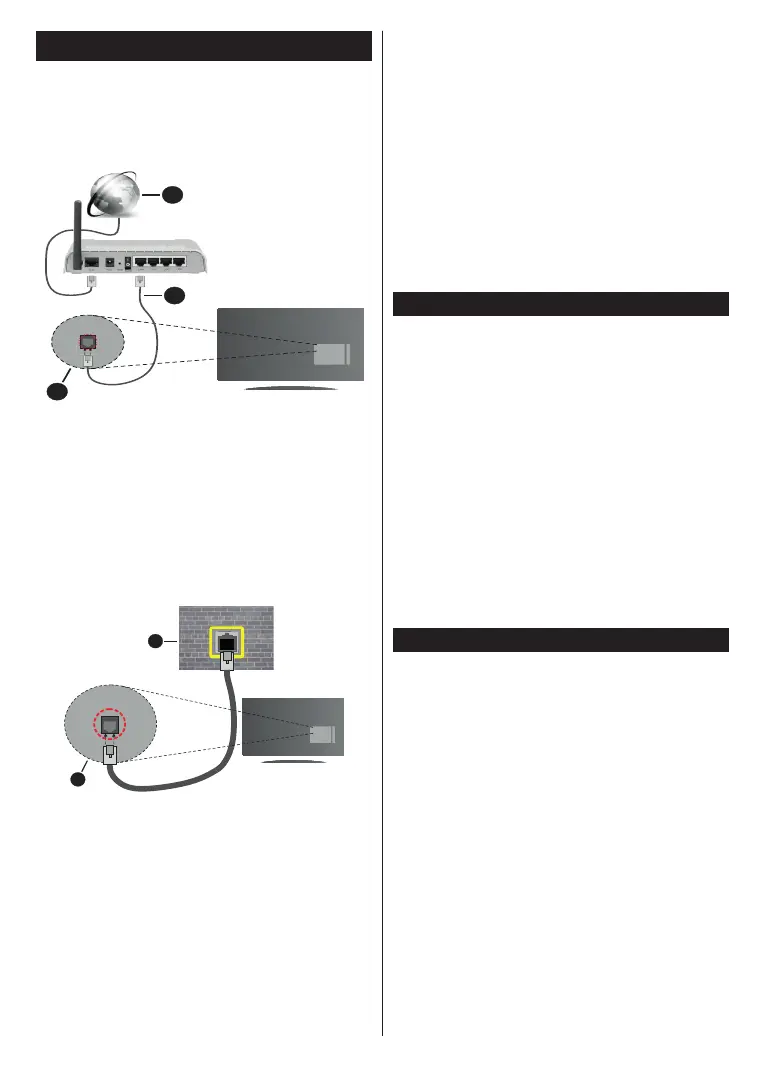
• You must have a modem/router connected to an
•
(back) of your TV.
1. Broadband ISP connection
2. LAN (Ethernet) cable
3. LAN input on the rear side of the TV
Settings menu.
•
a case, use an Ethernet cable to connect your TV
1. Network wall socket
2. LAN input on the rear side of the TV
Network Type
The Network Type can be selected as Wired Device
or Disabled, in accordance with the active connection
to the TV set. Select this as Wired Device if you are
connecting via an Ethernet cable.
Internet Speed Test
Highlight Internet Speed Test and press the OK
button. TV will check the internet connection bandwidth
and display the result when complete.
Advanced Settings
Highlight Advanced Settings and press the OK
button. On the next screen you can change the IP and
DNS settings of the TV. Highlight the desired one and
press Left or Right button to change the setting from
Automatic to Manual. Now you can enter the Manual
IP and / or Manual DNS values. Select the related item
in the drop down menu and enter the new values using
the numeric buttons of the remote. Highlight Save and
press the OK button to save settings when complete.
Troubleshooting
Internet Connection Not Available
DVB functionality information
This DVB receiver is only suitable for use in the country
which it was designed to be used in.
Although this DVB receiver conforms to the latest DVB
guarantee compatibility with future DVB transmissions
due to changes that may be implemented in broadcast
signals and technologies.
Some digital television functions may not be available
in all countries.
We continually strive to improve our products;
notice.
For advice on where to purchase accessories,
please contact the store where you purchased your
equipment.



 To Next Page