49
Various Settings
Other Convenient Functions (Various Settings)
Settings for the Main Menu Item
“Display”
For Automatic Display of the Channel
Guide on the TV Screen Each Time You
Change the Programme Position
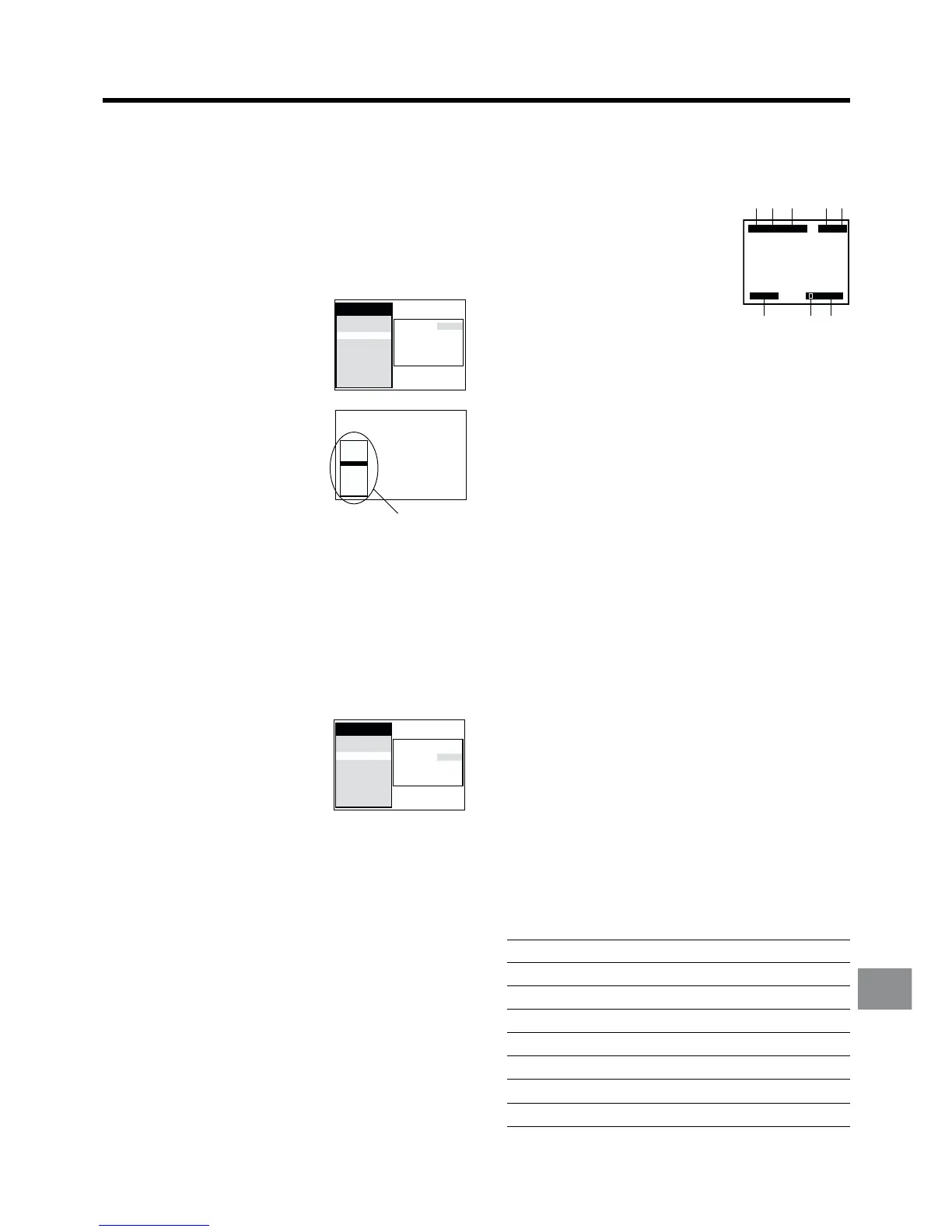
1 Press the MENU button U to display the Main menu on
the TV screen.
2 Press the Cursor buttons
(3421) R to select “Display”
and “Channel Guide” in this
order. Then, select the “Channel
Guide” field.
3 Press the Cursor buttons (34)
R to select “ON”.
≥ Each time you change the
programme position with the
Channel button N, the
Channel Guide indication
appears for a few seconds.
Set the VCR/TV switch P to
“VCR”.
4 Press the OK button T to conclude the setting.
5 Press the EXIT button S to exit the On Screen Display.
For Automatic Display on the TV Screen of
the TV Station Information, etc.
1 Press the MENU button U to display the Main menu on
the TV screen.
2 Press the Cursor buttons
(3421) R to select “Display”
and “OSD” in this order. Then,
select the “OSD” field.
3 Press the Cursor buttons (34) R to select “4:3”, “OFF”
or “16:9”.
Normally set to “4:3”.
≥ When using wide type of TV screen and selecting the
wide screen mode on the TV setting, indications do
not appear.
Therefore, set to “16:9”.
≥ Even if setting to “16:9”, indications may be cut off
depending on the TV.
OFF: No indicators appear.
4 Press the OK button T to conclude the setting.
5 Press the EXIT button S to exit the On Screen Display.
Channel Guide indication
Channel Guide
: OFF
OSD : 4:3
Power save : OFF
VCR display :
DIMMED
Main menu
Timer record
Tape Library
Display
Tuning
Clock
Functions
Language
Country
Satellite
8 SW3
7 SFB3
6 RB3
5 BR3
4 HR3
3N3
2ZDF
1 ARD
A3 AV3
A2 AV2
A1 AV1
Indications that Can Be Displayed on the TV Screen with
This Function:
At a press of the OSD/DISPLAY button 5, the following
indications appear on the TV screen.
1 TV station name
2 Video system (colour TV system)
3 STEREO, M1 and M2 Indicator
When receiving a TV programme with the Stereo,
Bilingual or NICAM sound system, the type of sound
system in which it is broadcast is automatically indicated.
STEREO: When receiving a Stereo/NICAM stereo
broadcast.
M1/M2: When receiving a Bilingual/NICAM dual-sound
broadcast.
M1: When receiving a NICAM monaural broadcast.
4 Sound mode during playback (L/R)
At each press of the AUDIO button ?, the selected
playback sound is indicated with L (Left) and R (Right).
Stereo playback:
The L and R indications are displayed.
Left audio channel playback:
The L indication alone is displayed.
Right audio channel playback:
The R indication alone is displayed.
Playback of normal audio track:
Neither L nor R indication is displayed.
5 Tape speed indicator
6 Tape length indicator
At each press of the TAPE button C, the selected tape
length is indicated.
2E-180: For E30, -60, -90, -120 and -180 tapes
2E-195: For E195 tape
2E-240: For E240 tape
E-2601: For E260 and -300 tapes
≥ Even if you have selected the correct tape length, the
remaining tape time may not be indicated correctly with
certain kinds of cassettes.
7 Tape running display
Stop ∑
Rewind 6
Fast Forward 5
Playback !
Recording ¥
Recording pause +
Repeat Playback R
Audio Dubbing ADUB
12 3 4
ARD PAL STEREO
0:00.29
8
L R SP
5
7
2
E-180
6
Channel Guide
: OFF
OSD : 4:3
Power save : OFF
VCR display :
DIMMED
Main menu
Timer record
Tape Library
Display
Tuning
Clock
Functions
Language
Country
Satellite




 To Next Page