74 – ENGLISH
Position of on-screen
indications
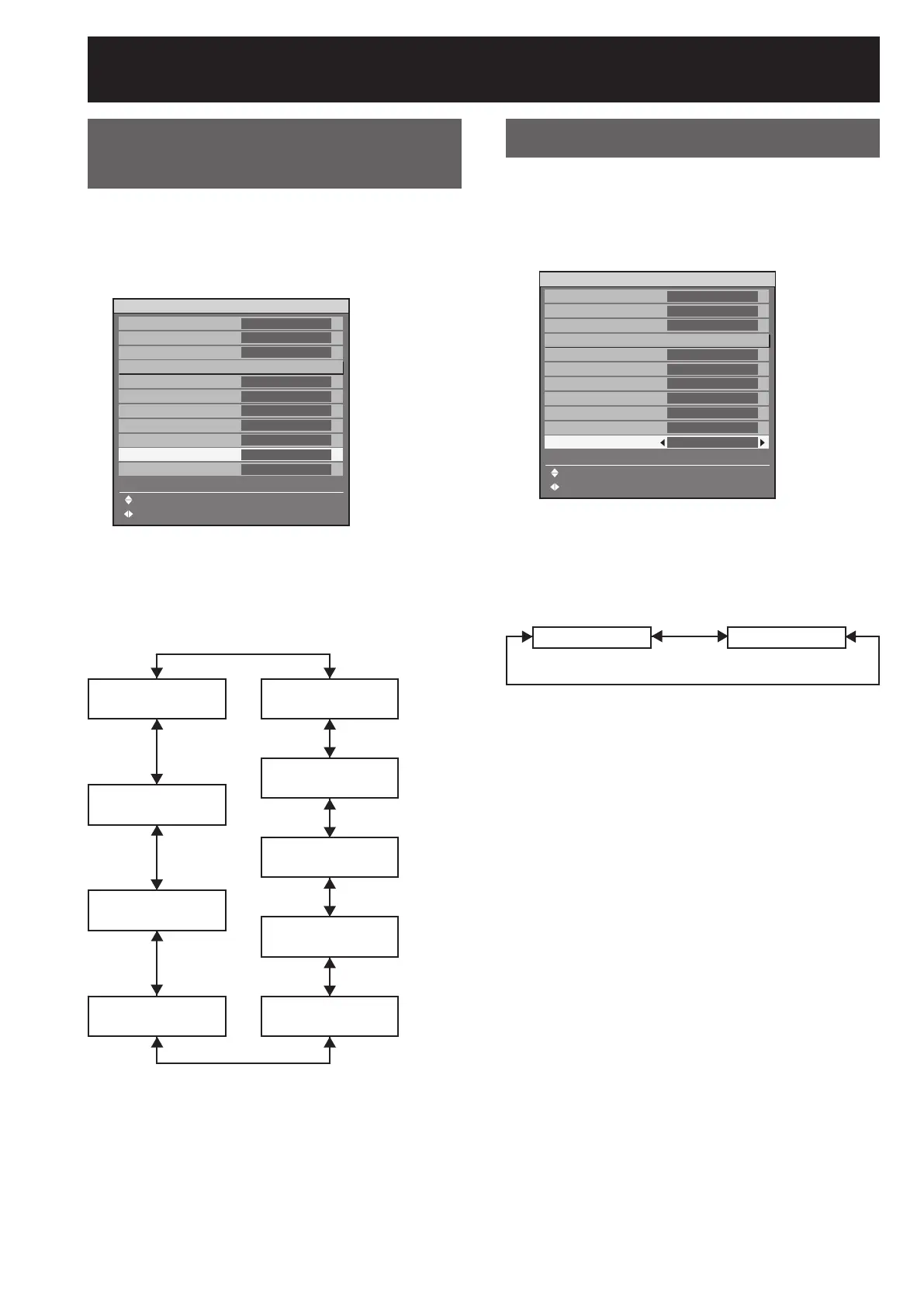
The user can specify the position of the on-screen
indications.
1. Press ▲▼ to select “OSD
POSITION”.
2. Press ◄► to switch “OSD
POSITION”.
The setting will change as follows each time
◄► is pressed.
2 (Left center of the
screen)
3 (Bottom left of the
screen)
4 (Top center of the
screen)
5 (Center of the
screen)
6 (Bottom center of
the screen)
1 (Top left of the
screen)
9 (Bottom right of the
screen)
8 (Right center of the
screen)
7 (Top right of the
screen)
•
OPTION1
COLOR MATCHING
LARGE SCREEN CORRECTION
AUTO SIGNAL
AUTO SETUP
BACK COLOR
DVI EDID
AUX DVI EDID
P IN P
FUNC1
OSD POSITION
OSD MEMORY
MENU SELECT
CHANGE
OFF
OFF
OFF
BLUE
EDID2(PC)
EDID2(PC)
OFF
P IN P
2
ON
OPTION1
COLOR MATCHING
LARGE SCREEN CORRECTION
AUTO SIGNAL
AUTO SETUP
BACK COLOR
DVI EDID
AUX DVI EDID
P IN P
FUNC1
OSD POSITION
OSD MEMORY
MENU SELECT
CHANGE
OFF
OFF
OFF
BLUE
EDID2(PC)
EDID2(PC)
OFF
P IN P
2
ON
OSD memory
This lets you save the cursor position in on-screen
menus.
1. Press ▲▼ to select “OSD
MEMORY”.
2. Press ◄► to switch “OSD
MEMORY”.
The setting will change as follows each time
◄► is pressed.
OFF ON
•
OPTION1
COLOR MATCHING
LARGE SCREEN CORRECTION
AUTO SIGNAL
AUTO SETUP
BACK COLOR
DVI EDID
AUX DVI EDID
P IN P
FUNC1
OSD POSITION
OSD MEMORY
MENU SELECT
CHANGE
OFF
OFF
OFF
BLUE
EDID2(PC)
EDID2(PC)
OFF
P IN P
2
ON
OPTION1
COLOR MATCHING
LARGE SCREEN CORRECTION
AUTO SIGNAL
AUTO SETUP
BACK COLOR
DVI EDID
AUX DVI EDID
P IN P
FUNC1
OSD POSITION
OSD MEMORY
MENU SELECT
CHANGE
OFF
OFF
OFF
BLUE
EDID2(PC)
EDID2(PC)
OFF
P IN P
2
ON
Option1 settings (continued)






 To Next Page