EasyManua.ls Logo

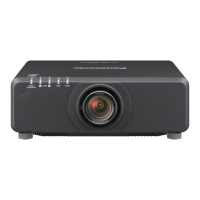
Panasonic PT-DW830U - User Manual

Panasonic PT-DW830U
190 pages
Print Icon
To Next Page IconTo Next Page
Loading...
Thank you for purchasing this Panasonic product.
The Operating Instructions correspond to the rmware’s main version 3.00 and higher.
This manual is common to all the models regardless of sufxes of the Model No.
z
W : White model, the standard zoom lens supplied LW : White model, the lens sold separately
K : Black model, the standard zoom lens supplied LK : Black model, the lens sold separately
Before operating this product, please read the instructions carefully and save this manual
for future use.
Before using your projector, be sure to read “Read this rst!” (
x
pages 2 to 9).
TQBJ0527-3
DLP
TM
Projector
Commercial Use
Operating Instructions
Functional Manual
ENGLISH
Model No.
PT-DZ870U
PT-DW830U
PT-DX100U

Table of Contents

Questions and Answers

  • A
    Amanda CookSep 4, 2025
    Why is the color pale or grayish on my Panasonic Projector?
    • S
      Stephanie DrakeSep 4, 2025
      If the color on your Panasonic Projector appears pale or grayish, check the following: Ensure that the [COLOR] or [TINT] settings are adjusted correctly. Verify that the external device connected to the projector is adjusted correctly. Inspect the RGB cable for any damage.
  • R
    Raymond JohnsonSep 18, 2025
    Why does the image in the 3D eyewear flicker when using Panasonic Projector?
    • K
      Kimberly GreenSep 18, 2025
      If the image in the 3D eyewear flickers when using your Panasonic Projector, make sure you are within the reception range.
  • A
    Alyssa MurphySep 16, 2025
    Why is my Panasonic PT-DW830U Projector 3D eyewear not functioning?
    • T
      Tara ColemanSep 16, 2025
      If your 3D eyewear isn't functioning with the Panasonic Projector, check if the batteries are drained. If you're using rechargeable eyewear, charge it. If using battery-powered eyewear, replace the battery. Also, verify that the [3D SETTINGS] are correct.
  • P
    Paige ClaySep 14, 2025
    Why are the left and right images reversed on my Panasonic PT-DW830U?
    • T
      Thomas RobertsonSep 15, 2025
      If the left and right images are reversed on your Panasonic Projector, ensure the devices are synchronized and check the 3D eyewear settings. You can also try changing the [LEFT/RIGHT SWAP] setting in [3D SETTINGS].
  • G
    Gregory MullinsSep 13, 2025
    How to control Panasonic PT-DW830U with Art-Net?
    • T
      timothyrodriguezSep 13, 2025
      To control your Panasonic Projector with Art-Net, ensure the connections between the twisted-pair-cable transmitter and the projector or an external device are correctly done. Verify that the [Art-Net] setting is [ON]. Also, confirm that the [PORT ADDRESS] and [START ADDRESS] settings are correct.
  • C
    cjonesSep 12, 2025
    Why image output from DVI-D of the computer does not appear on Panasonic PT-DW830U?
    • K
      Kirsten ButlerSep 12, 2025
      If the image output from the DVI-D connection of your computer isn't appearing on the Panasonic Projector, check if the [DVI-D IN] setting is set to [EDID3] or [EDID2:PC]. Consider updating the graphics accelerator driver of your computer to the latest version. It may also be necessary to restart the computer after performing the [DVI-D IN] setting.
  • P
    Paul DavisSep 9, 2025
    How do I display the menu screen on my Panasonic PT-DW830U?
    • J
      Jocelyn WilsonSep 9, 2025
      If the menu screen isn't appearing on your Panasonic Projector, check if the on-screen display function is turned off (hidden).
  • M
    Michael BaileySep 7, 2025
    What to do if buttons on the control panel do not operate on Panasonic Projector?
    • H
      Hannah PatrickSep 7, 2025
      If the buttons on the control panel of your Panasonic Projector aren't working, check if the [CONTROL PANEL] setting in [CONTROL DEVICE SETUP] is set to [DISABLE]. Also, verify if the terminal is being used for contact control.
  • K
    Kayla SanchezSep 6, 2025
    What to do if the 3D function is not working on Panasonic Projector?
    • D
      Daniel GreenSep 6, 2025
      If the 3D function isn't working on your Panasonic Projector, check the following: Ensure the [3D INPUT FORMAT] setting in [3D SETTINGS] is correct. Verify the 3D eyewear settings are correct. Confirm that the input signal is supported by the projector.
  • W
    williampowellAug 21, 2025
    How to fix a Panasonic PT-DW830U when the power does not turn on?
    • A
      Anna WallerAug 21, 2025
      If your Panasonic Projector isn't powering on, try these steps: Ensure the power plug is firmly inserted into the outlet. Check if the switch is set to . Verify the wall outlet is supplying electricity and that circuit breakers haven't tripped. Also, check if the lamp indicator / or the temperature indicator are lit or flashing, and confirm the lamp unit cover is attached.

Summary

Chapter 1 Preparation

Precautions and Cautions

Covers safety guidelines for transporting, installing, and operating the projector to prevent damage and ensure safe use.

Security, Network Features, and Disposal

Details security measures, network connectivity (DIGITAL LINK, Art-Net), and proper product disposal procedures.

Accessories

Lists supplied accessories and optional accessories for the projector.

Start-up Procedures

Guides through initial setup steps including focus adjustment and display language selection.

Projector Components and Connectivity

Identifies projector body parts, remote control functions, and input/output terminals for connectivity.

Chapter 2 Getting Started

Setting up the Projector

Explains installation modes, ceiling mounting, and projector orientation for optimal placement.

Screen Size and Throw Distance

Provides tables and formulas to determine projection distance based on screen size and lens.

Lens Geometry and Projection Range

Details projection ranges and geometric correction capabilities for various lenses.

Connecting Devices

Covers general connection guidelines and specific examples for AV equipment, computers, and network devices.

Chapter 3 Basic Operations

Switching Projector On and Off

Step-by-step instructions for connecting power, turning the projector on/off, and understanding power indicators.

Projecting Images

Guides on selecting input signals and adjusting focus, zoom, and image position for optimal display.

Operating with Remote Control

Explains functions accessible via the remote control, including shutter, OSD, input selection, and test patterns.

Chapter 4 Settings

Menu Navigation

Describes how to navigate the projector's on-screen menu system for settings and adjustments.

Picture Settings

Covers adjustment of picture mode, contrast, brightness, color, tint, and white balance for image quality.

Position Settings

Details how to adjust image shift, aspect ratio, zoom, clock phase, and geometric correction.

Advanced Menu Settings

Explains advanced image processing settings like Digital Cinema Reality, blanking, input resolution, and edge blending.

Display Language

Instructions on how to change the language displayed on the projector's menus and on-screen display.

3 D Settings

Configuration options for 3D display, including system settings, DLP Link, sync settings, and input formats.

Display Options

Settings related to color matching, correction, screen format, and on-screen display customization.

Security Settings

Covers password protection, display settings, and control device limitations for projector security.

Network Settings

Configuration for network connectivity, including DIGITAL LINK, IP settings, web control, and e-mail alerts.

Chapter 5 Maintenance

Indicator Status and Troubleshooting

Explains projector status indicators (lamp, temp, filter) and provides a guide for resolving common problems.

Maintenance Procedures

Details cleaning the outer case, lens, air filter, and replacing the lamp unit for optimal performance.

Chapter 6 Appendix

Technical Information

Provides details on PJLink protocol, Art-Net function, control commands, and network connection specifications.

Specifications

Lists the projector's technical specifications, compatible signals, and dimensions.

Dimensions

Provides detailed physical dimensions of the projector for installation planning.

Ceiling Mount Bracket Precautions

Safety guidelines and installation notes for using optional ceiling mount brackets.

Panasonic PT-DW830U Specifications

General IconGeneral
Contrast Ratio10, 000:1
Light SourceLamp
Technology3LCD
ConnectivityHDMI, DVI-D, VGA, RCA, RS-232C, LAN
Lamp Life2, 000 hours (Normal mode), 3, 000 hours (Eco mode)
Projection Size40 - 600 inches
Input ConnectorsHDMI, DVI-D, VGA
ResolutionWUXGA (1920 x 1200)

Related product manuals