EasyManua.ls Logo

Panasonic SC-BTT466 - User Manual

Panasonic SC-BTT466
48 pages
Print Icon
To Next Page IconTo Next Page
Loading...
VQT5F60-2
P
until
2014/05/24
Owners Manual
<Operations>
Blu-ray Disc
TM
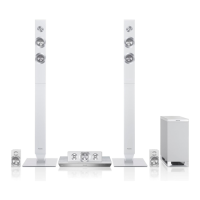
Home Theater Sound System
Model No. SC-BTT466
SC-BTT465
SC-BTT405
Unless otherwise indicated, illustrations in this Owner’s Manual are of SC-BTT466.
Thank you for purchasing this product.
Please read these instructions carefully before using this product, and save this manual for future use.
If you have any questions, visit : www.panasonic.com/support
Register online at www.panasonic.com/register (U.S. customers only)
Firmware updates
Panasonic is constantly improving the unit’s firmware to ensure that our
customers are enjoying the latest technology.
Panasonic recommends updating your firmware as soon as you are
notified.
For details, refer to “Firmware updates” (> 14) or
http://panasonic.jp/support/global/cs/ (This site is in English only.)
Please also read through the “Owners Manual <Setup>”.
SC-BTT466&465&405P-VQT5F60_mst.book 1 ージ 2014年3月24日 月曜日 午前11時30分

Questions and Answers

  • D
    Derek RayAug 1, 2025
    Why is my Panasonic Home Theater System remote control not working?
    • E
      Elizabeth FryeAug 1, 2025
      If your Panasonic Home Theater System remote control isn't working properly, first, try changing the batteries. If that doesn't work, display the HOME menu and try again; the unit's condition may be affecting the remote's functionality.
  • C
    Colleen PowellAug 6, 2025
    What to do if my Panasonic Home Theater System cannot eject disc?
    • M
      Michelle GravesAug 6, 2025
      If your Panasonic Home Theater System won't eject the disc, try pressing and holding the [OK], yellow, and blue buttons on the remote control simultaneously for more than 5 seconds. If that doesn't work, press [1] (right) repeatedly on the remote control until “06FtO” is displayed on the unit’s display, and then press [OK].
  • R
    Richard GutierrezAug 13, 2025
    What to do if my Panasonic Home Theater System doesn't recognize USB connection?
    • E
      Edward CruzAug 13, 2025
      If your Panasonic Home Theater System doesn't recognize the USB connection, try disconnecting and reconnecting the USB cable. Also, avoid using USB hubs or extension cables (other than the one supplied with the Wireless LAN Adaptor DY-WL5) as they may prevent the unit from recognizing the USB device correctly.
  • S
    Sarah AliAug 18, 2025
    How to fix Panasonic SC-BTT466 when it doesn't respond to remote or buttons?
    • J
      John SwansonAug 18, 2025
      If your Panasonic Home Theater System unit isn't responding to the remote control or the unit's buttons, disconnect the AC power supply cord, wait 1 minute, and then reconnect it.
  • Z
    zacharysmithAug 25, 2025
    Why does my Panasonic SC-BTT466 TV screen turns black?
    • T
      Timothy JohnsonAug 25, 2025
      When “24p Output” is set to “On” on your Panasonic Home Theater System, HDMI authentication takes place, and a black screen is displayed on the TV.

Summary

Product Information and Safety

Firmware Updates

Information on updating the unit's firmware for improved features and performance.

Support and Registration

Details on how to get support, register the product, and access online resources.

Important Safety Instructions

Critical safety warnings for the unit, power cord, and speakers, covering operation and placement.

Battery Handling and Disposal

Warnings about battery risks like leakage and explosion, and proper disposal methods.

Getting Started and System Setup

Package Contents and Accessories

Lists all items included in the Blu-ray Disc Home Theater Sound System package.

Unit and Media Care

Instructions for cleaning the unit's exterior, lens, and handling discs properly.

Playable Media Formats

Details on playable BD-Video, DVD-Video, and Music CD formats and their content.

Remote Control Operations

Detailed explanation of each button on the remote control and its function.

Main Unit Connections

Identifies and describes the controls and ports on the front and rear of the main unit.

System Setup and Network Connectivity

Guidance on system setup, speaker placement, and network connection methods.

Initial Settings and Configuration

Step-by-step guides for performing basic system setup and network configuration.

Multi User Mode Configuration

Guide to personalizing user icons, wallpapers, and settings for multiple users.

Playback, TV, and Radio Operations

Basic Playback Operations

Details on Stop, Resume, Pause, Search, Skip, Frame-by-frame, and Changing Audio functions.

Advanced Playback Features

How to access menus, view status, enjoy 3D content, and manage BD-Live/USB data.

Bluetooth Connectivity

Step-by-step instructions for pairing Bluetooth® devices and using NFC one-touch connection.

HDMI CEC and TV Audio Integration

Explanation of HDMI CEC features and how to output TV audio through system speakers.

Radio Tuning and Presetting

Process for automatically tuning, manually tuning, and storing radio stations for easy access.

Advanced Operations and Setup Menu

Network Service Features

Details on network connection requirements and accessing services like NETFLIX.

Option Menu Functions

Settings for playback controls, display, personalization, video, soundtrack, and captions.

Video and Audio Settings

Adjustments for video quality, audio enhancement, and 3D display settings.

Setup Menu: Video Configuration

Configuring Picture Mode, Picture Adjustment, and HDMI output settings like resolution and 24p.

Setup Menu: Audio Configuration

Adjusting surround effects, sound effects, dynamic range, speaker settings, and 3D audio.

Setup Menu: Language and Network

Options for language selection, captions, network connection, IP/DNS, and proxy server settings.

Setup Menu: System Utilities

Configuring screen saver, status messages, HDMI CEC, power off link, and unit settings.

Setup Menu: Quick Start and Updates

Enabling quick start-up and managing firmware updates, system information, and default settings.

Installation and Troubleshooting

Speaker Installation Options

Safety guidelines and instructions for securely attaching speakers to a wall.

Speaker Tipping Prevention

Instructions on using cords and anchors to secure speakers to walls or pillars to prevent falling.

Troubleshooting Common Issues

Solutions for unit unresponsiveness, remote issues, and specific error conditions.

Troubleshooting Video and USB Issues

Solutions for black screens, distorted images, jittering, and USB connection problems.

Troubleshooting Audio and Video Output

Solutions for high-definition video, 3D playback, audio output, and sound problems.

Troubleshooting Playback and Bluetooth

Solutions for disc playback errors, BD-Live issues, and Bluetooth® pairing or audio problems.

Troubleshooting Radio and Network

Solutions for distorted radio sound, station selection issues, and network connection problems.

Screen Messages and Unit Display Issues

Explanations for screen messages and troubleshooting unit display errors or standby issues.

Specifications and Legal Information

Unit Display List

A list of difficult-to-read displays on the unit and their corresponding meanings.

Product Specifications

General unit specifications including power consumption, dimensions, mass, and amplifier details.

Speaker and Terminal Specifications

Specifications for speaker components, terminal sections, and tuner details.

Supported File Formats and Languages

Lists supported file formats and details on display and subtitle language options.

FCC Compliance Information

Information regarding FCC compliance, radiation exposure limits, and declaration of conformity.

Limited Warranty Information

Explains the warranty period, coverage details, service requests, and exclusions.

Panasonic SC-BTT466 Specifications

General IconGeneral
Audio Channels5.1
Total Power Output1000 W
Blu-ray PlaybackYes
3D PlaybackYes
USB PlaybackYes
Wi-FiYes
DLNA SupportYes
Dimensions (W x H x D)430 x 60 x 292 mm
TypeBlu-ray Home Theater System
Number of Speakers6
Smart FeaturesYes
Wireless Rear SpeakersNo
USB Ports1
Ethernet PortYes
BluetoothNo
NFCNo
HDMI Outputs1
3D ReadyYes
4K Pass-throughNo
USB Port1

Related product manuals