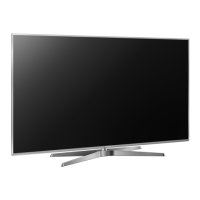
This document provides operating instructions for the Panasonic LED TV, models TH-75GX880A (Australia) and TH-75GX880Z (New Zealand). It covers essential information for safe and effective use, including setup, connections, controls, and maintenance.
Function Description
The Panasonic LED TV is designed for indoor, table-top use, offering a comprehensive entertainment experience. It supports various input modes, including Digital TV, Analogue TV, Satellite TV (New Zealand), and external AV devices. The TV features a built-in wireless LAN for internet connectivity, enabling access to online services and applications. It also supports 4K and HDR compatible equipment, providing enhanced picture quality with expanded color gamut. For an immersive audio experience, the TV is compatible with external amplifiers, subwoofers, and headphones, and supports Dolby Atmos. A notable feature is VIERA Link, which allows for integrated control of compatible Panasonic equipment connected via HDMI. The TV also includes a recording function via a USB HDD, allowing users to capture their favorite programs.
Usage Features
Initial Setup and Auto Tuning
Upon first use, the TV guides you through an Auto Tuning process to search for available TV channels and set up the viewing environment. This includes selecting your region, language, and network connection type (wired or wireless). The setup ensures optimal performance by configuring the TV according to your local broadcasting standards and personal preferences. You can choose between "Home" mode for general viewing or "Shop" mode for retail display. If tuning fails, the manual provides troubleshooting steps, including checking cable connections and retuning options.
Watching TV
To watch TV, simply turn on the power using the remote control or the mains power switch on the TV. You can then select the desired input mode (TV, AV, HDMI) and choose a channel using the numeric buttons or channel up/down controls. The TV offers features like "Last view" to quickly switch between previously viewed channels or input modes.
Remote Control
The supplied remote control (N2QAYB001189) provides comprehensive control over the TV's functions. Key buttons include:
- Power: Switches the TV On or Off (Standby).
- TV Guide: Accesses the electronic program guide.
- Main Menu: Opens menus for Picture, Sound, Network, Timer, Setup, and Help.
- Teletext: (New Zealand) Switches to teletext mode.
- Information: Displays channel and program information.
- Netflix: Direct access to the Netflix service.
- OK: Confirms selections and choices, and displays the channel list.
- Option Menu: Provides easy optional settings for viewing and sound.
- Coloured buttons (red-green-yellow-blue): Used for selection, navigation, and operation of various functions.
- Volume Up / Down: Adjusts the volume.
- Numeric buttons: Changes channels, sets characters, and switches the TV on from Standby.
- HELP: Displays the built-in operating instructions.
- My App: Assigns and starts a favorite application.
- Input mode selection: Switches between TV and AV input modes.
- Audio Description: Displays audio description settings.
- Subtitles: Displays the subtitle menu.
- Exit: Returns to the normal viewing screen.
- HOME: Displays the Home screen.
- APPS: Displays the applications list.
- Cursor buttons: For selections and adjustments.
- Return: Returns to the previous menu or page.
- Channel Up / Down: Changes channels.
- Sound Mute On / Off: Mutes or unmutes the sound.
- Last view: Switches to the previously viewed channel or input mode.
- Off Timer: Sets a time for the TV to automatically turn off.
- Aspect: Changes the aspect ratio.
Indicator / Control Panel
The TV also features an indicator/control panel on the rear side. This panel includes:
- Remote control signal receiver: Receives commands from the remote control.
- Ambient sensor: Senses brightness to adjust picture quality when "Ambient Sensor" in the Picture Menu is set to "On".
- Power LED: Indicates the TV's status (Red for Standby, Green for On, Orange for Standby with active functions like recording). The LED blinks when a command is received from the remote control.
- Input mode selection, Channel Up / Down, Volume Up / Down, Mains power On / Off switch: These buttons provide basic control directly on the TV.
eHELP (Built-in Operating Instructions)
The TV includes a detailed eHELP system, which serves as a comprehensive operating manual. It provides in-depth explanations of all features and operations. You can access eHELP from the Main Menu or by pressing the dedicated HELP button on the remote control. The eHELP system allows for keyword search, purpose-based search, and support information (FAQs). It also offers direct links to relevant menus and reference screens for easy navigation.
Connections
The TV offers a variety of connection terminals for external equipment:
- HDMI ports (1-4): For connecting high-definition devices like DVD/Blu-ray recorders, set-top boxes, and 4K/HDR compatible equipment. HDMI2 supports ARC (Audio Return Channel) for connecting to compatible amplifiers. The TV supports "HDAVI Control 5" function for VIERA Link.
- USB ports (1-3): USB1 is specifically for connecting a USB HDD for recording. USB2 and USB3 are for general USB devices.
- ETHERNET terminal: For wired network connection to the internet.
- Aerial terminal: For connecting to a terrestrial aerial for Digital TV and Analogue TV reception.
- Satellite terminal (New Zealand): For connecting to a satellite dish for Satellite TV reception.
- DIGITAL AUDIO OUT: For connecting to an amplifier without ARC function, or for multi-channel sound.
- AV IN (COMPONENT / VIDEO): For connecting older AV devices like DVD players, camcorders, or game equipment using component or composite video and stereo audio cables.
- Headphone / Subwoofer jack: For connecting headphones or a subwoofer. The output can be configured in the settings.
Cable Management
The TV includes cable clamps and ties to organize and secure cables, ensuring a neat and tidy setup. Cable covers and terminal covers are also provided to conceal connections, though some ports (USB2, USB3, HDMI3, HDMI4, AV IN, DIGITAL AUDIO) may prevent the use of certain covers.
Pedestal Installation and Wall Mounting
The TV comes with a pedestal for table-top use. The manual provides detailed instructions for assembling and removing the pedestal, emphasizing secure installation. For wall mounting, the TV has standard VESA holes. It is recommended to use a qualified installer for wall bracket installation to prevent injury or damage. The manual specifies screw depth and type for wall mounting.
Preventing the TV from Falling Over
To enhance safety, the manual recommends securing the pedestal to furniture using the provided fall-prevention parts, such as a wood screw. This measure helps reduce the risk of injuries caused by the TV falling over.
Maintenance Features
General Care
Regular maintenance is crucial for the longevity and optimal performance of the TV.
- Display panel, Cabinet, Pedestal: Gently wipe these surfaces with a soft cloth to remove dirt or fingerprints. For stubborn dirt, use a soft cloth dampened with clean water or a diluted neutral detergent (1 part detergent to 100 parts water). Wring the cloth firmly to prevent liquid from entering the TV. After cleaning, wipe away all moisture.
- Mains plug: Wipe the mains plug with a dry cloth at regular intervals to prevent moisture and dust buildup, which could lead to fire or electrical shock.
Cautions for Cleaning
- Avoid harsh materials: Do not use hard cloths or rub surfaces too hard, as this can cause scratches.
- Chemicals: Do not use insect repellent, solvent, thinner, or other volatile substances, as they can degrade surface quality or cause paint peeling.
- Display panel: The display panel is specially treated and can be easily damaged. Avoid tapping or scratching the surface with fingernails or hard objects.
- Rubber/PVC contact: Do not allow the cabinet and pedestal to contact rubber or PVC substances for prolonged periods, as this may degrade surface quality.
When Not in Use
- Disconnect mains plug: If the TV will not be used for a prolonged period, remove the mains plug from the wall socket. The TV still consumes some power in Off mode when connected to a live socket.
- Remote control batteries: Remove batteries from the remote control if not using it for an extended period to prevent leakage, corrosion, and explosion.
Troubleshooting (FAQs)
The manual includes a FAQs section to help users resolve common issues:
- TV not switching on: Check mains lead connection.
- TV goes into Standby mode: Auto power standby function may be activated.
- Remote control not working: Check battery installation, battery level, point directly at the TV, and ensure no bright light interferes with the signal receiver.
- No image displayed: Check if TV is on, mains lead connection, correct input mode, and picture settings (Backlight, Contrast, Brightness, Colour).
- Unusual image displayed: Use the built-in "TV Self Test" (Help Menu) for diagnosis. If problems persist, try initializing all settings via "Shipping Condition" in the System Menu.
- Image/sound from external equipment via HDMI is unusual: Set "HDMI Auto Setting" to "Mode1" in the Setup Menu.
- Parts of the TV become hot: This is normal and does not affect performance or quality.
- Display panel moves slightly/makes noise when pushed: This is a design feature to prevent damage and is not a malfunction.
For further assistance, users are advised to contact their local Panasonic dealer.

 Need help?
 General


 To Next Page