EasyManua.ls Logo

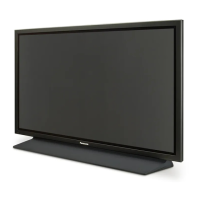
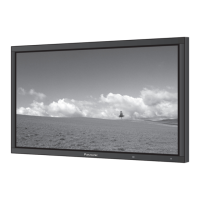
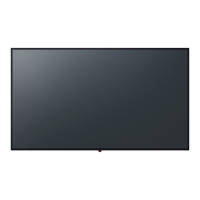
Panasonic TH-80LFB70U - User Manual

Panasonic TH-80LFB70U
92 pages
Print Icon
To Next Page IconTo Next Page
Loading...
Model No.
Operating Instructions
Display Operations
Touch Screen LCD Display (for business use)
TH-80LFB70U
TH-80LFB70E
TH-80LFB70W
Please read these instructions before operating your set
and retain them for future reference.
English

Table of Contents

Questions and Answers

  • K
    Kiara McconnellSep 9, 2025
    Why does the screen darken on my Panasonic Monitor?
    • J
      Jamie NewmanSep 9, 2025
      If the screen on your Panasonic Monitor darkens slightly when displaying bright pictures with minimal movement, this is normal and does not indicate a malfunction.
  • M
    Marcus CantrellSep 12, 2025
    Why does it take a while for the picture to appear on my Panasonic TH-80LFB70U?
    • M
      Mr. Howard Irwin PhDSep 12, 2025
      If it takes a while for the picture to appear on your Panasonic Monitor, it is because the unit digitally processes the various signals to reproduce pleasing images.
  • K
    Kenneth RiveraSep 13, 2025
    Why do the edges of the images flicker on my Panasonic TH-80LFB70U Monitor?
    • R
      Rebecca OlsonSep 13, 2025
      If the edges of the images flicker on your Panasonic Monitor, this is normal due to the characteristics of the system used to drive the panel and does not indicate a malfunction.
  • M
    michaelsmithSep 14, 2025
    Why are there spots on the screen of my Panasonic TH-80LFB70U Monitor?
    • C
      Charles LittleSep 14, 2025
      If you notice red, blue, green, or black spots on the screen of your Panasonic Monitor, this is a characteristic of liquid crystal panels and does not affect the performance of the LCD.
  • A
    adrianabrownSep 17, 2025
    Why does image retention appear on my Panasonic Monitor?
    • S
      Sophia BlackSep 17, 2025
      If you see image retention on your Panasonic Monitor, where a still picture remains visible for a while, this can occur if a still picture is displayed for an extended period. However, the image will disappear after some time.

Summary

Important Safety Instructions

Important Safety Notice

WARNING: General Safety

To prevent damage, do not expose to dripping or splashing, or place naked flame sources.

CAUTION: Environment

Appliance intended for environments free of strong electromagnetic fields.

IMPORTANT: THE MOULDED PLUG

Safety and convenience of the moulded three pin mains plug, including fuse replacement.

Safety Precautions

Setup and Installation Precautions

Guidelines for setting up, installing, and transporting the display safely.

Operational Safety and Maintenance

Safe usage, handling problems, cleaning, and maintenance procedures.

Touch Panel Operation Safety

Specific safety instructions for using the touch panel function.

Connections

Audio and Video Input Terminals

Details on connecting speakers, video sources (AV, Component, HDMI, DVI, PC).

Power On; Off

Power Connection and Indicator

Steps for connecting the power cord and understanding the power indicator.

Initial Setup and Power Messages

Initial setup screens and messages displayed upon power on.

Selecting the input signal

Input Selection Method

How to select input signals using the remote control or unit buttons.

Multi-touch Operation

Touch Gestures and Control Menu

Explains touch gestures and how to use the control menu for various functions.

Touch Zoom

Zooming and Scrolling Image

How to enlarge, shrink, and move the image using touch gestures.

Memory Viewer Function

Viewing and Playing Content

How to display and view files, including playback operations and resume.

Using Built-in WhiteBoard

Whiteboard Features and Modes

Overview of whiteboard functions, modes, and input selection.

Drawing Tools and Saving Content

Guide to drawing tools, main menu, saving, and emailing drawings.

Using Miracast(TM)

Miracast Connection Setup

Steps to select Miracast input, start application, and authenticate connection.

On-Screen Menu Displays

Multi-touch Menu Operation

How to operate menus using touch gestures like swipe and tap.

Picture Adjustments

Picture Menu Settings

Basic picture adjustments including mode, backlight, contrast, brightness, color, hue, and sharpness.

Sound Adjustment

Setup menu

Display and Screen Settings

Configuration for touch screen, screensaver, ECO mode, and input labels.

Setup for Input Signals

Troubleshooting

Symptom-Based Diagnostics

Diagnosing common issues like picture, sound, and remote problems.

When using Miracast

Applicable Input Signals

Panasonic TH-80LFB70U Specifications

General IconGeneral
Panel TypeIPS
Viewing Angle (Horizontal/Vertical)178°/178°
Aspect Ratio16:9
Operating SystemNo
Screen Size80 inches
Brightness350 cd/m²
StandardsCE, FCC

Related product manuals