English - 10 -
Remote Control
Note: Other Panasonic devices cannot be operated with
this remote.
Inserting the Batteries into the Remote
The remote may have a screw that secures the battery
compartment cover onto the remote control (or this may
be in a separate bag). Remove the screw, if the cover
is screwed on previously. Then remove the battery
compartment cover to reveal the battery compartment.
Insert two 1.5V - size AAA batteries. Make sure the (+)
and (-) signs match (observing correct polarity). Do not
mix old and new batteries. Replace only with same or
equivalent type. Place the cover back on. Secure the
cover again with the screw, if any.
To pair remote with the TV
for accessories will be performed after the initial setup
starts. You will need to pair your remote control with
your TV at this point.
Press and hold the Source button on the remote until
the LED on the remote starts to blink, then release
the Source button. That means the remote is in
pairing mode.
the name of your remote and press OK when it appears
on the TV screen.
When the pairing process is successful, the LED on
remote will enter sleep mode after 30 seconds.
In order to pair your remote later on, you can go to
Settings menu, highlight Bluetooth Remotes and
Accessories option and press OK to start a search
for accessories.
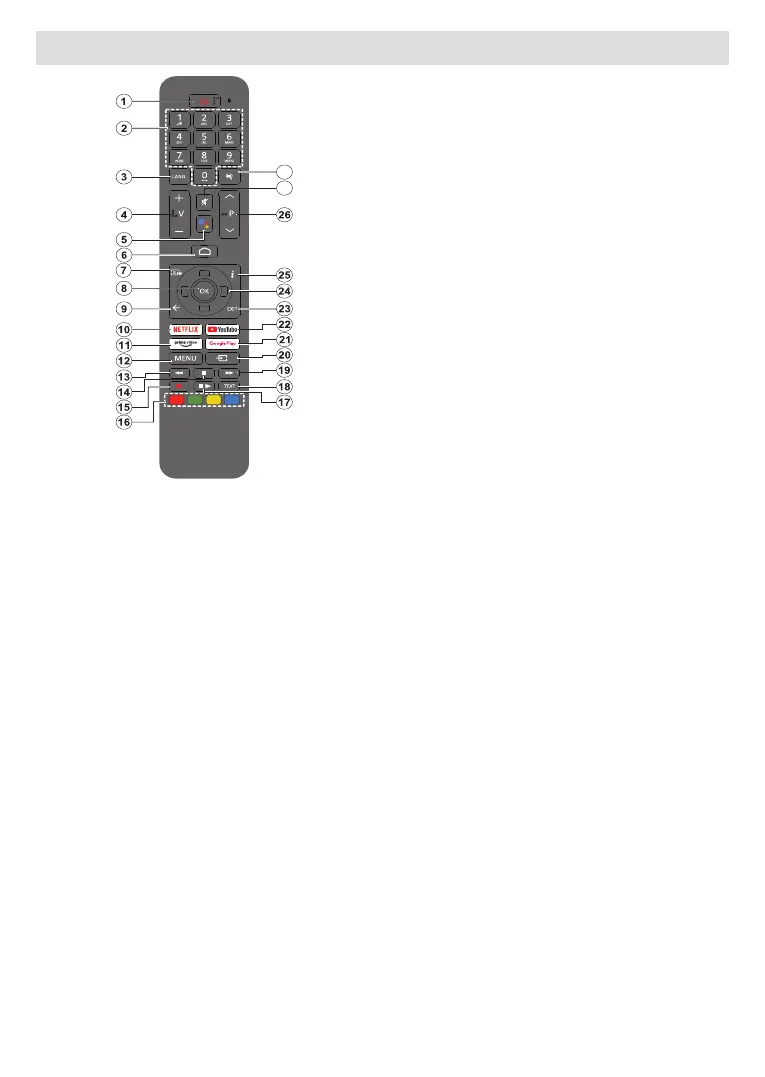
1. Standby: Quick Standby / Standby / On
2. Numeric buttons: Switches the channel in Live TV
mode, enters a number in the text box on the screen
3. Language: Switches among sound modes (analogue
TV), displays and changes audio language (digital TV,
where available)
4. Volume +/-: Increases/decreases the volume level
5. Microphone: Activates the microphone on the remote if
the remote is paired with the TV previously
6. Home: Opens the Home Screen
7. Guide: Displays the electronic programme guide for
Live TV channels
8. OK: Confirms selections, enters sub-menus, views
channel list (in Live TV mode)
9. Back/Return: Returns to previous menu screen, goes
one step back, closes open windows, closes teletext (in
Live TV-Teletext mode)
10.
11. Prime Video: Launches the Amazon Prime Video
application
12. Menu: Displays the main settings menu (on other sources
than Android TV Home), displays available setting options
such as sound and picture
13. Rewind: Moves frames backwards in media such as
movies
14. Stop: Stops the media being played
15. No function
16. Coloured Buttons: Follow the on-screen instructions for
coloured button functions
17. Pause: Pauses the media being played
Play: Resumes playing the paused media
18. Text: Opens and closes teletext (where available in
Live TV mode)
19. Fast forward: Moves frames forward in media such
as movies
20. Source: Shows all available broadcast and content
sources, is also used in pairing process of the remote.
21. Google Play: Launches the Google Play Store appli
-
cation
22. YouTube: Launches the YouTube application
23. Exit: Closes and exits from the main settings menus (on
other sources than Android TV Home), closes the Home
Screen and switches to last set source, exits from any
running application or menu or OSD banner
24. Directional buttons: Navigates menus, setting options,
moves the focus or cursor, etc. and displays the subpages
in Live TV-Teletext mode when pressed Right or Left.
Follow the on-screen instructions
Note: Directional buttons are positioned on the circle
around the OK button.
25. Info: Displays information about on-screen content
26. Programme +/-: Increases/decreases channel number
in Live TV mode
27. Mute:
28. Subtitles:
settings menu (where available)
Standby Button
Press and hold the Standby button on the remote
control. dialogue will appear on the screen.
Highlight OK and press the OK button. The TV will
to switch the TV into quick standby mode or to switch
on the TV when in quick standby or standby mode.



 To Next Page