EasyManua.ls Logo

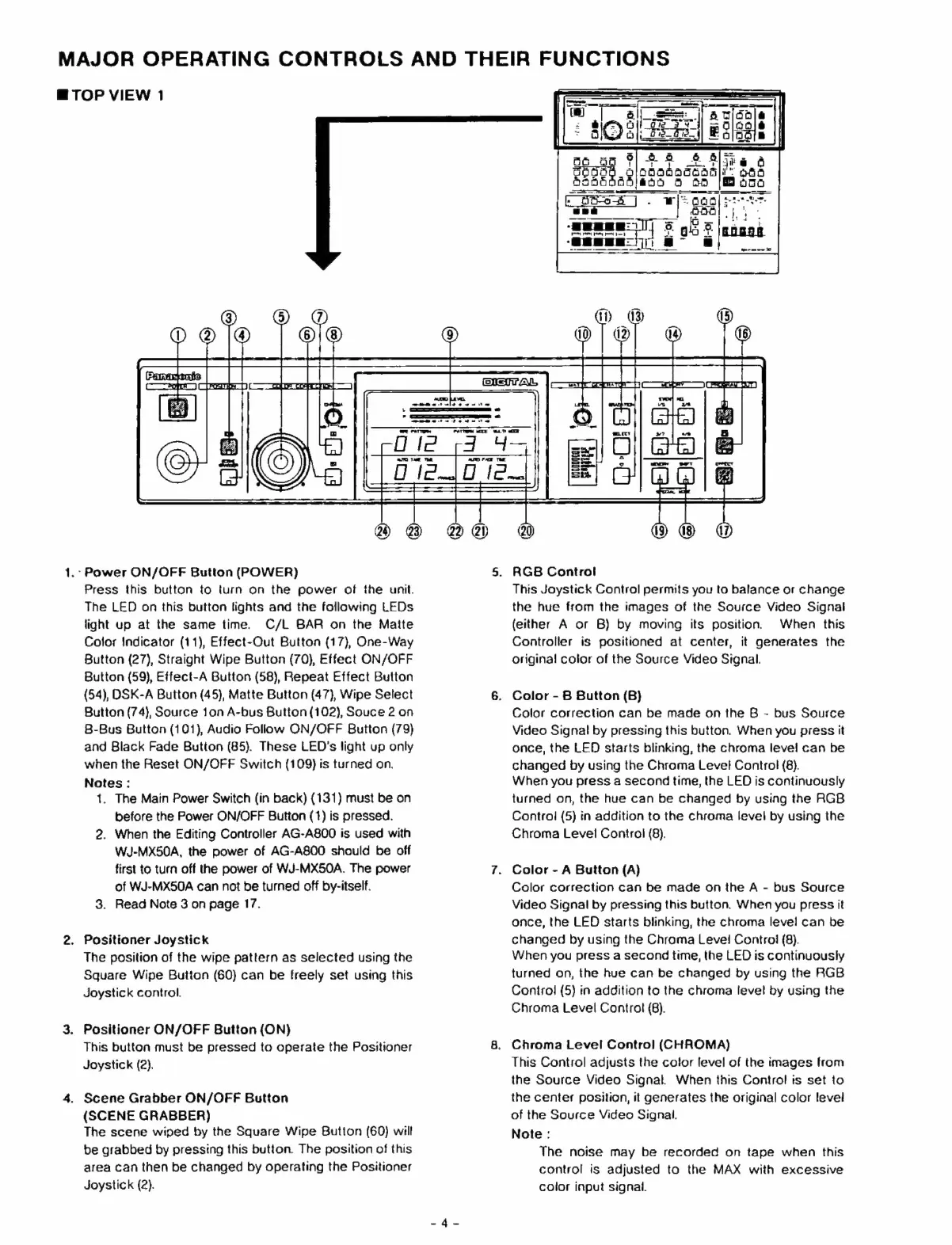
Panasonic WJ-MX50A - Major Operating Controls and Their Functions

Panasonic WJ-MX50A
43 pages
Print Icon
To Next Page IconTo Next Page
To Previous Page IconTo Previous Page
Loading...
1.
Power
ON/OFF
Button
(POWER)
Press
this
button
to
turn
on
the
power
of
the
unit.
The
LED
on
this
button
fights
and
the
following
LEDs
light
up
at
the
same
time.
C/L
BAR
on
the
Matte
Color
Indicator
(11),
Effect-Out
Button
(17),
One-Way
Button
(27),
Straight
Wipe
Button
(70),
Effect
ON/OFF
Button
(59),
Effect-A
Button
(58),
Repeat
Effect
Button
(54),
DSK-A
Button
(45),
Matte
Button
(47),
Wipe
Select
Button
(74),
Source
1оп
A-bus
Button
(102),
Souce
2
on
B-Bus
Button
(101),
Audio
Foliow
ON/OFF
Button
(79)
and
Black
Fade
Button
(85).
These
LED's
light
up
only
when
the
Reset
ON/OFF
Switch
(109)
is
turned
on.
Notes
:
1.
The
Main
Power
Switch
(in
back)
(131)
must
be
on
before
the
Power
ON/OFF
Button
(1)
is
pressed.
2.
When
the
Editing
Controller
AG-A800
is
used
with
WJ-MX50A,
the
power
of
AG-A800
should
be
off
first
to
turn
off
the
power
of
WJ-MX50A.
The
power
of
WJ-MX50A
can
по!
be
turned
off
by-itself.
3.
Read
Note
3
on
page
17.
.
Positioner
Joystick
The
position
of
the
wipe
pattern
as
selected
using
the
Square
Wipe
Button
(60)
can
be
freely
set
using
this
Joystick
control.
.
Positioner
ON/OFF
Button
(ON)
This
button
must
be
pressed
to
operate
the
Positioner
Joystick
(2).
.
Scene
Grabber
ON/OFF
Button
(SCENE
GRABBER)
The
scene
wiped
by
the
Square
Wipe
Button
(60)
will
be
grabbed
by
pressing
this
button.
The
position
of
this
area
can
then
be
changed
by
operating
the
Positioner
Joystick
(2).
MAJOR
OPERATING
CONTROLS
AND
THEIR
FUNCTIONS
ШТОР
VIEW
1
-—
=
=
=
=>
=
=
5.
RGB
Control
This
Joystick
Control
permits
you
to
balance
or
change
the
hue
from
the
images
of
the
Source
Video
Signal
(either
A
or
B)
by
moving
its
position.
When
this
Controller
is
positioned
at
center,
it
generates
the
origina!
color
of
the
Source
Video
Signal.
.
Color
-
B
Button
(B)
Color
correction
can
be
made
on
the
B
-
bus
Source
Video
Signal
by
pressing
this
button.
When
you
press
it
once,
the
LED
starts
blinking,
the
chroma
level
can
be
changed
by
using
the
Chroma
Level
Control
(8).
When
you
press
a
second
time,
the
LED
is
continuously
turned
on,
the
hue
can
be
changed
by
using
the
RGB
Control
(5)
in
addition
to
the
chroma
level
by
using
the
Chroma
Level
Control
(8).
.
Color
-
A
Button
(А)
Color
correction
can
be
made
on
the
A
-
bus
Source
Video
Signal
by
pressing
this
button.
When
you
press
it
once,
the
LED
starts
blinking,
the
chroma
level
can
be
changed
by
using
the
Chroma
Level
Control
(8).
When
you
press
a
second
time,
the
LED
is
continuously
turned
on,
the
hue
can
be
changed
by
using
the
RGB
Control
(5)
in
addition
to
the
chroma
level
by
using
the
Chroma
Level
Control
(B).
.
Chroma
Level
Control
(CHROMA)
This
Control
adjusts
the
color
level
of
the
images
from
the
Source
Video
Signal.
When
this
Control
is
set
to
the
center
position,
it
generates
the
original
color
level
of
the
Source
Video
Signal.
Note
:
The
noise
may
be
recorded
on
tape
when
this
control
is
adjusted
to
the
MAX
with
excessive
color
input
signal.