EasyManua.ls Logo

Panasonic WJ-MX50A - Page 7

Panasonic WJ-MX50A
43 pages
Print Icon
To Next Page IconTo Next Page
To Previous Page IconTo Previous Page
Loading...
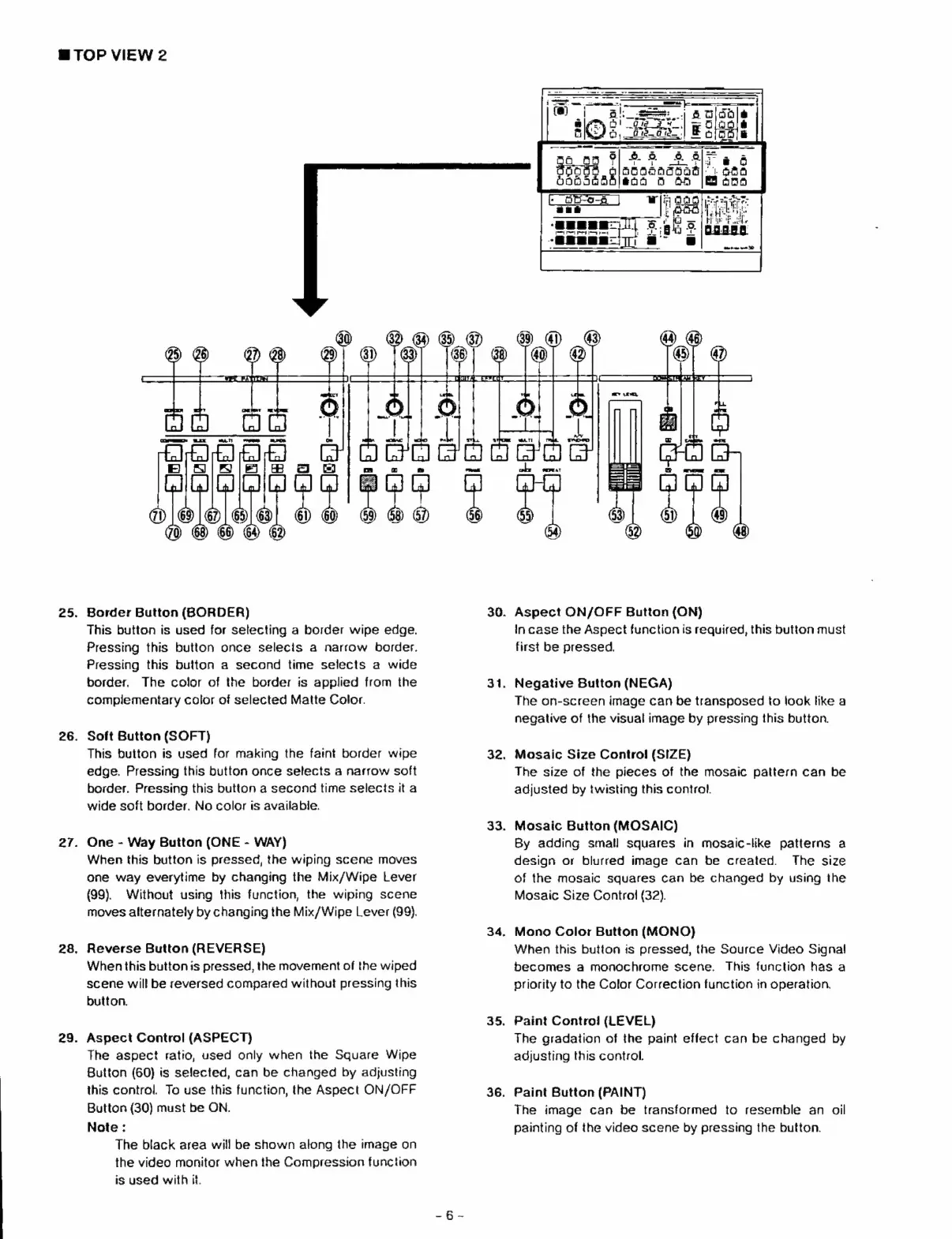
B
ТОР
VIEW
2
25.
26.
27.
28.
29.
Border
Button
(BORDER)
This
button
is
used
for
selecting
a
border
wipe
edge.
Pressing
this
button
once
selecis
a
narrow
border.
Pressing
this
button
a
second
time
selects
a
wide
border.
The
color
of
the
border
is
applied
from
the
complementary
color
of
selected
Matte
Color.
Soft
Button
(SOFT)
This
button
is
used
for
making
the
faint
border
wipe
edge.
Pressing
this
button
once
selects
a
narrow
soft
border.
Pressing
this
button
a
second
time
selects
it
a
wide
soft
border.
No
color
is
available.
One
-
Way
Button
(ONE
-
WAY)
When
this
button
is
pressed,
the
wiping
scene
moves
one
way
everytime
by
changing
the
Mix/Wipe
Lever
(99).
Without
using
this
function,
the
wiping
scene
moves
alternately
by
changing
the
Mix/Wipe
Lever
(99).
Reverse
Button
(REVERSE)
When
this
button
is
pressed,
the
movement
of
the
wiped
scene
will
be
reversed
compared
without
pressing
this
button.
Aspect
Control
(ASPECT)
The
aspect
ratio,
used
only
when
the
Square
Wipe
Button
(60)
is
selected,
can
be
changed
by
adjusting
this
control.
To
use
this
function,
the
Aspect
ON/OFF
Button
(30)
must
be
ON.
Note
:
The
black
area
will
be
shown
along
the
image
on
the
video
monitor
when
the
Compression
function
is
used
with
it.
30.
31.
32.
33.
34.
35.
36.
|
|
lm:
|
А
ү
а!
==
mM
el
SS
imum
Ye!
=
a
BD
HR
аб
-
Aspect
ON/OFF
Button
(ON)
incase
the
Aspect
function
is
required,
this
button
must
first
be
pressed.
Negative
Button
(NEGA)
The
on-screen
image
can
be
transposed
to
look
like
a
negative
of
the
visual
image
by
pressing
this
button.
Mosaic
Size
Control
(SIZE)
The
size
of
the
pieces
of
the
mosaic
pattern
can
be
adjusted
by
twisting
this
control.
Mosaic
Button
(MOSAIC)
By
adding
small
squares
in
mosaic-like
patterns
a
design
or
blurred
image
can
be
created.
The
size
of
the
mosaic
squares
can
be
changed
by
using
the
Mosaic
Size
Control
(32).
Mono
Color
Button
(МОМО)
When
this
button
is
pressed,
the
Source
Video
Signa!
becomes
a
monochrome
scene.
This
function
has
a
priority
to
the
Color
Correction
function
in
operation.
Paint
Control
(LEVEL)
The
gradation
of
the
paint
effect
can
be
changed
by
adjusting
this
control.
Paint
Button
(PAINT)
The
image
can
be
transformed
to
resemble
an
oil
painting
of
the
video
scene
by
pressing
the
button.