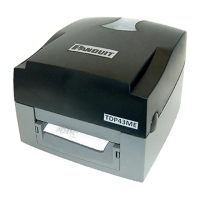
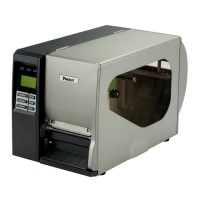
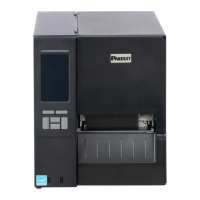
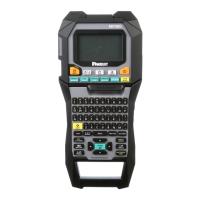
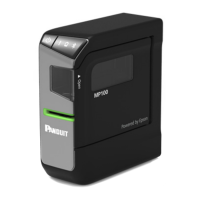
TDP43HET, TDP43HET/E,
TDP46HET,TDP46HET/E
B20733-02 Page 35 of 39 08-2022
5. Troubleshooting
Power Indicator Does
Not Illuminate
• The power cord is not
properly connected.
• The power switch is
off.
• Plug the power cord into the printer and
outlet.
• Switch the printer on.
• The printer carriage
is open.
• Please close the print carriage.
• Check if interface
cable is well
connected to the
interface connector.
• The port specified in
the Windows driver
is not correct.
• Re-connect cable to interface or change a
new cable.
• Select the correct printer port in the
driver.
• Clean the printhead.
• Printhead’s harness connector is not well
connected with printhead. Turn off the
printer and plug the connector again.
• Check your program to see if there is a
command PRINT at the end of the file
and there must be CRLF at the end of
each command line.
• Label or ribbon is not
loaded correctly.
• Used wrong type
paper or ribbon
• Follow the instructions in loading media
and ribbon.
• Ribbon and media are not compatible.
• Verify the ribbon-inked side.
• The print density setting is incorrect.
• Running out of
ribbon.
• The ribbon is
installed incorrectly.
• Supply a new ribbon roll.
• Please refer to the steps in the user’s
manual to reinstall the ribbon.
• Running out of label.
• The label is installed
incorrectly.
• Gap/black mark
sensor is not
calibrated
• Supply a new label roll.
• Please refer to the steps in the user’s
manual to reinstall the label roll.
• Calibrate the gap/black mark sensor.
• Gap/black mark
sensor is not set
properly
• Make sure label size
is set properly.
• Labels may be stuck
inside the printer
mechanism.
• Calibrate the media sensor.
• Set media size correctly.
• Remove the stuck label inside the printer
mechanism.
• Peel function is
enabled.
• If the peeler module is installed, please
remove the label.


 To Next Page