EasyManua.ls Logo

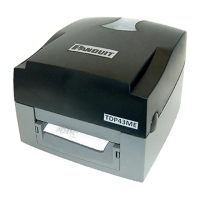
Panduit TDP43ME - User Manual

Panduit TDP43ME
75 pages
Print Icon
To Next Page IconTo Next Page
Loading...
TDP43ME
PA26305A01
Rev. 08 11-2022
© Panduit Corp. 2022
NOTE: In the interest of higher quality and value, Panduit products are
continually being improved and updated. Consequently, pictures may vary
from the enclosed product.
www.panduit.com
Region
Telephone
e-mail
USA & Canada
1-866-871-4571
GA-Techsupport@panduit.com
Latin America
1-708-532-1800
TechSupportLatAm@panduit.com
Europe/Middle East
+31-546-580-452
TechSupportEMEA@panduit.com
Asia Pacific
65-6305-7575
TechSupportAP@panduit.com
Japan
81-3-6863-6060
TechSupportAP@panduit.com

Other manuals for Panduit TDP43ME

Questions and Answers

  • T
    Todd SanchezAug 17, 2025
    Why is my Panduit TDP43ME printing only part of the contents?
    • C
      catherinewatsonAug 18, 2025
      If your Panduit Printer is only printing part of the contents, consider the following checks: * Verify if the label or ribbon is stuck on the Thermal Print Head. * Check the application software for any errors. * Examine the start position setting for mistakes. * Make sure the ribbon isn't wrinkled. * Inspect whether the ribbon supply shaft is causing friction with the platen roller. Contact your reseller if the platen roller needs replacement. * Confirm that the power supply is correct.
  • M
    Matthew LawrenceAug 20, 2025
    Why is my Panduit TDP43ME Printer printing nothing on the label?
    • A
      Alexandra WileyAug 20, 2025
      If your Panduit Printer starts printing but nothing appears on the label, check if the label is placed upside down or if it's unsuitable for the application. Also, ensure you've selected the correct printer driver and the correct label and print type.
  • M
    Matthew CoffeyAug 22, 2025
    What to do if my Panduit Printer isn’t printing the label completely?
    • R
      Rita BellAug 22, 2025
      If part of the label isn’t printing completely on your Panduit Printer, check if the Thermal Print Head is stained or dusted. You can also use the internal command “~T” to check if the Thermal Print Head can print completely. Finally, check the media quality.
  • N
    Nicholas HillAug 26, 2025
    Why is Panduit TDP43ME Printer printing blank labels?
    • D
      Deborah SullivanAug 26, 2025
      If your Panduit Printer starts printing but nothing appears on the label, consider the following: * Check that the label is not placed upside down and is suitable for the intended application. * Ensure that you have selected the correct printer driver. * Verify that you have selected the correct label and print type in your settings.
  • S
    Steven RamirezAug 28, 2025
    What to do if LED light turns red on Panduit Printer after printing stops?
    • P
      Patricia SanchezAug 28, 2025
      If the LED light on your Panduit Printer turns red after printing stops, there might be an issue. Here's what you can check: * Look for software setting or program command errors. * Replace the label or ribbon with a suitable one. * Make sure the label or ribbon hasn't run out and that the Ribbon Core isn't spinning freely on the Ribbon Mandrels. * See if the label is jammed or tangled. * Ensure the mechanism is closed correctly, with the Thermal Print Head positioned properly. * Verify that the sensor isn't blocked by paper or a label. The sensor is located to the right, centered in the printer.
  • T
    Tammy JohnsonAug 30, 2025
    What to do if my Panduit TDP43ME label is jammed or tangled when printing?
    • D
      Donald SchneiderAug 30, 2025
      If a label jams or tangles during printing with your Panduit Printer, clear the label jam. If the label is stuck on the Thermal Print Head, gently remove it using a soft cloth dampened with alcohol.
  • L
    Lisa RivasSep 2, 2025
    Why is my Panduit Printer producing an unclear printout?
    • D
      Dr. Kevin MirandaSep 2, 2025
      If your Panduit Printer is producing unclear printouts, check the print darkness setting and inspect the Thermal Print Head for glue or stains.
  • M
    Matthew MayoSep 4, 2025
    What to do if my Panduit Printer is skipping pages when printing?
    • T
      Tonya RodriguezSep 4, 2025
      If your Panduit Printer is skipping pages during printing, check for errors in the label height setting and ensure the sensor is not covered by dust.
  • A
    Angel QuinnSep 7, 2025
    What to do if my Panduit Printer printout is not in the desired position?
    • L
      laurenmartinezSep 7, 2025
      If the printout from your Panduit Printer is not in the desired position, check if the sensor is covered by paper or dust. Also, select the correct label, check the label setting in the label software, and ensure the label roll edge is aligned with the Label Width Guide.
  • J
    Julie MurphySep 9, 2025
    How to fix Panduit TDP43ME Printer when the LED does not light up?
    • R
      Ray SpearsSep 9, 2025
      If you power on your Panduit Printer and the LED does not light up, check the power connector.

Summary

Printer Safety Information

General Safety Instructions

Read and understand all instructions before operating or servicing.

Specific Hazard Warnings

Covers moving parts, electric shock, battery, and service safety.

Printer Overview

Printer Installation

PC Connection and USB Driver Setup

Connecting the printer and installing drivers for USB.

Ethernet Driver Installation

Steps to install drivers for Ethernet network connection.

Control Panel Operations

Maintenance and Troubleshooting

Troubleshooting Common Problems

Solutions for issues like no power, LED errors, or connectivity.

Driver Troubleshooting

Ethernet Installation (Windows 11)

Obtaining Printer IP Address

Changing Port Selection to IP Address

Ethernet Installation (Windows 10)

Obtaining Printer IP Address (Windows 10)

Changing Port Selection to IP Address (Windows 10)

Ethernet Installation (Windows 7)

Obtaining Printer IP Address (Windows 7)

Changing Port Selection to IP Address (Windows 7)

Warning Information

Panduit TDP43ME Specifications

General IconGeneral
ColorYes
Print technology-
Maximum resolution300 x 300 DPI
Maximum print height- mm
CertificationRoHS
Product colorBlack, Grey
Cables includedAC, USB
Weight and Dimensions IconWeight and Dimensions
Width226 mm
Height173 mm
Weight2720 g

Related product manuals