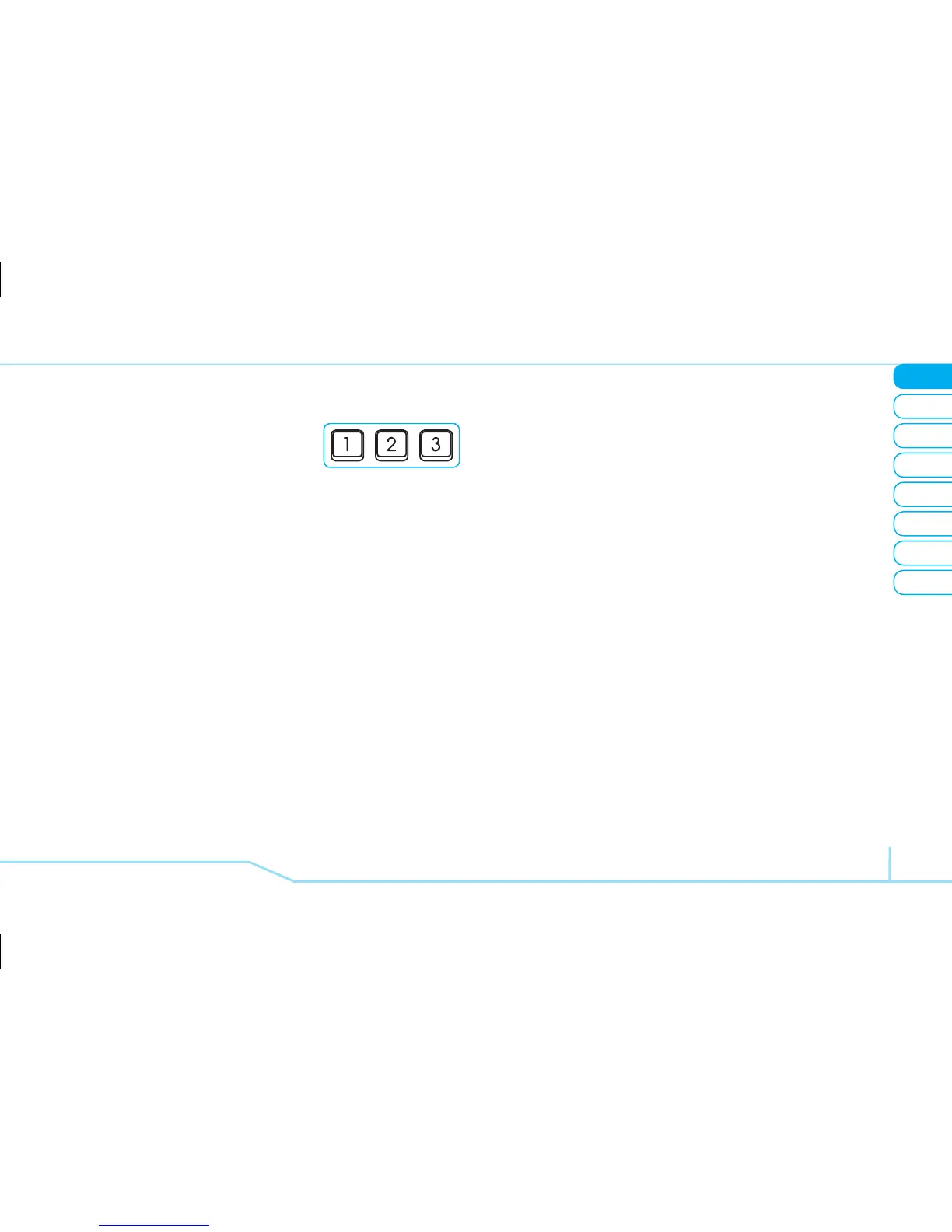
EZ quick call keys
Getting in touch with those you
call most is now as EZ as 1-2-3.
note:
The following direction is an example with
using
x
key. The usage of
y
and
z
key will
be same as the following.
To assign a contact
1. Press
x
.
2. Press Option
> Assign Contact.
3. Select a contact > Options >
@
.
To use call using one touch key
1. Press and hold
x
to call.
To send a message using one touch key
1. Press
x
.
2. Press Option
> Send Message.
Updating software
You can update your software without visiting your
nearest dealer.
To update the software
ADV
1. Press Menu > Settings > Software >
Software Update
.
2. Press Phone Information to check software
version of your phone.
3. After checking your software version, press
@
.
4. Press Check for Update
> Yes.
To view the version of software
ADV
1. Press Menu > Settings > Software >
Software Version
.



 To Next Page