Getting Started 14
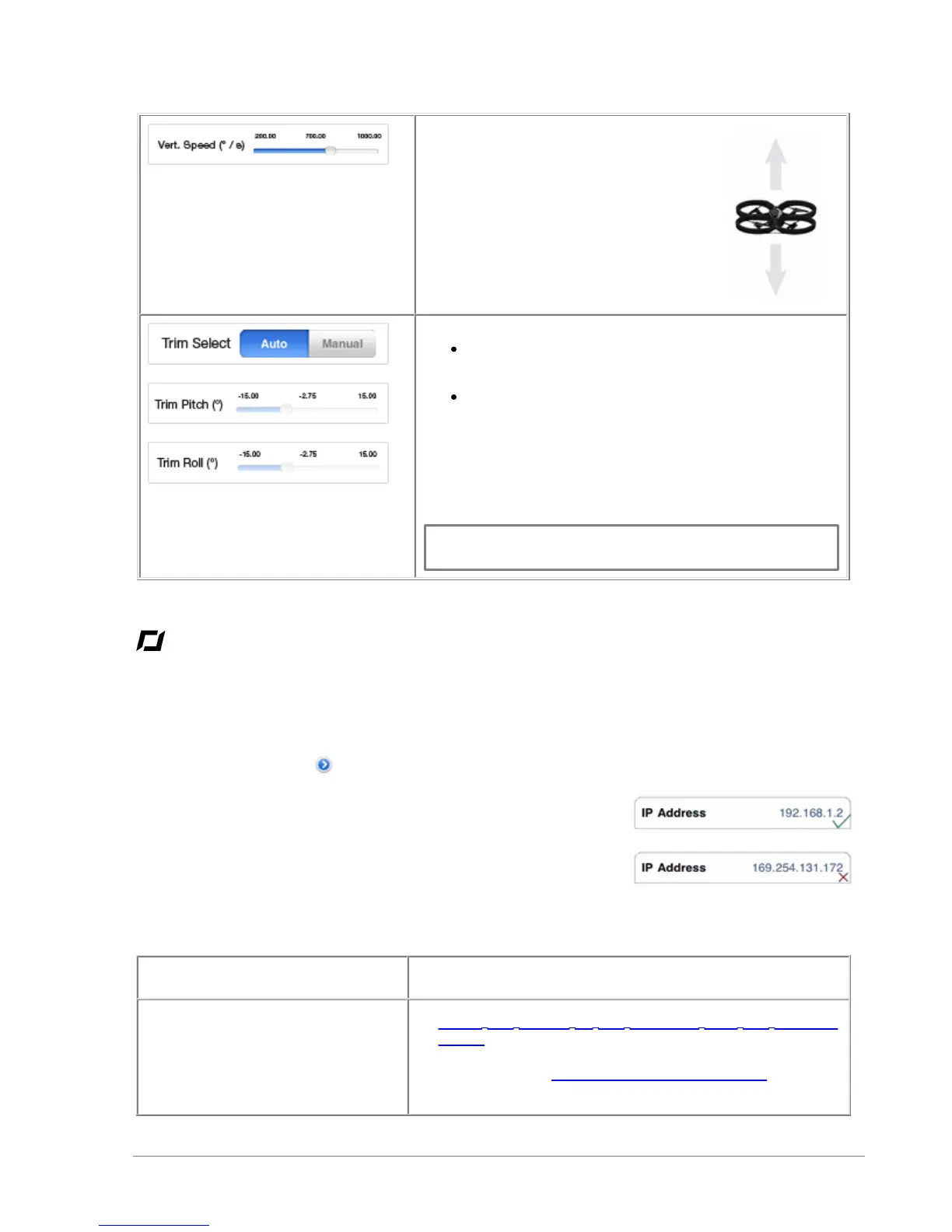
Define the vertical climb and descend
speed of the AR.Drone. Slide the cursor
to the right to increase this speed.
Adjust the neutral command position for the AR.Drone.
Select the Auto option for this setting to be set
automatically.
Select the Manual option to modify this setting
manually.
- the higher the Trim Pitch value, the higher
will be the neutral position for pitch.
- the higher the Trim Roll value, the higher will
be the neutral position for roll.
Note: This option is only intended for the experienced user.
We recommend that you leave this setting on Auto.
In the event of problems
Checking the IP address of the AR.Drone
Check the IP address of the AR.Drone after connection is established. To do this, select Settings > Wi-
Fi then click on the arrow to the right of the "AR.Drone" network row.
An IP address starting with 192.168.1.X should appear in the IP field.
If the IP address starts with 169, it will not be possible to establish a
connection between the iPhone and the AR.Drone.
This incorrect IP address may be due to several problems:
The AR.Drone is already in use
with another iPhone
1. Delete the pairing of the AR.Drone with the previous
iPhone.
2. On your iPhone, deactivate then reactivate WiFi.


 To Next Page