13
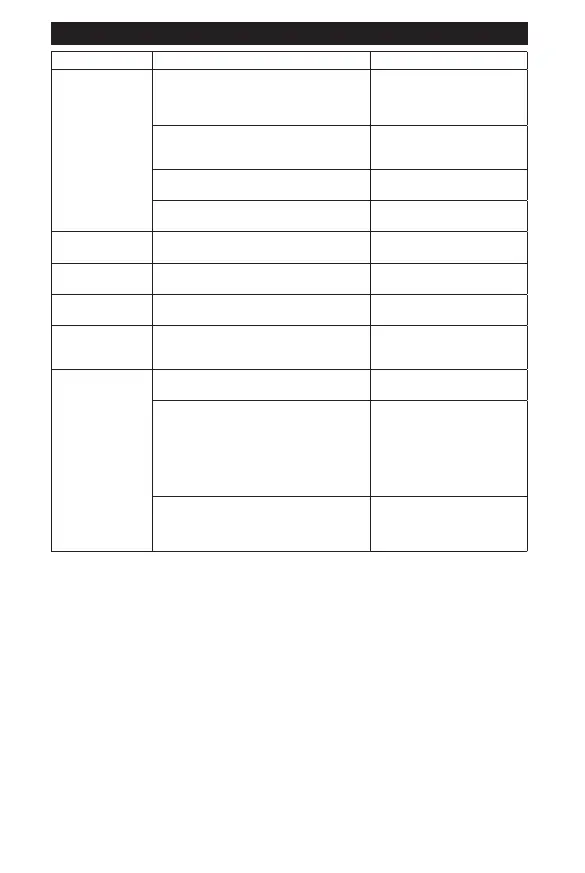
Problem Situation Action
Monitor is blank or
unclear
No power to Dash Cam Ensure that the charging cable
is connected correctly to the
micro USB port and the 12V or
24V DC power socket.
·É¾·Ã¿ÉÅŮ Turn on the Dash Cam by
pressing the Power ON/OFF
button.
Screen saver is on Press a button to deactivate
screen saver.
ËÊÅÄƭŮ¼»·ÊËÈ» Press a button to turn the Dash
Cam back on.
Blue screen or
locked screen
Dash Cam not functioning properly Using a paper clip, press the
Reset button.
Cannot access
Settings menu
Dash Cam is recording Press the Select button to stop
recording.
Cannot access
Mode menu
Dash Cam is recording Press the Select button to stop
recording.
Suction cup keeps
¼·Â¿ĽÅŮ
Improper installation Refer to the Installation
section on page 5 for proper
installation procedures.
Dash Cam is not
recording
User has stopped recording Press the Select button to start
recording.
Micro SD card is full ÆÊ¿ÅÄʸƓ»Â»Ê»ÉÅûŰ»ÉƔ
Refer to Operation on page 9
Êź»Â»Ê»Ű»ÉƔ
ÆÊ¿ÅÄʹƓ·Ì»Ű»ÉÊÅÏÅËÈ
computer. Refer to Operation
ÅÄÆ·½»ˀÊÅÉ·Ì»Ű»ÉÊÅÏÅËÈ
computer.
ÅÅÆÈ»¹ÅȺ¿Ä½¼»·ÊËÈ»¿ÉÅŮ Turn on loop recording feature.
Refer to Initial Setup on page
5 for instructions on how to set
up the loop recording feature.


 To Previous Page