PCAN-USB – User Manual
17
If you haven't installed PCAN-View together with the device
driver, you can start the program directly from the supplied
DVD. In the navigation program (Intro.exe) go to English
> Tools, and under PCAN-View for Windows select the link
Start.
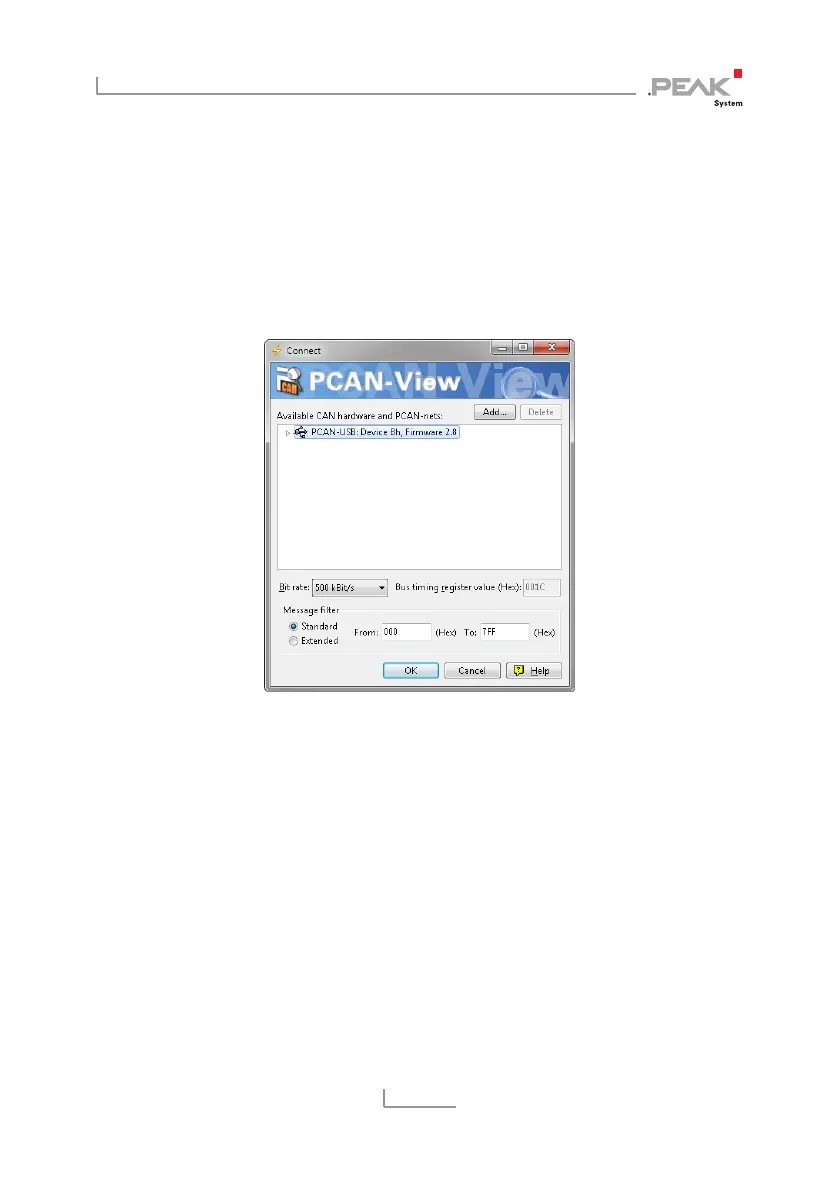
The dialog box for selecting the CAN hardware and for
setting the CAN parameters appears.
Figure 6: Selection of the CAN specific hardware and parameters
2. From the list Available CAN hardware select the CAN
channel to be used.
3. Select the bit rate that is used by all nodes on the CAN bus
from the dropdown list Bit rate.
4. Under Filter settings you can limit the range of CAN IDs to
be received, either for standard frames (11-bit IDs) or for
extended frames (29-bit IDs).
5. Finally confirm the settings in the dialog box with OK. The
main window of PCAN-View appears (see Figure 7).



 To Next Page