EasyManua.ls Logo

Penpower Technology WorldPenScan Go - User Manual

Penpower Technology WorldPenScan Go
13 pages
Print Icon
To Next Page IconTo Next Page
Loading...
1. Product Description
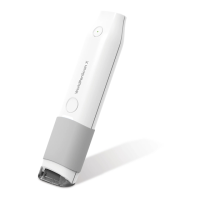
WorldPenScan Go is a portable
scanning translation pen that is easy
to carry.
This is an intelligent product that
integrates scanning, OCR (text
recognition), search, sentence
translation, voice translation and
reading aloud technologies.
Use it to scan the text of the book
to look up words and learn; after
connecting to the Internet, it allows
you to chat between Chinese and
English conversations.
◎ Package Contents
・Pen scanner x1
・Type-C USB cable x1
・Quick guide and warranty card x1
◎ Product Specifications
・Product Name: WorldPenScan Go
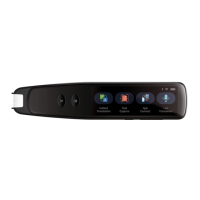
・Screen: 2.98 inches (resolution 800*268)
・Storage size: 8G
・Lens: 300 mega pixels
・Use environment: 0° C-45° C
・Product size: 146.59*34*13.87mm
・Speaker: 8 ohm 1 watt single speaker
・Transmission and charging cable: Type-C
・Battery: 1050mAh rechargeable polymer
battery
Question and Answer IconNeed help?

Do you have a question about the Penpower Technology WorldPenScan Go and is the answer not in the manual?

Overview

The WorldPenScan Go is a portable scanning translation pen designed for ease of use and portability. It integrates multiple advanced technologies to facilitate language learning and communication.

Function Description

The WorldPenScan Go is an intelligent device that combines several functionalities:

  • Scanning: It can scan text from books and other printed materials.
  • OCR (Text Recognition): It recognizes scanned text, converting it into a digital format.
  • Search: Users can look up words and learn their meanings directly from scanned text.
  • Sentence Translation: It offers real-time translation of sentences.
  • Voice Translation: The device supports voice translation, allowing for spoken communication between different languages.
  • Reading Aloud: It can read aloud scanned or translated text.
  • Live Translation: After connecting to a Wi-Fi network, users can engage in live translation, setting source and target languages and speaking into the device. Pressing and holding the A or B button initiates speaking, and upon release, the device translates and reads aloud.
  • Instant Translation: This feature allows users to scan sentences from books, and the translations will be displayed on the screen. Tapping the translated sentences will make the device speak them aloud.
  • Text Capture: Users can scan documents and create files. Scanned files can be edited (e.g., renaming) or deleted.
  • Recorder: The device includes a recording function, allowing users to create and save voice recordings.

When connected to the internet, the WorldPenScan Go enables real-time conversation translation between Chinese and English, making it a versatile tool for cross-cultural communication.

Important Technical Specifications

  • Product Name: WorldPenScan Go
  • Screen: 2.98 inches with a resolution of 800*268 pixels.
  • Storage Size: 8GB, providing ample space for scanned text, recordings, and other data.
  • Lens: 300 megapixels, ensuring clear and accurate text scanning.
  • Use Environment: Operates effectively within a temperature range of 0°C to 45°C.
  • Product Size: 146.59mm x 34mm x 13.87mm, highlighting its compact and portable design.
  • Speaker: Features an 8 ohm 1 watt single speaker for clear audio output during read-aloud functions and voice translations.
  • Transmission and Charging Cable: Uses a Type-C USB cable for both data transmission and charging.
  • Battery: Equipped with a 1050mAh rechargeable polymer battery, offering reliable power for extended use.

Usage Features

  • Power On/Off: Long press the On/Off button for approximately 3 seconds to power the device on or off.
  • WIFI Connection: To connect to Wi-Fi, navigate to "Settings," turn the "WiFi switch" ON, and select an available network. A Wi-Fi icon will appear in the top right corner upon successful connection. The device also supports mobile hotspot connections for outdoor use.
  • Dictionary Lookup: Tap the "Dictionary Lookup" icon to activate this feature. To scan, hold the pen with the alignment line centered on the text, gently press the pen tip until the light brightens, then drag the pen steadily to the right, lifting it at the end of the text. It's crucial to tilt the pen tip slightly to ensure contact with the paper surface for accurate scanning.
  • Advanced Settings: Swipe from the right side of the screen to the left to access a menu for advanced settings.
  • Audio Output: Tap the "Speaker" icon to have text spoken aloud.
  • Favorites: Tap the "Star" icon to add words or phrases to a favorites list for quick access and review.
  • Volume Adjustment: Use the "Volume +" and "Volume -" buttons to adjust the audio volume.
  • System Reset: A long press (at least 10 seconds) of the On/Off button will reset and reboot the system.
  • Software Update: Access "Settings," then "Software Update," and tap "Check for updates" to find new software versions. If an update is available, tap "Download Update." It is important to ensure the battery is fully charged before updating and to avoid using the pen during the update process to prevent damage.

Maintenance Features

  • USB Charging: When the system indicates a low battery, charge the pen promptly. A full charge takes 2-3 hours. Always use the specific USB Type-C cable with a DC5V---1A-3A adapter for charging. Using a non-specific USB Type-C cable may only allow charging and prevent file access.
  • Connect to Computer: Use the specific USB Type-C cable to connect the device to a computer. Once connected, the pen's volume will appear on the computer, allowing access to its files.
  • Safety Precautions:
    • Avoid exposing the product to direct sunlight or extreme environments with high temperatures or heat.
    • This product is not a toy and is not suitable for children under 4 years old to use alone. Children should use it under parental supervision.
    • Do not soak the product or its accessories in liquid.
    • Before using the charger, inspect it for any damage to wires, plugs, or shells. Discontinue use if damage is found until repairs are complete.
    • Only use the recommended power supply (5V-1A) that has obtained BSMI certification and meets standard requirements.
    • The built-in 1050mAh polymer battery is not user-removable or replaceable. If damaged, contact after-sales service.
    • The charger should be used under adult supervision.
    • The device has charging protection and cannot be used while charging.
  • Battery Replacement: Non-professionals are not permitted to replace the battery. Incorrect replacement poses a safety hazard. Only use the same or an equivalent type of battery for replacement. Do not expose the battery to overheating environments like direct sun or fire.

Troubleshooting

  • Boot failed: Charge the pen.
  • Computer can't detect the pen: Use the specific USB cable.
  • Won't read out after scanning: Turn off the mute function in the Dictionary Lookup.
  • No Live translation: Connect to a Wi-Fi network.
  • Touch screen doesn't respond: Long press the power button for 10 seconds to force shutdown and reboot.
  • No scan results: Scan with the correct pen holding posture.
  • Other issues: Contact customer service.

Warranty Information

The WorldPenScan Go comes with a 1-year warranty. Users are encouraged to register their product on www.penpower.net/reg.htm to ensure warranty service, which includes software updates and technical support. The warranty period begins on the purchase date and lasts for 12 months. Product warranty is limited to the origin of purchase, and users may incur a service fee for warranty requests in different countries. A copy of the official invoice is required as proof of purchase for warranty service.

Penpower Technology WorldPenScan Go Specifications

General IconGeneral
BrandPenpower Technology
ModelWorldPenScan Go
CategoryScanner
LanguageEnglish

Related product manuals