The Pericat PT01 is a versatile home projector designed for multimedia entertainment and screen mirroring. It offers a user-friendly experience with various connectivity options and intuitive controls, making it suitable for a range of applications from watching movies to sharing content from mobile devices.
Function Description
The Pericat PT01 functions primarily as a display device, projecting images and videos onto a screen or wall. It supports a wide array of multimedia formats, including video, audio, photo, and text files, which can be accessed via USB connection. The projector also features HDMI and AV inputs, allowing it to connect to various external devices such as laptops, gaming consoles, and TV sticks. A key feature of the PT01 is its screen mirroring capability, enabling users to wirelessly cast content from their iOS and Android devices. Additionally, it can connect to Bluetooth speakers for enhanced audio output.
Usage Features
- Quick Start: The projector is designed for easy setup. Users can quickly plug in the power cord, remove the lens cover, connect their device using the appropriate cables, and power on the projector. The intuitive interface allows for easy selection of input sources.
- Multimedia Playback:
- USB Connection: Users can insert a USB disk into the projector's USB port and navigate the homepage to select file categories like MOVIE, MUSIC, PHOTO, or TEXT. This allows for direct playback of stored media.
- Video Files: The projector supports a broad range of video formats, including AVI, MP4, MKV, FLV, MOV, RMVB, 3G2, MPG, VOB, SWF, H.264, TS, and WMV. Videos can be played in full-screen mode by selecting "MOVIE" and pressing OK.
- Audio Files: For audio playback, users can select "MUSIC" and press OK to play files in formats such as AAC, MP3, FLAC, OGG, APE, AMR, WAV, and MP2.
- Photo Files: Images in JPEG, BMP, and PNG formats can be viewed by selecting "PHOTO" and pressing OK.
- Document Files: The projector supports document files, accessible via the "Office Suite" option, allowing users to view content stored on their USB disk.
- HD Connection (HDMI): The PT01 features two HDMI ports (HDMI1 and HDMI2) for connecting high-definition devices.
- Windows Laptops: For Windows 7 or higher, users can press "Windows Logo + P" to choose from four display modes: "PC screen only," "Duplicate" (same content on both screens), "Extend" (splits display), and "Second screen only" (content only on projected screen).
- MacBooks: MacBooks can be connected using an Apple MFi-certified USB C to HDMI adapter or a Thunderbolt to HDMI adapter.
- AV Connection: An AV port is available for connecting devices using an AV cable, making it compatible with older multimedia equipment.
- Bluetooth Speaker Connection: The projector can connect wirelessly to Bluetooth speakers. Users can enable Bluetooth from the HOME menu, search for nearby speakers, and select their desired device to pair. The projector automatically attempts to reconnect to the last paired speaker upon power-on or Bluetooth activation.
- Screen Mirroring: This feature allows wireless display of content from mobile devices.
- iOS System:
- Streaming with Cellular Data: Users select "Screen Mirroring" then "iOS Screen" from the HOME menu. They then connect their iOS device's WLAN to the projector's network (e.g., "PT01-XXXX" with password "12345678") and select the projector from the iOS device's "Screen Mirroring" options.
- Streaming with Router's WiFi: After selecting "iOS Screen," users connect the projector to their home Wi-Fi network. Then, they connect their iOS device to the same Wi-Fi network and select the projector from the iOS device's "Screen Mirroring" options.
- Lightning to USB Cable for iPhone: For a wired connection, an official Apple Lightning to USB Cable can be used. After plugging in, users must tap "Trust" on their iPhone.
- Android System: Users need to ensure their Android phone has "Screen Casting" or "Cast" functionality. They enable WLAN on their phone, then activate "Screen Casting"/"Cast" in the phone's settings and select the projector (e.g., "PT01-XXXX") to connect. Both router Wi-Fi and Android phone data can be used for this connection.
- Image Adjustment: The projector includes focus and keystone correction features. The keystone adjustment helps make the projection screen rectangular, while the focus wheel clarifies the image, particularly the center area.
- Picture Rotation: Users can flip the projection picture (upside down) by navigating to Menu > Setting > Rotate, accommodating various mounting orientations.
Maintenance Features
- Lens Care: To maintain optimal image quality, the lens should be cleaned using a lens cleaner or special lens wipe paper.
- Ventilation: Proper ventilation is crucial for the projector's internal components. Users should ensure the projector is not obstructed by materials like carpets or woolen knitwear during operation.
- Environmental Considerations: The projector should not be placed in hot or humid environments to prevent damage to internal components.
- Professional Service: Users are advised not to disassemble the machine themselves. Professional warranty services are offered for any issues.
- Troubleshooting Guidance: The manual provides solutions for common issues, such as:
- No Sound with Streaming Services: Due to copyright protection, some streaming services (Netflix, Amazon Prime, Disney, Hulu) do not support screen mirroring audio. HDMI connections are recommended as a workaround: use an Apple Lightning Digital AV Adapter for iPhones, an HDMI cable for PCs/laptops, or a TV stick (Roku, Chromecast) for streaming.
- Blurry Image: Users should adjust the projection distance (1.5m-3m recommended), correct the keystone for a rectangular image, and then slowly adjust the focus wheel to clarify the center.
- Insufficient Brightness: All home projectors perform best in dark environments.
- Screen Mirroring Issues: For smooth screen mirroring, a strong Wi-Fi signal is essential. If connecting to a new Wi-Fi, the password must be entered. If the phone doesn't recognize the projector, resetting the projector is advised.

 Need help?
 General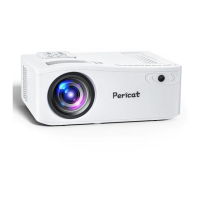

 To Next Page