5
GETTING
STARTED
4
1. Setting up your Petcube Bites 2 Lite on iOS device
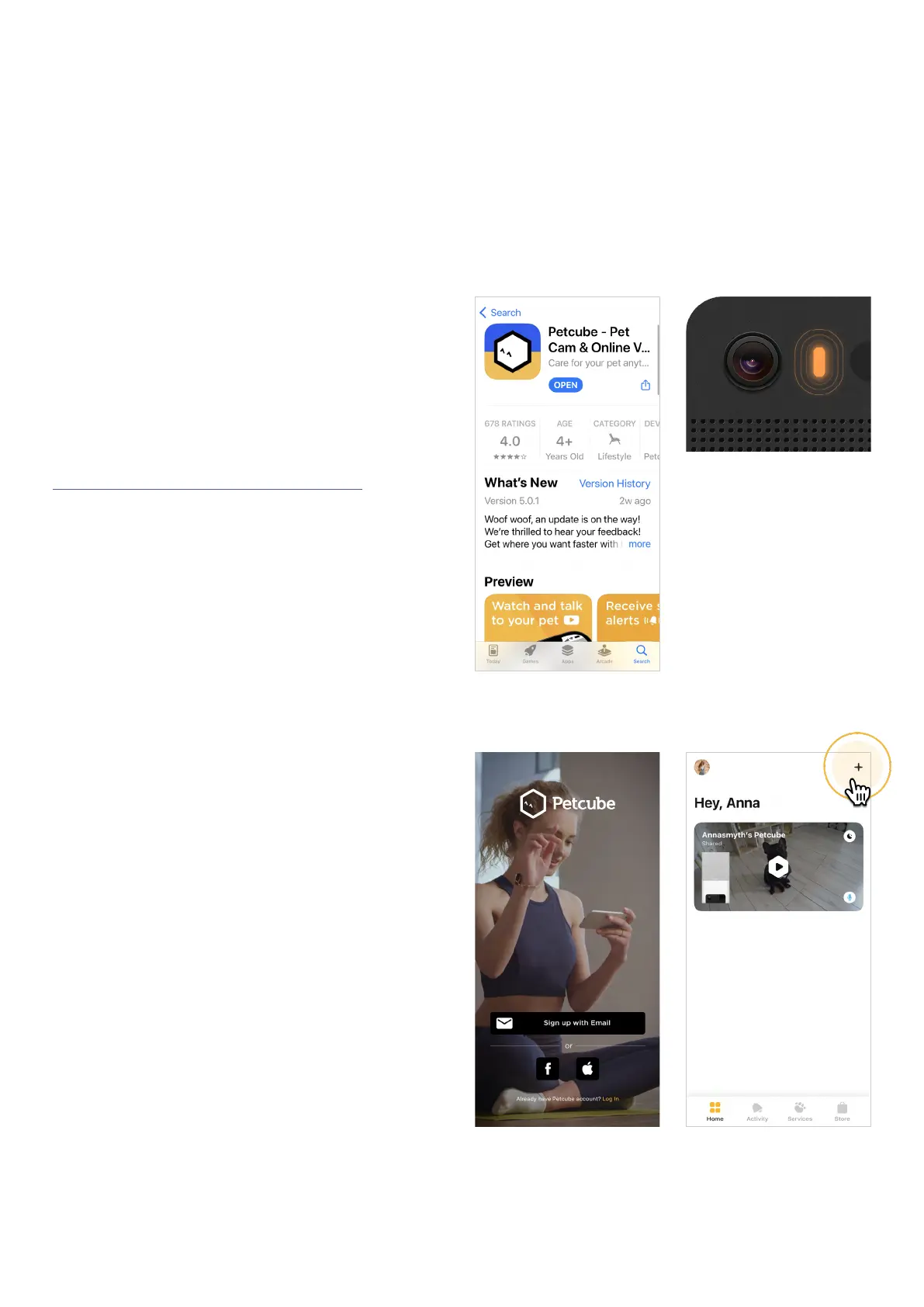
Fig. 4.1.1
Fig. 4.1.3 Fig. 4.1.4
Step 1. To set up your Petcube,
download Petcube application (fig 4.1.1)
to your iOS device. The Petcube app
requires iOS 14 or greater and can
be downloaded in the App Store
or at the link below:
www.petcu.be/ios-app-download
Step 2. Connect your Petcube
to a power source and wait
up to a minute until the LED light
starts blinking yellow or blue (fig 4.1.2).
Step 3. Open the Petcube app on your
iOS device, and log in or sign up for
a Petcube account (fig 4.1.3).
Step 4. Tap the plus icon in the right
upper corner of the screen, and choose
‘Add a new device’ option. (fig 4.1.4)
and pick Petcube Bites 2 Lite from
the list of options (fig 4.1.5).
During the setup, Petcube camera will
automatically detect the Wi-Fi network
your phone is currently connected to,
so it’s a good idea to make sure you’re
connected to the same network you
want to hook up the camera to, and
have the Wi-Fi password handy
as you’ll be asked to enter it shortly.
Make sure it is a 2.4 ghz WI-FI network.
Fig. 4.1.2


 To Next Page