Chapter 4: On-Camera Controls & On-Screen Displays | 25
EDIT THE CINE
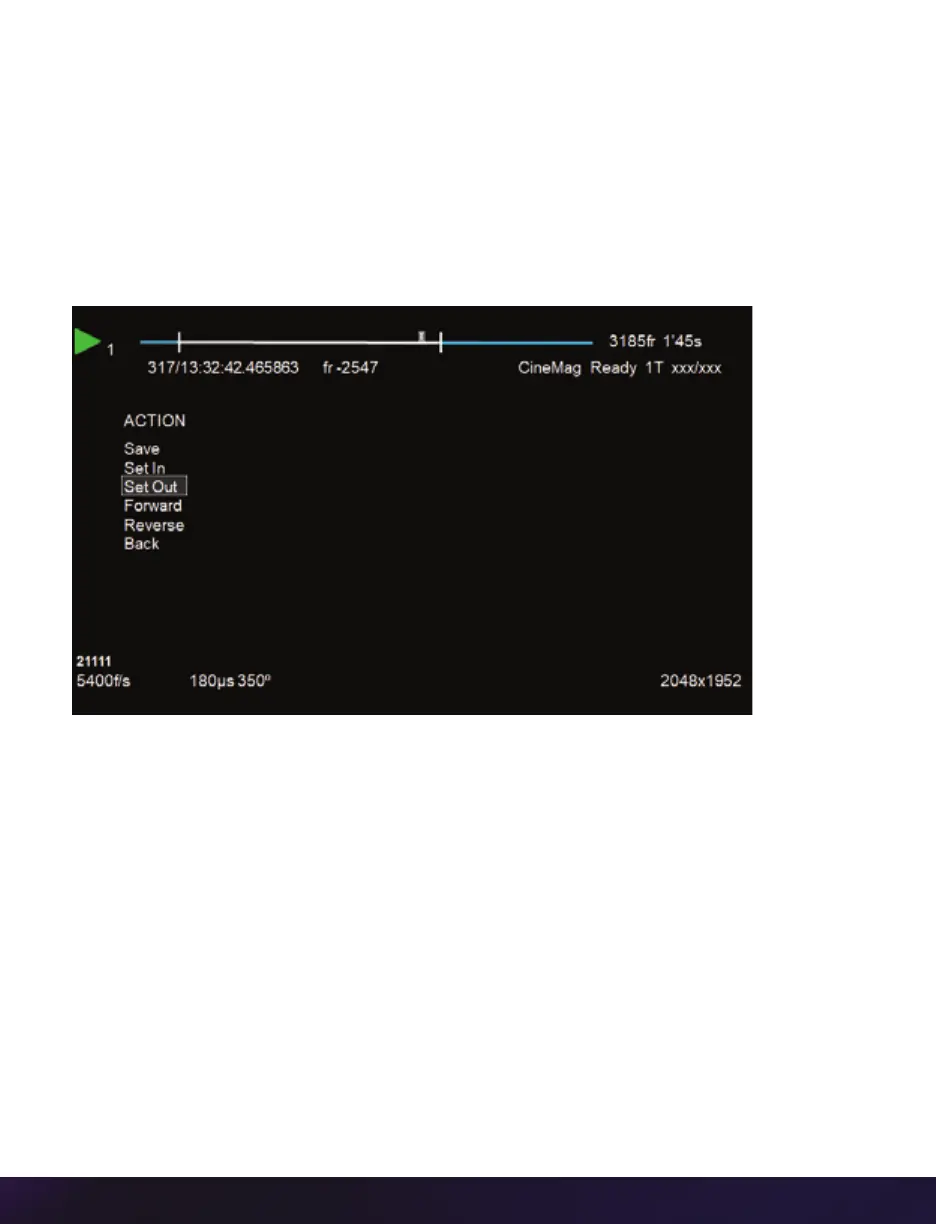
Tap the menu knob to further edit and save the Cine to an installed CineMag IV / V. An
action menu appears with more options.
Use the scroll knob to go through the Cine.
Set the in-point by selecting ‘Set In.’ This will be the first frame of the Cine saved to the
installed Phantom CineMag. Scroll to the last frame you want to save and select ‘Set Out.’
SAVE THE CINE
Select ‘Save’ to save the Cine to the Phantom CineMag. The OSD will report that the
Phantom CineMag is saving and providing a countdown. Do not interrupt this saving
process.
Once saved, the RAM can be cleared and the camera can go back into ‘Capture’ mode. The
fastest way to do this is to hold down the ‘Trigger’ button for four seconds.



 To Next Page